

Auto Tagging & Tags
Overview
Section titled “Overview”Conducting cybersecurity investigations and digital forensics at scale requires a well-structured classification of your assets.
Understanding the number and types of assets, such as web servers, domain controllers, or application servers, significantly reduces response time. This enables you to focus on specific groups of devices within your network, ultimately enhancing situational awareness during an investigation.
How it works
Section titled “How it works”Auto Tagging is a feature of AIR that lets you automatically tag assets based on conditions such as:
- Existence of a file or directory
- Existence of a running process
- Hostnames, IP addresses, and Subnets
- Custom osquery conditions
Additionally, you can seamlessly combine conditions using AND/OR logic alongside environment variables for greater flexibility.
This feature can be enabled or disabled from the Auto Asset Tagging section in Settings>Features>Auto Asset Tagging.
Once enabled, any newly added asset will automatically be assigned a task to query the Auto Tagging conditions. Based on the results, AIR will apply the appropriate Tag Name to the asset.
If you need to re-run tagging on all assets, you can do so by clicking the “Run Now” button on the Auto Tagging page. Alternatively, you can run the tagging process for individual assets from the Asset page or select multiple assets and execute the task using the Bulk Action feature.
Auto Tagging can be saved in AIR Libraries, specifically for individual organizations or universally across all organizations. This capability enables users to create and apply incident-specific Auto Tags selectively, thereby avoiding unnecessary use or exposure of a rule outside the intended organizational context.
There are a number of out-of-the-box supported Auto Tags such as those listed below, but as we now know, you can also create custom tags whenever you need them:
- Apache
- Redis
- Mysql
- Rabbitmq
- Docker
- Kubernetes
- Domain Controller
- IIS Web Server
- Web Server
- Mail Server
- MSSQL Server
When we examine the Auto Tag conditions set for tagging an Apache Server, we can see that the AIR Responder will evaluate five conditions, all of which are independent of each other, as the OR switch is active. So, if any one of these conditions exists, the Apache Tag will be applied to the asset:
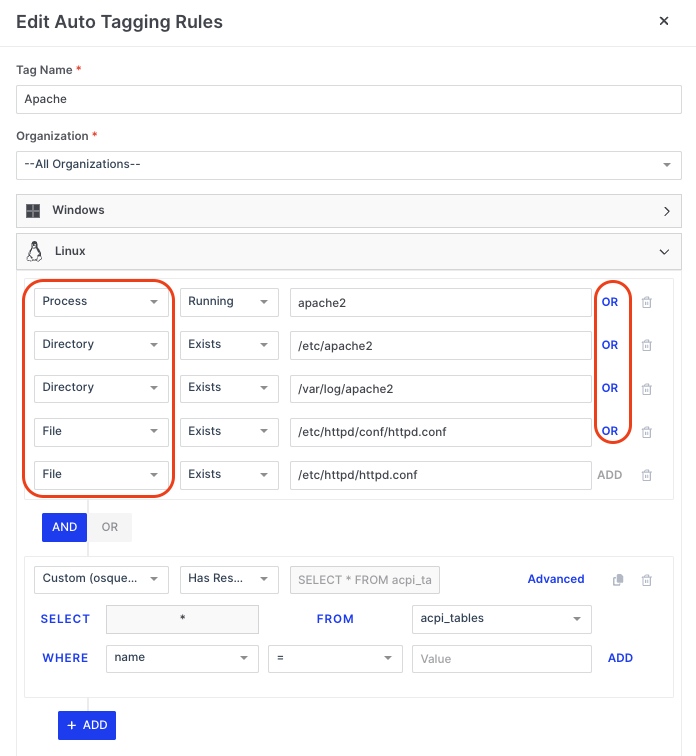
Auto Tagging & Tags: Conditions
It is possible for a user to create, edit, and delete the parameters shown below, but only if they have permission to do so:
| Parameter | Matching Criteria | Value |
|---|---|---|
| Process | Running / Not Running | Process name or wildcard |
| File | Exists / Not Exists | File name or wildcard |
| Directory | Exists / Not Exists | Directory name or wildcard |
| Hostname | Is / Contains / Start With / End With | Hostname or wildcard |
| IP Address | Is / Contains / Start With / End With | IP Address or wildcard |
| Subnet | Is / Contains / Start With / End With | Subnet or wildcard |
| osquery | osquery format supported | osquery format supported |
AIR has very granular permission control over Users and Roles, and within Roles, there are currently over 114 individually configurable privileges. Six of these allow Global Administrators to determine what users can do within the Auto Asset Tagging feature:
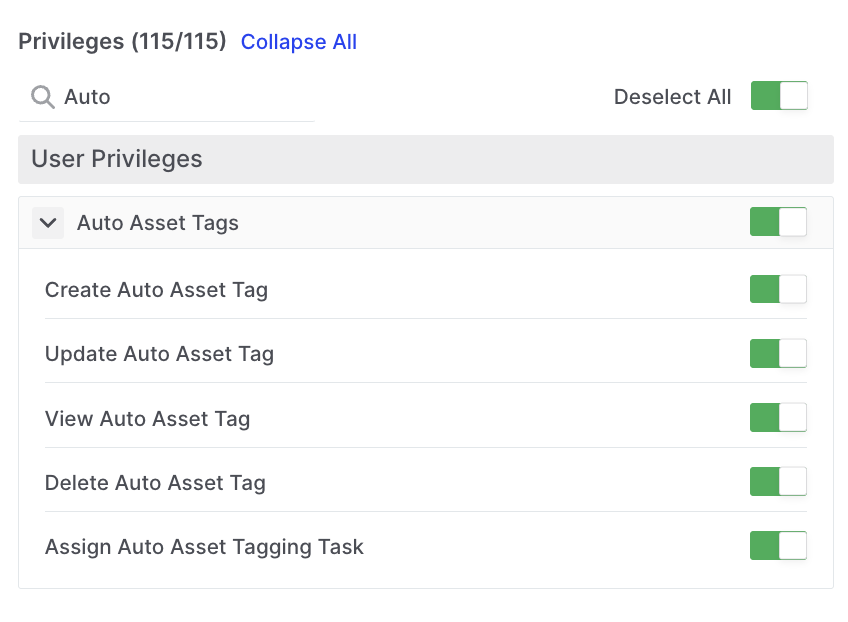
Auto Tagging & Tags: User Privileges
Any Auto Tags used in a Tasking Assignment are displayed under the Information tab in the Task Details window. In the example below, we can see that the Tagging Rule for Domain Controller has been run along with 17 others that are related by clicking on the ‘+17’ link:
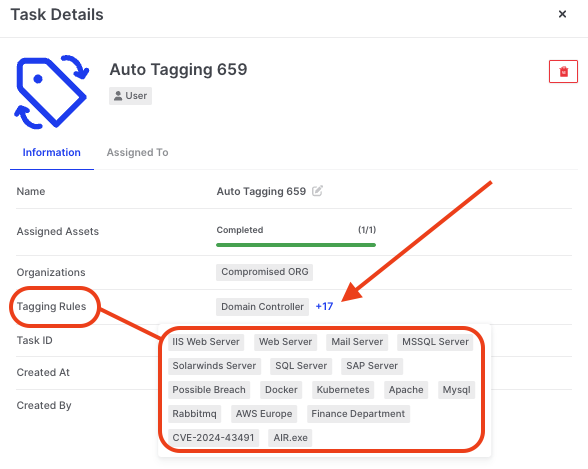
Auto Tagging & Tags: AAT rules run in a task shown in Task Details