

Using CLI on Console
Overview
Section titled “Overview”AIR CLI is a command-line utility that enables system administrators to manage and troubleshoot the AIR Console. It provides several operations such as restoring backups, managing users, adjusting security settings, and toggling system features. The tool is executed inside the container where the AIR application runs.
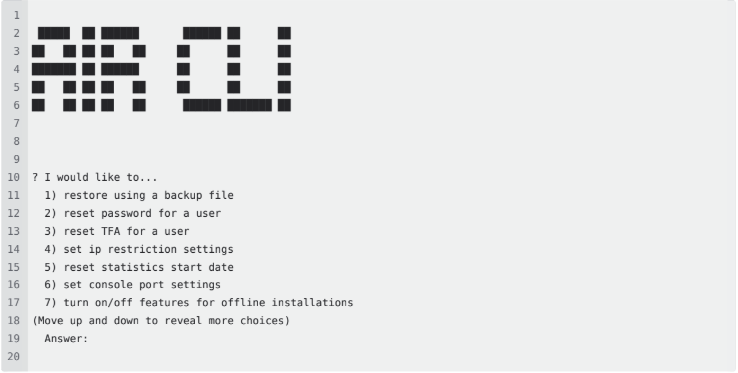
Using CLI on Console: The UI
How to Access AIR CLI
Section titled “How to Access AIR CLI”To open the AIR CLI, execute the following command on the AIR Console host machine:
sudo docker exec -ti binalyze-air-app-1 /air-cliThis will launch an interactive command-line interface (CLI) where you can select from available operations using a menu.
1. Restore Using a Backup File
Section titled “1. Restore Using a Backup File”This operation allows you to restore the entire AIR Console system from a backup file. It can be useful in disaster recovery scenarios or when migrating between environments.
Before using this option, you must copy the backup file into the container using the following command (replace {{BACKUP_FILE_PATH}} with the actual file path):
docker cp {{BACKUP_FILE_PATH}} binalyze-air_app_1:/air.backupOnce the file is copied, you can select this option in the CLI and follow the prompts.
Example input/output:
1 ? I would like to... restore using a backup file2 ? Please enter the path of file (Just press "Enter" to use the default) /air-backup.abf3 ? Please provide the MongoDB URI (Just press "Enter" to use the default) mongodb://air.mongodb.server/airdb
4 ? Please provide the PostgreSQL URI (Just press "Enter" to use the default) postgresql://air-data:#DBPASSWORD#@air.data-master.server:5432/airdb
5 ? Please provide the backed up MongoDB name (Just press "Enter" to use the default) airdb6 ? Please provide the MongoDB name to restore (Just press "Enter" to use the default) airdb7 ? This operation will drop your current database and restore the provided backup. Are you sure to continue?Yes89 (...)1011 Restore operation started.12 .env file restored.13 Data directory (data.zip) restore started.14 Data directory restored. Path: /binalyze-air1516 postgresql.dump extraction started.17 postgresql.dump extraction completed.18 PostgreSQL restore started.1920 (...)2122 2025-04-17T18:42:59.626+0000 3375 document(s) restored successfully. 0 document(s) failed to restore.23 MongoDB restore completed.24 Restore operation completed!
You can access the article with details about this operation here: Restore AIR Backup using the CLI | Knowledge Base
2. Reset Local User Password
Section titled “2. Reset Local User Password”This option allows you to reset the password of a local user account. The new password is temporary, and the user will be required to change it upon their next login.
Use this as a recovery fallback for when no administrator can sign in to the Console. When the Console is reachable, reset passwords from Settings > User Management > Users, which issues a single-use reset link instead of a temporary password.
Example input/output:
1 ? I would like to... reset password for a user2 ? Please provide a username binalyze3 ? Please provide a password *********4 ? Please provide the PostgreSQL URI (Just press "Enter" to use the default) postgresql://air-data:#DBPASSWORD#@air.data-master.server:5432/airdb5 Password for user 'binalyze' updated.6 Password reset operation completed!3. Reset Local User TFA
Section titled “3. Reset Local User TFA”This option resets two-factor authentication (TFA) for a specified user. It is useful if the user loses access to their authenticator device and cannot log in.
1 ? I would like to... reset TFA for a user2 ? Please provide a username binalyze3 ? Please provide the PostgreSQL URI (Just press "Enter" to use the default) postgresql://air-data:#DBPASSWORD#@air.data-master.server:5432/airdb4 TFA reset operation completed!4. Enable/Disable IP Restriction Settings
Section titled “4. Enable/Disable IP Restriction Settings”You can use this option to enable or disable IP restriction for accessing the console. When enabled, only allowed IP addresses can connect to the AIR Console interface.
Example input/output:
1 ? I would like to... set ip restriction settings2 ? What would you like to do? Disable3 ? Please provide the PostgreSQL URI (Just press "Enter" to use the default) postgresql://air-data:#DBPASSWORD#@air.data-master.server:5432/airdb4 IP restriction settings is disabled.5 Set IP Restriction Successfully completed!5. Reset Statistics Start Date
Section titled “5. Reset Statistics Start Date”This option allows you to reset the start date used for the Activity Dashboard. The date will be set to the time you run this command.
Example input/output:
1 ? I would like to... reset statistics start date2 ? Please provide the PostgreSQL URI (Just press "Enter" to use the default) postgresql://air-data:#DBPASSWORD#@air.data-master.server:5432/airdb3 Statistics Start Date is 2025-04-17T18:48:54.688Z.4 Statistics Start Date Reset Successfully completed!6. Enable/Disable Console Port Settings
Section titled “6. Enable/Disable Console Port Settings”This option allows you to enable or disable the UI access port 8443 settings.
Example input/output
1 ? I would like to... set console port settings2 ? What would you like to do? Disable
3 ? Please provide the PostgreSQL URI (Just press "Enter" to use the default) postgresql://airdata:#DBPASSWORD#@air.data-master.server:5432/airdb4 Console port settings is disabled.
5 Please restart the app for the settings to take effect.
6 Set Console Port Successfully completed!
7. Turn On/Off Features
Section titled “7. Turn On/Off Features”This option allows you to toggle features. You will be presented with a list of available features and can enable/disable them individually.
Available feature flags include:
- investigation-hub-data-access
- investigation-findings-object-columns
- cloud-forensics
- investigation-event-records-details-columns
- purge-without-uninstall
- skip-2fa-for-api-users
- user-management-via-api
- userflow
- auth-management-via-api
- isolation-allowed-list
- cloud-forensics-trial
- relay-server
- investigation-hub-generate-report
- linux-isolation
- sample-feature
- disk-image-asset-type
- frank-ai
- consolidated-report
- locard
- integra-ui
- activity-overview
- sentry-monitoring
- backward-compatibility
- investigation-hub-import-evidence
Example input/output:
1 ? I would like to... turn on/off features for offline installations2 ? Select a feature to turn on/off (Use arrow keys)3 ❯ (...)4 ? Select a feature to turn on/off sample-feature5 ? What would you like to do? Disable6 ? Please provide the PostgreSQL URI (Just press "Enter" to use the default) postgresql://air-data:#DBPASSWORD#@air.data-master.server:5432/airdb7 Feature flags updated.8 Turn on/off feature flag completed!8. Update MITRE Rules
Section titled “8. Update MITRE Rules”This operation updates the MITRE ATT&CK ruleset used by the AIR Console from a package file, without the Console downloading anything itself.
By default the Console keeps the ruleset current by fetching it from https://cdn.binalyze.com (see What external URLs are used?). Use this operation when the Console has no internet access or that domain is blocked by your firewall. The ruleset is independent of the AIR version, so you do not need to upgrade AIR to receive a newer MITRE ATT&CK ruleset.
Prerequisites
- SSH access to the AIR Console host with permission to run
dockercommands. - Any computer with internet access, to download the package.
Step 1 — Download the package
On a computer with internet access, download the latest ruleset package and transfer it to the Console host (for example with scp or removable media):
Step 2 — Copy the package into the container
On the Console host, run the following command from the directory that contains the downloaded file:
sudo docker cp mitre.zip binalyze-air-app-1:/mitre.zipStep 3 — Run the update in the CLI
Open the CLI and select update mitre rules. Press Enter to accept the default file path (/mitre.zip) and the default PostgreSQL URI.
sudo docker exec -ti binalyze-air-app-1 /air-cliExample input/output:
1 ? I would like to... update mitre rules2 ? Please enter the path of file (Just press "Enter" to use the default) /mitre.zip3 ? Please provide the PostgreSQL URI (Just press "Enter" to use the default) postgresql://air-data:#DBPASSWORD#@air.data-master.server:5432/airdb45 Current Mitre version: 9.1.36 New Mitre version: 9.1.47 Restart the AIR app container to apply the new ruleset.8 Update Mitre rules completed!The CLI reads the version from the package, compares it with the installed version, stores the new ruleset, and updates the Console settings. The package must be newer than the installed version; the CLI rejects a package with the same or an older version.
Step 4 — Restart the app container
The CLI does not restart the container for you. The new ruleset is loaded only after the app container restarts. Exit the CLI and run:
cd /opt/binalyze-airsudo docker compose restart appThe Console is unavailable for a short time while the container restarts. Running tasks on assets are not affected. See Installation Guide for the recommended way to restart AIR containers.
Step 5 — Verify
Sign in to the Console and open Settings > General. The MITRE ATT&CK Analyzer version must show the new version (see General). The ruleset changes for each release are listed in the MITRE ATT&CK Analyzer changelog.
9. Change Users’ Organization
Section titled “9. Change Users’ Organization”This command enables you to transfer one or more users to a different organization by specifying their email addresses and the new organization ID.
Example input/output:
1 ? I would like to... change users organization2 ? Please provide a email(s), for multiple please use comma seperated emails [email protected]3 ? Please provide a organizationId 04 ? Please provide the PostgreSQL URI (Just press "Enter" to use the default) postgresql://air-data:#DBPASSWORD#@air.data-master.server:5432/airdb5 #1 Users will be updated6 List: [email protected]7 Update in progress....8 #1 Users were updated:9 Update progress done!10 Change user organizations operation completed!