

How do I update Responders on assets?
You can keep AIR Responders up to date in two ways:
- Manually — Use Update now on the asset’s Version update card, or assign an Update Responder Version task to one or more assets (run now or schedule for later).
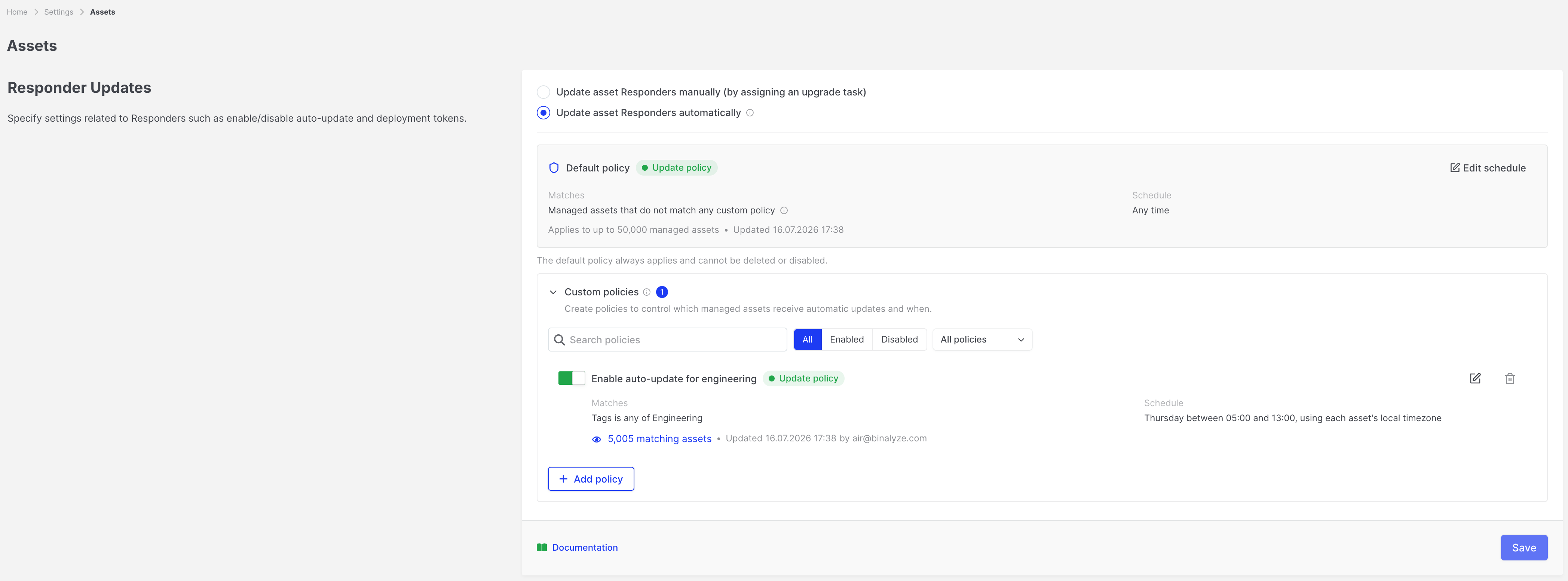
- Automatically — Enable Automatic Updates and configure the Default policy and optional custom policies under Settings → Assets → Responder Updates.
By default, updates are set to manual. Automatic Updates only run when that mode is enabled and saved, and when each asset is eligible.
For the full Automatic Updates model (Default policy, custom update and exclusion policies, manual exclusions, and precedence), see Responder Updates.
Automatic Responder updates (summary)
Section titled “Automatic Responder updates (summary)”- Open Settings → Assets → Responder Updates.
- Select Update asset Responders automatically.
- Review the Default policy schedule and any custom policies.
- Confirm and Save.
When Automatic Updates are enabled, managed assets update according to your policies when they check in and are eligible. Enabling Automatic Updates removes outstanding scheduled or assigned manual Responder update tasks.
Manual Responder updates
Section titled “Manual Responder updates”Use Manual Updates (or assign a task even when Automatic Updates are on) when you want to update specific assets yourself.
Before you start
Section titled “Before you start”- You need permission to assign Responder version update tasks.
- Only assets that require a Responder update can be selected in the update drawer.
- If an asset is manually excluded from updates, include it in updates again before you expect an assigned update task to run on that asset.
Update a single asset
Section titled “Update a single asset”The fastest path for one asset is Update now on the Version update card:
- Open the asset detail page.
- Expand Version update.
- Choose Update now (shown when a manual update is allowed).
- Confirm if AIR warns that running tasks would be stopped.
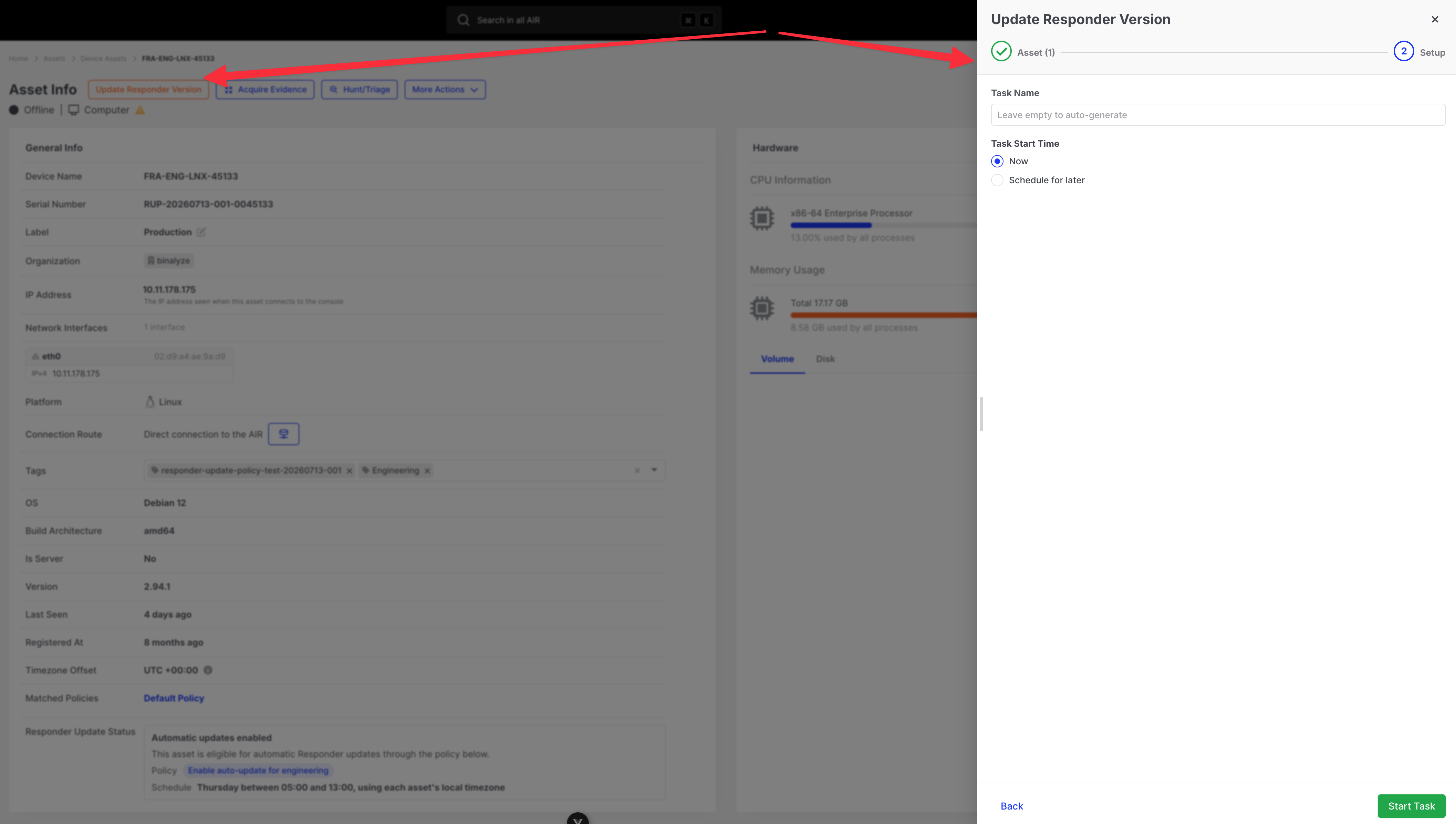
To schedule the update, or to use the full task drawer:
- Open the asset detail page.
- Choose Update Responder Version (from the update actions, or from Responder Update Status → Assign an update task manually).
- The Update Responder Version drawer opens.
- On Setup:
- Optionally enter a task name (leave empty to auto-generate).
- Choose Now or Schedule for later.
- If scheduling, choose the timezone (asset timezone or a selected timezone) and the start time.
- Start / confirm the task.
Update multiple assets
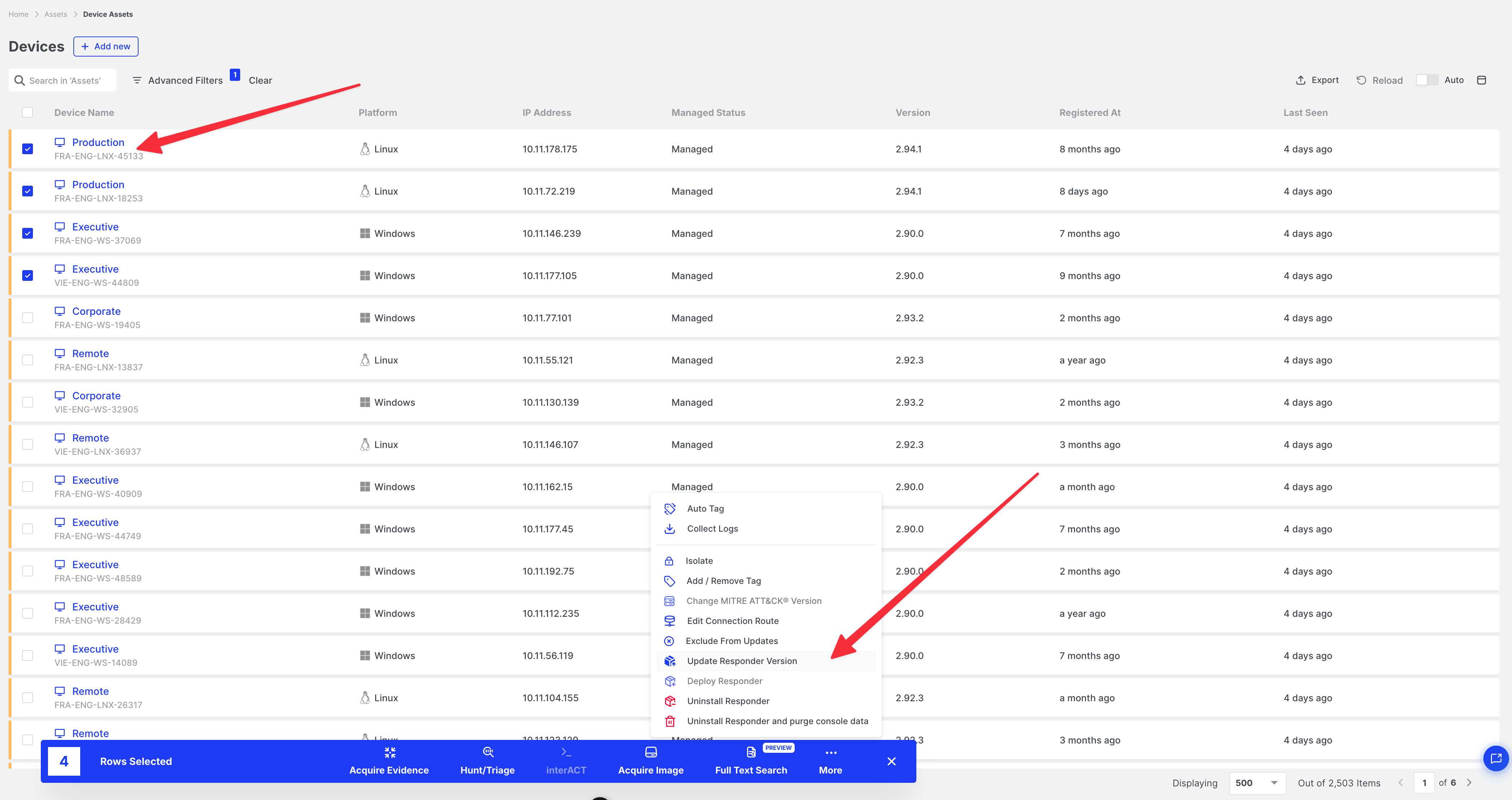
Section titled “Update multiple assets”- In the assets list, select the assets (or use filters and bulk selection).
- Open the bulk actions menu and choose Update Responder Version.
- In the drawer, confirm the asset selection step if shown, then complete Setup (Now or Schedule for later) as above.
- Confirm if prompted for a large selection.
You can also start Update Responder Version from group or tag actions where that action is available.
Schedule for later (drawer options)
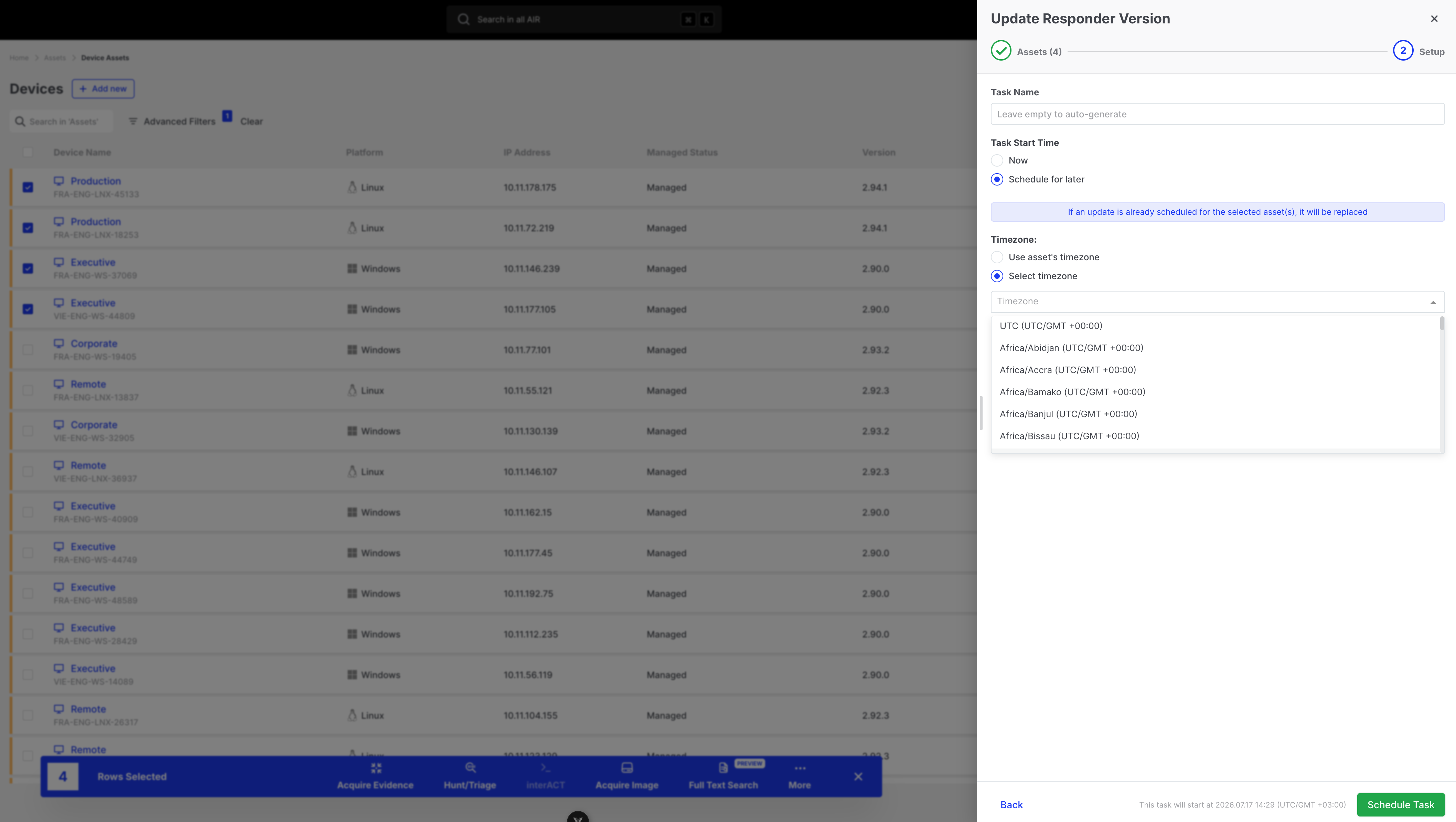
Section titled “Schedule for later (drawer options)”When you select Schedule for later in the Update Responder Version drawer:
- Choose Use asset’s timezone or Select timezone.
- Set the start time.
- Review the warning that an existing scheduled update for the selected asset(s) will be replaced.
Already up to date
Section titled “Already up to date”If an asset is already running the Console’s current Responder version:
- The Version update card shows Up to date.
- It does not appear as selectable for a new update task in the drawer.
- Automatic Updates do not issue another version update for that asset.
When the asset is behind the target version, the card uses lifecycle labels such as Update required (mandatory / compatibility) or Update available (newer version can be installed manually). Those are not the same strings as the Home Assets Summary filters Update Required and Update Advised — see Responder Updates.
An asset is not updating
Section titled “An asset is not updating”- Open the asset and expand Version update — the status and explanation name the blocker.
- Choose View update history (or open the Version Updates tab) if the card shows a failure or retry.
- Use Update now to bypass windows and the automatic attempt limit when you need an immediate install.
Full status and history references: Responder Update Status and Responder Update History.
Related articles
Section titled “Related articles”- Responder Updates — Automatic Updates, Default policy, custom policies, exclusions, precedence
- Responder Update Status — why an asset is updating, waiting, scheduled, failed, or excluded
- Responder Update History — past update attempts and failure diagnosis
- Assets (Console Settings) — Asset Settings overview
- Post-Deployment Configuration Guide — self-hosted setup checklist