

Full Text Search
Full Text Search enables investigators to scan the contents and metadata of files on remote assets for specific keywords or regex patterns. Unlike traditional evidence collection that gathers predefined artifacts, Full Text Search allows targeted searches across document contents, configuration files, logs, and other text-based data—helping investigators quickly locate evidence of data exfiltration, policy violations, or indicators of compromise.
Key Capabilities
Section titled “Key Capabilities”- Keyword Searching — Search for exact terms such as filenames, usernames, IP addresses, or sensitive data identifiers
- Pattern Matching — Use regex patterns to find complex matches like credit card numbers, email addresses, or custom formats
- Reusable Profiles — Save search configurations as profiles for consistent, repeatable investigations
- File Type Filtering — Target specific file categories (documents, plain text, databases) to reduce noise
- Cross-Platform Support — Search across Windows, macOS, and Linux assets simultaneously
Accessing Full Text Search
Section titled “Accessing Full Text Search”Full Text Search can be initiated in two ways:
Option 1: Quick Start Menu
Section titled “Option 1: Quick Start Menu”From anywhere in the Console, select Quick Start from the top navigation bar, then select Full Text Search.
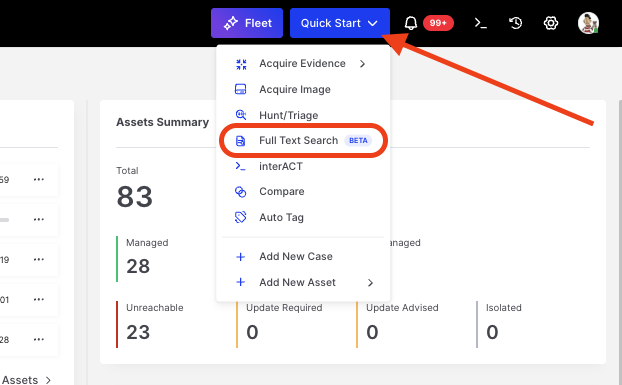
Full Text Search: Accessing via Quick Start menu
Option 2: Bulk Action from Assets
Section titled “Option 2: Bulk Action from Assets”Navigate to Assets, select one or more target assets, and choose Full Text Search from the bulk action bar.
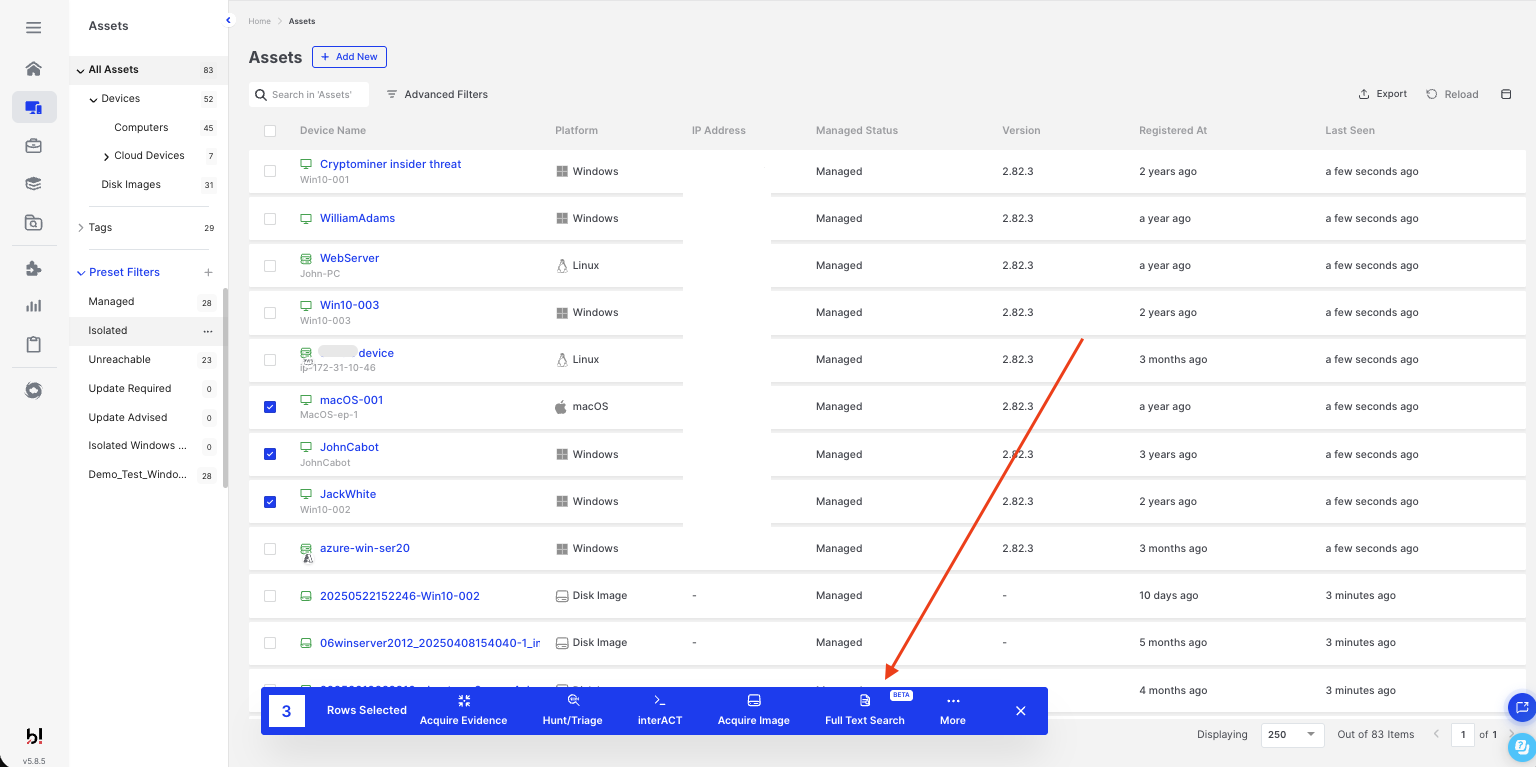
Full Text Search: Initiating from the Assets bulk action bar
Creating a Full Text Search Task
Section titled “Creating a Full Text Search Task”The Full Text Search wizard guides you through three steps: Asset Selection, Setup, and Customization.
Step 1: Asset Selection
Section titled “Step 1: Asset Selection”Select the assets you want to search. Use filters or saved filters to narrow down your selection. Assets can be Windows, macOS, or Linux endpoints.
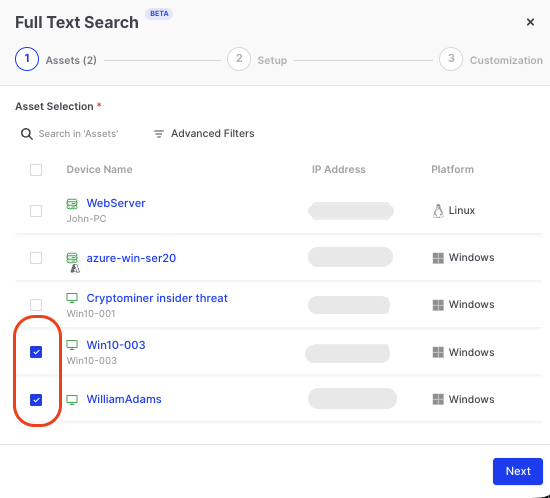
Full Text Search: Selecting target assets
Step 2: Setup
Section titled “Step 2: Setup”Configure your search parameters:
| Field | Description |
|---|---|
| Task Name | A descriptive name for this search task (auto-generated if left empty) |
| Case | Associate the search with an existing case for centralized evidence management |
| Task Start Time | Run immediately or schedule for later |
| Full Text Search Profile | Select an existing profile or create a new one |
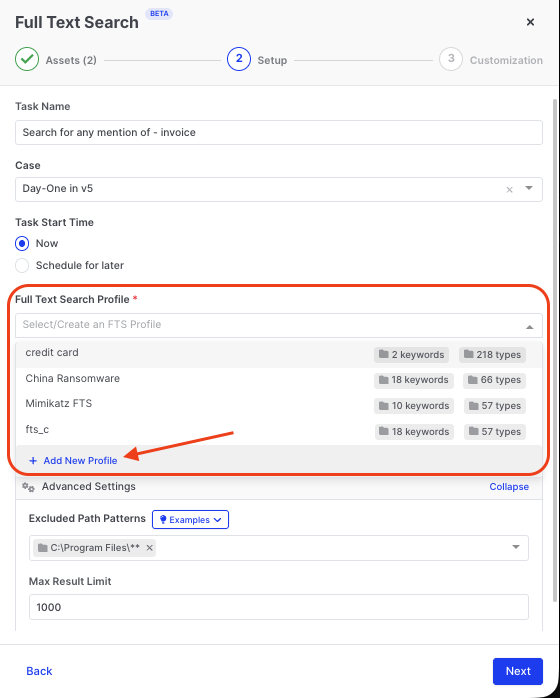
Full Text Search: Configuring task setup and selecting a profile
Each profile displays the number of keywords and file types it contains, helping you select the appropriate profile for your investigation.
Creating a New Profile
Section titled “Creating a New Profile”Click + Add New Profile to create a reusable search configuration:
- Enter a Name for the profile
- Select the Organization
- Add Search Keywords — individual terms or regex patterns
- Select File Types to search within
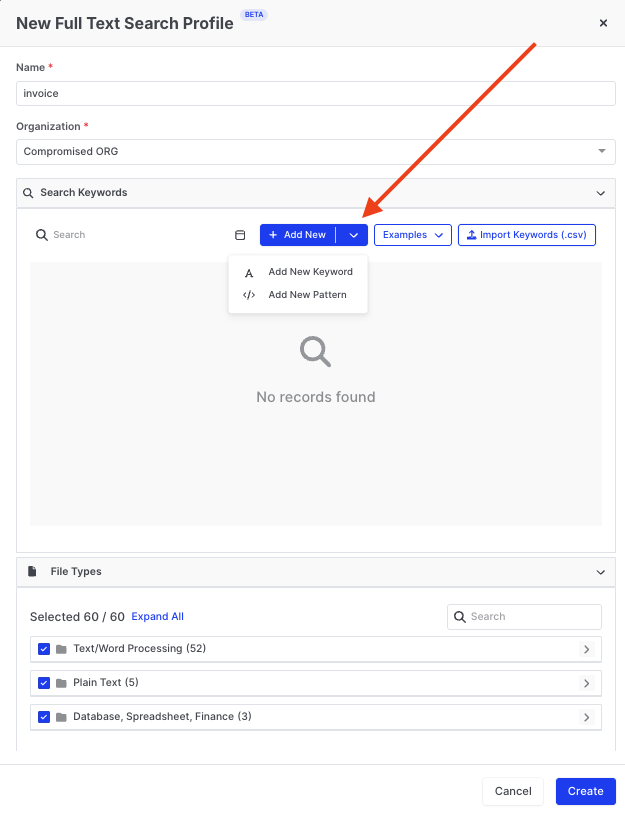
Full Text Search: Creating a new profile with keywords and file types
Adding Keywords and Patterns
Section titled “Adding Keywords and Patterns”Click + Add New to add search terms:
- Add New Keyword — Enter an exact term to search for
- Add New Pattern — Enter a regex pattern for complex matching
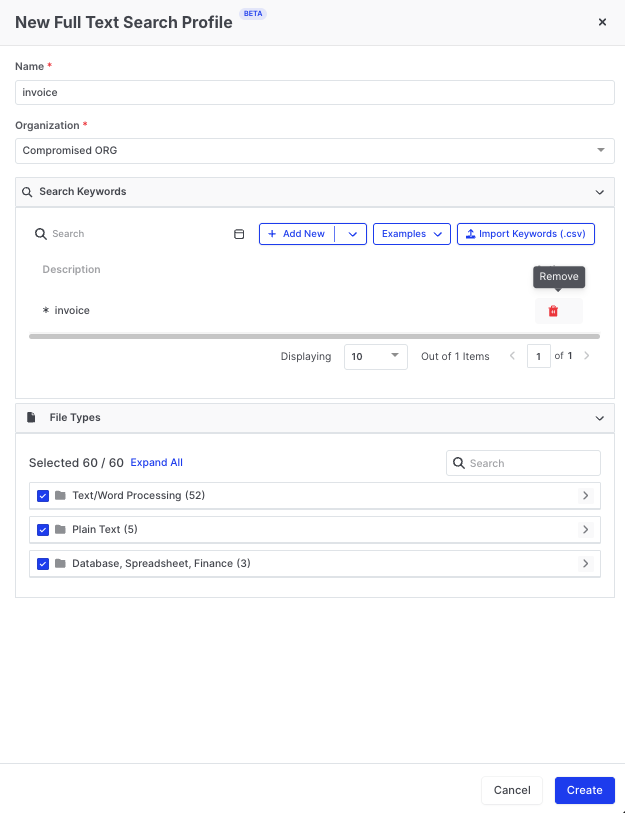
Full Text Search: Adding a keyword to the profile
Using Built-in Pattern Examples
Section titled “Using Built-in Pattern Examples”AIR includes a library of pre-built regex patterns for common investigation scenarios. Click the Examples dropdown to select from ready-to-use patterns:
| Example Pattern | Description |
|---|---|
| API Key/Token Pattern | Detects common API key and token formats |
| Generic Credentials Pattern | Finds username and password combinations in files |
| WordPress Credentials Pattern | Locates WordPress-specific credential patterns |
| Credit Card Number Pattern (MasterCard) | Identifies MasterCard number formats |
| AWS Access Key Pattern | Detects AWS access key identifiers (AKIA…) |
| AWS Secret Key Pattern | Finds AWS secret access keys |
| GitHub Personal Access Token Pattern | Identifies GitHub PAT formats |
| Stripe API Key Pattern | Detects Stripe API key formats |
Importing Keywords from CSV
Section titled “Importing Keywords from CSV”For bulk keyword management, click Import Keywords (.csv) to upload a CSV file containing your search terms. This is useful when:
- Migrating keyword lists from other tools
- Maintaining centralized keyword repositories
- Sharing standardized search terms across investigation teams
The CSV file should contain one keyword or pattern per row.
Advanced Settings
Section titled “Advanced Settings”Expand Advanced Settings to configure additional parameters:
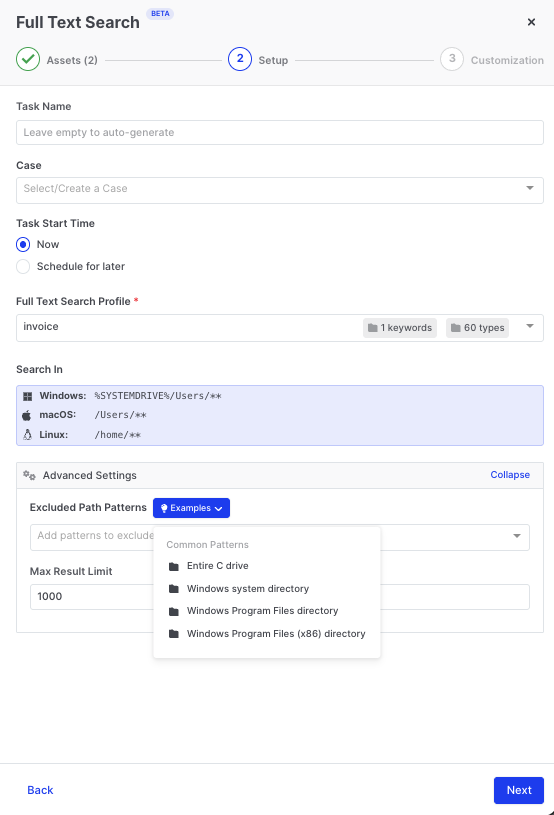
Full Text Search: Advanced settings with path exclusions
| Setting | Description |
|---|---|
| Search In | Default search paths per operating system (Windows: %SYSTEMDRIVE%\Users\**, macOS: /Users/**, Linux: /home/**) |
| Excluded Path Patterns | Directories to skip during the search. Use the Examples dropdown for common exclusions |
| Max Result Limit | Maximum number of results to return per asset (default: 1000) |
Common exclusion patterns include:
C:\Program Files\**— Windows Program Files directoryC:\Program Files (x86)\**— Windows Program Files (x86) directory- Windows system directory
- Entire C drive (for targeted user-folder searches)
Using Regex Patterns
Section titled “Using Regex Patterns”Full Text Search supports regex patterns for advanced matching. Patterns must be added using the Add New Pattern option.
Basic Regex Examples
Section titled “Basic Regex Examples”| Pattern | Matches | Use Case |
|---|---|---|
invoice | Exact word “invoice” | Find documents mentioning invoices |
invoice|receipt | “invoice” OR “receipt” | Find financial documents |
\d{3}-\d{2}-\d{4} | 123-45-6789 | US Social Security Numbers |
\d{4}[- ]?\d{4}[- ]?\d{4}[- ]?\d{4} | Credit card formats | Payment card numbers |
[a-zA-Z0-9._%+-]+@[a-zA-Z0-9.-]+\.[a-zA-Z]{2,} | [email protected] | Email addresses |
(?:25[0-5]|2[0-4]\d|[01]?\d\d?)(?:\.(?:25[0-5]|2[0-4]\d|[01]?\d\d?)){3} | 192.168.1.1 | IPv4 addresses |
password\s*[:=]\s*\S+ | password: secret123 | Hardcoded credentials |
BEGIN\s+(RSA|DSA|EC)?\s*PRIVATE\s+KEY | Private key headers | Exposed private keys |
AKIA[0-9A-Z]{16} | AWS Access Key format | AWS credentials |
(?i)confidential|secret|restricted | Case-insensitive classification markers | Sensitive document labels |
Viewing Results in Investigation Hub
Section titled “Viewing Results in Investigation Hub”Once a Full Text Search task completes, results are available in the Investigation Hub:
- Navigate to Investigation Hub from the main menu
- Select the Case associated with your search task
- Locate the Full Text Search results in the case timeline
Results display:
- File path — Location of the file containing the match
- Match context — Surrounding text showing where the keyword or pattern was found
- Asset information — Which endpoint contained the match
Best Practices
Section titled “Best Practices”Start Narrow, Then Expand
Section titled “Start Narrow, Then Expand”Begin with specific keywords or patterns targeting known indicators. If initial results are limited, gradually broaden your search criteria.
Use File Type Filtering
Section titled “Use File Type Filtering”Limit searches to relevant file categories. Searching all 60 file types increases scan time—focus on document types most likely to contain your target data.
Leverage Profiles for Consistency
Section titled “Leverage Profiles for Consistency”Create standardized profiles for common investigation scenarios:
- PII Search — Social security numbers, credit cards, email addresses
- Credential Hunting — Passwords, API keys, private keys
- Data Exfiltration — Company-specific keywords, project names, client identifiers
Exclude System Directories
Section titled “Exclude System Directories”Use excluded path patterns to skip operating system and application directories that rarely contain investigative value, improving search speed and reducing false positives.
Supported File Types
Section titled “Supported File Types”Full Text Search can examine contents within 60 file type categories, organized into groups:
| Category | Examples |
|---|---|
| Text/Word Processing | DOC, DOCX, TXT, RTF, ODT, PDF |
| Plain Text | LOG, CFG, INI, XML, JSON, YAML |
| Database, Spreadsheet, Finance | XLS, XLSX, CSV, MDB, ACCDB |
Expand the File Types section when creating a profile to view and select specific categories.