

Console Updating - SaaS
On AIR SaaS, you decide when your console moves to a new version. You can let AIR install new versions automatically at a recurring start time, postpone an upcoming update, schedule a one-off update, or start one immediately.
All update controls are on Settings → Update.
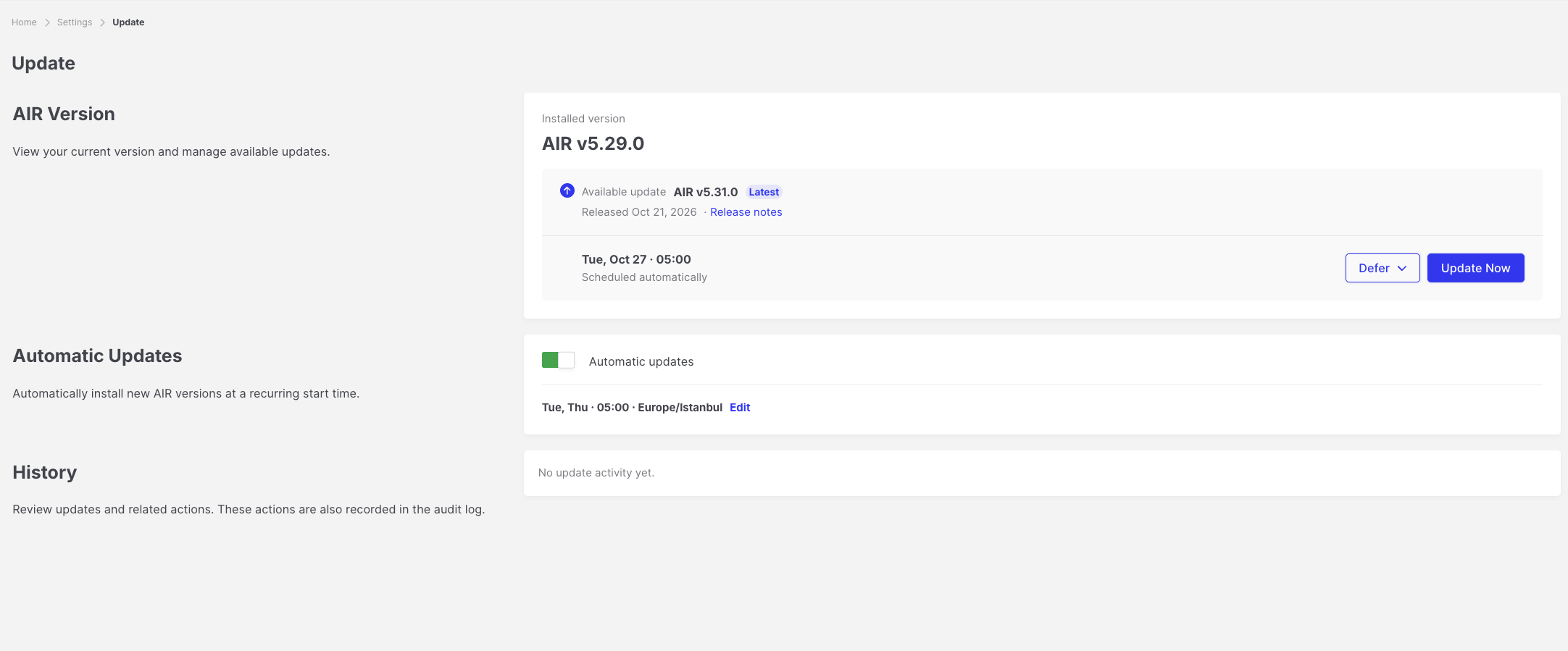
Console Updating - SaaS: Update page
The Update page has three sections:
- AIR Version — the installed version, the available update, and when it will be installed
- Automatic Updates — the recurring start time for automatic updates
- History — every update and update-related action
AIR Version
Section titled “AIR Version”This section shows the Installed version and one of three states:
| State | What you see |
|---|---|
| Up to date | Your system is up to date. |
| Update available | The available version, its release date, a Release notes link, when it will be installed, and the actions you can take |
| Updating | The System updating to version … with a progress bar. No changes can be made until the update finishes. |
When the update will be installed
Section titled “When the update will be installed”Under the available version, AIR shows the planned start time and where it came from:
| Label | Meaning |
|---|---|
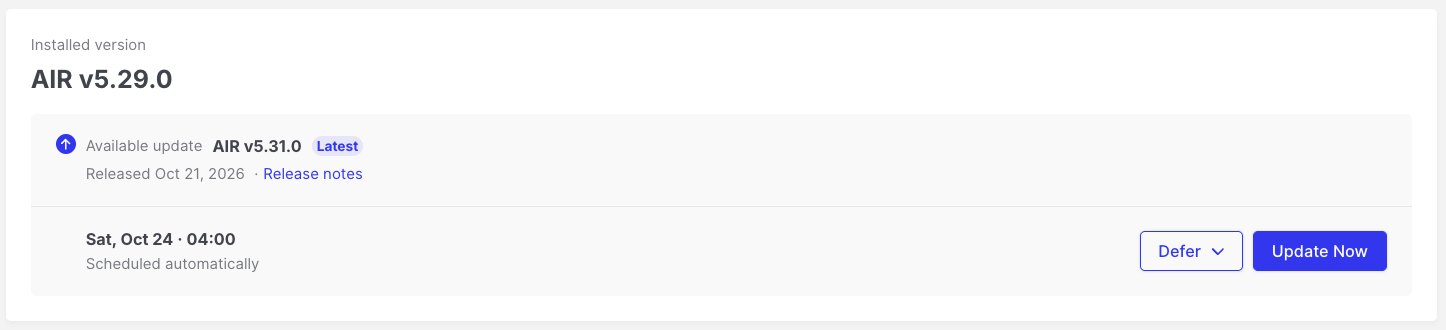
| Scheduled automatically | Automatic updates are on, and the update starts at the next automatic start time |
| Deferred | The automatic start time was postponed with Defer |
| Scheduled | A Global Admin picked a start time with Schedule Update |
| Update requested. It starts shortly. | A Global Admin chose Update Now |
| Waiting for the next automatic update window. | Automatic updates are on, but the next start time is not known yet |
| Not scheduled | Automatic updates are off and no update has been scheduled. Nothing is installed until you schedule or start one. |
All times are shown in your browser’s timezone.
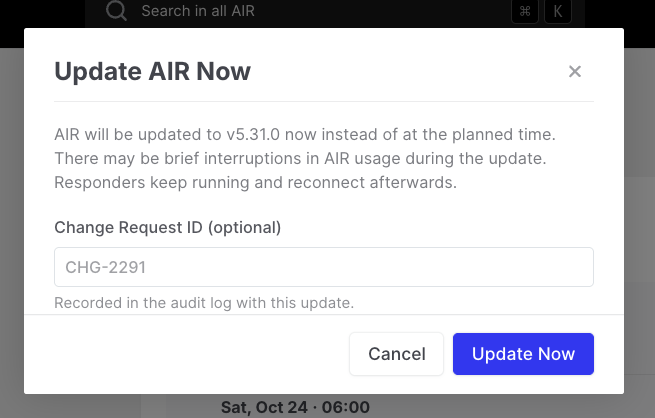
Update Now
Section titled “Update Now”Update Now starts the update immediately instead of at the planned time. It is available whether automatic updates are on or off.
- Choose Update Now.
- Optionally enter a Change Request ID (for example,
CHG-2291). It is recorded in the audit log with this update. - Confirm with Update Now.
Console Updating - SaaS: Update Now dialog
There may be brief interruptions in AIR usage during the update. Responders keep running and reconnect afterwards.
Defer an automatic update
Section titled “Defer an automatic update”When automatic updates are on, you can postpone the next automatic start time with Defer. Choose 1 hour, 4 hours, 12 hours, 1 day, or 1 week; each option shows the resulting start time.
- To postpone further, choose Defer again. The total deferral is capped at 30 days.
- To return to the regular automatic start time, open the menu and choose Use automatic schedule.
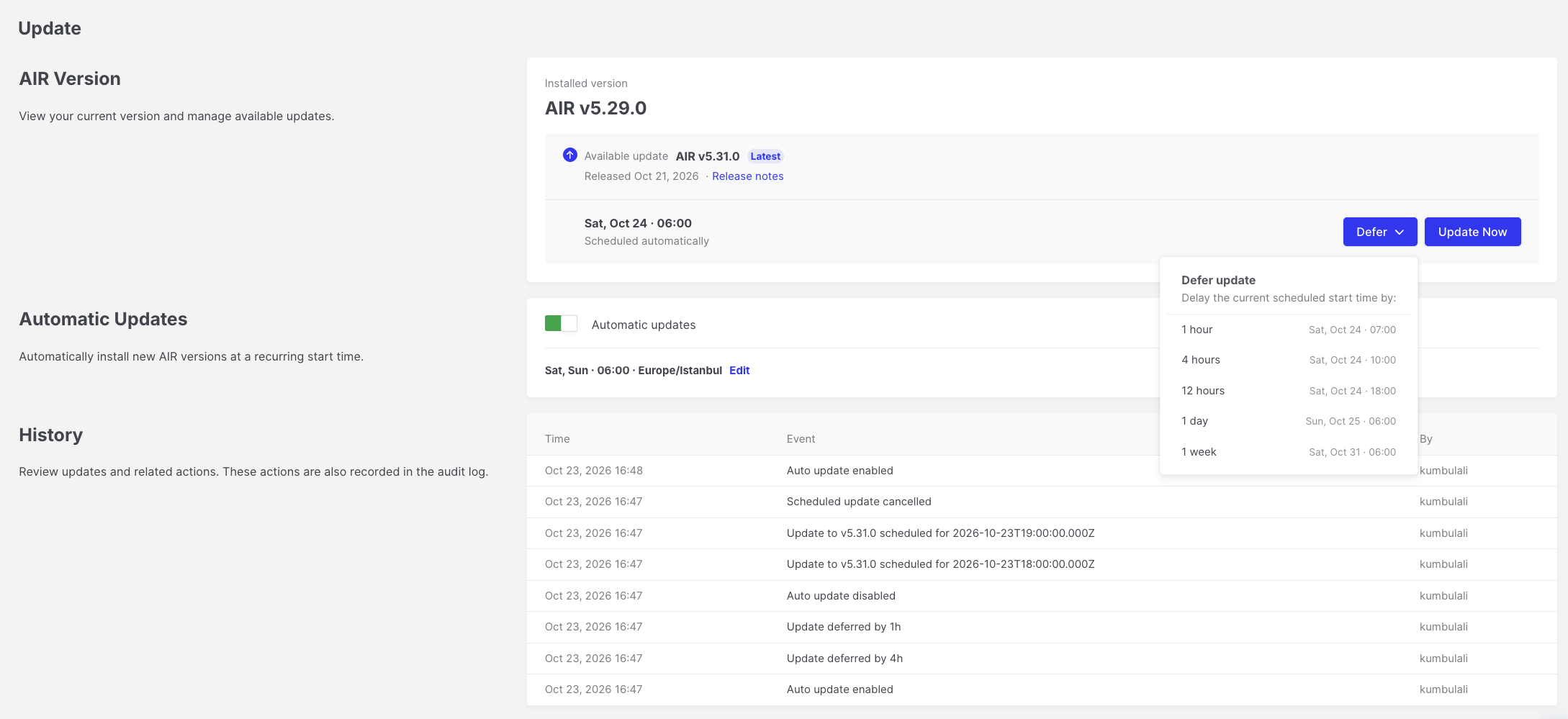
Console Updating - SaaS: Defer menu
Defer is also available from the update banner at the top of the console.

Console Updating - SaaS: Banner defer menu
Schedule an update manually
Section titled “Schedule an update manually”When automatic updates are off, you can pick a one-off start time for the available version:
- Choose Schedule Update.
- Select a Day within the next 30 days.
- Select a Start Time. Start times are on the hour, in your browser’s timezone. Unavailable start times cannot be selected.
- Choose Schedule update.
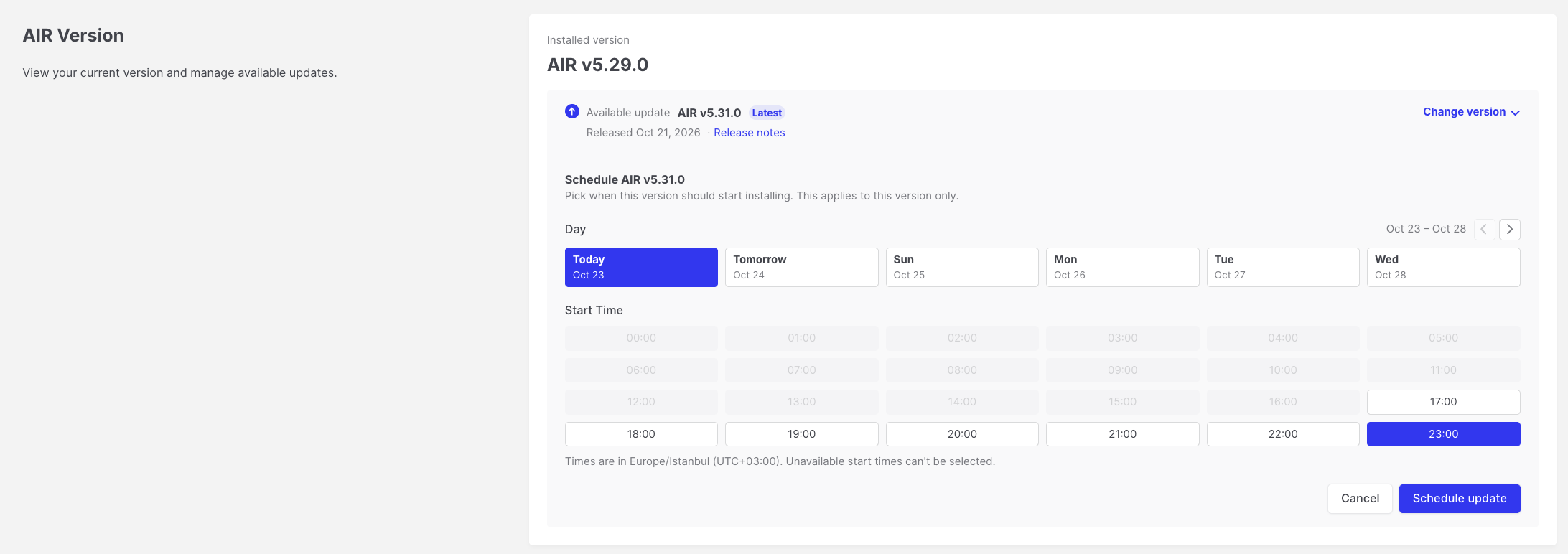
Console Updating - SaaS: Schedule Update dialog
The schedule applies to this version only. Once scheduled, you can Reschedule or Cancel Schedule.
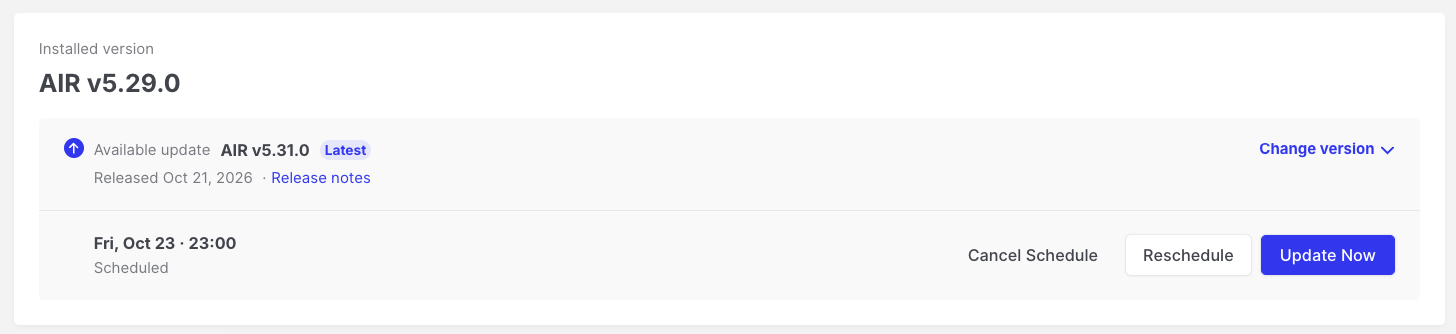
Console Updating - SaaS: Scheduled update actions
Choose a version
Section titled “Choose a version”By default, an update installs the latest generally available version, which is marked Latest.
When automatic updates are off and more than one newer version is available, you can choose Change version and select a different one. The list shows every generally available version newer than the installed version, with its release date. The selected version is used by Schedule Update and Update Now.
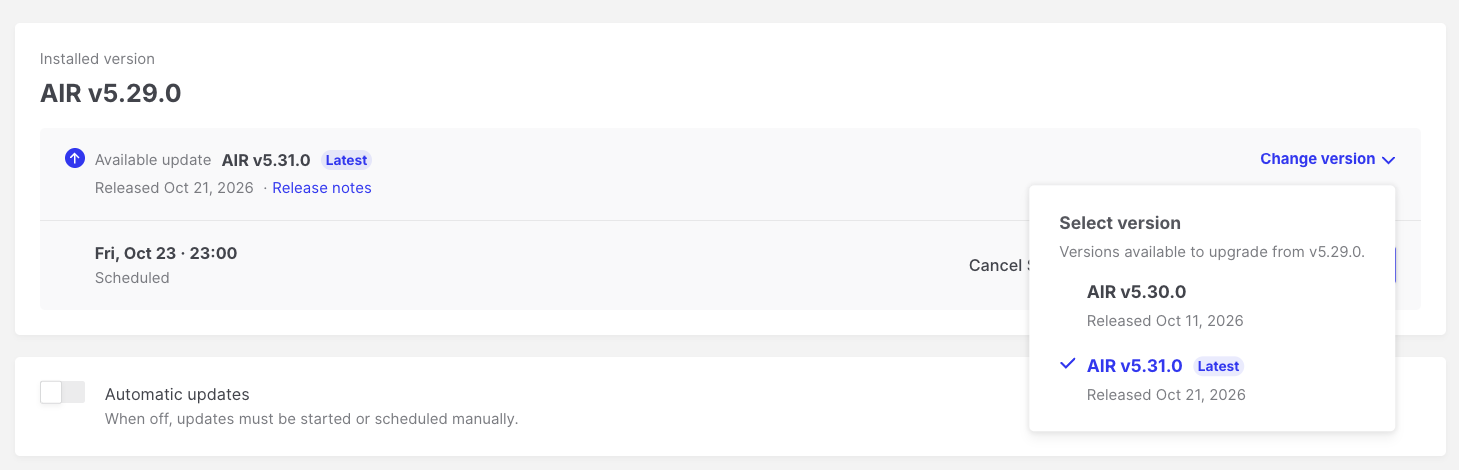
Console Updating - SaaS: Change version list
- Automatic updates always install the Latest version, so Change version is not shown while they are on.
- If an update is already scheduled, changing the version cancels that schedule. AIR asks for confirmation first; the new version stays available until you install or schedule it.
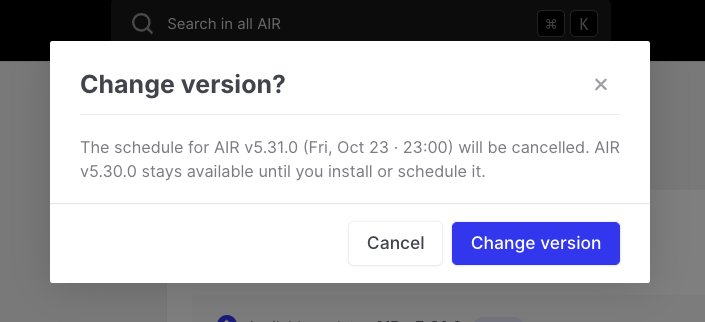
Console Updating - SaaS: Change version confirmation
Automatic Updates
Section titled “Automatic Updates”Turn on Automatic updates to have AIR install new versions at a recurring start time.
- Turn on Automatic updates.
- Select one or more Days.
- Select a Start Time.
- Choose Save.

Console Updating - SaaS: Automatic updates settings
Days and start times are shown in your browser’s timezone. After saving, the section shows a summary such as Wed–Sun · 02:00 · Europe/Istanbul. Choose Edit to change it.
Console Updating - SaaS: Automatic updates summary
When a new version becomes available, AIR installs it at the next selected day and start time.
The actions in the AIR Version section are disabled while you have unsaved changes here. Save or cancel the changes first.
How changes interact with an upcoming update
Section titled “How changes interact with an upcoming update”| Change | Effect |
|---|---|
| Turn off automatic updates while an update is scheduled automatically | AIR asks for confirmation. The automatic schedule is removed, and the version stays available until you install or schedule it manually. |
| Turn on automatic updates while a manual schedule exists | AIR asks for confirmation. The manual schedule is replaced by the next automatic start time. |
| Save a new automatic schedule while the update is deferred | AIR asks for confirmation. The deferral is cancelled, and the update moves to the next automatic start time. |
When automatic updates are off, new versions are not installed until you start or schedule them.
History
Section titled “History”The History section lists updates and update-related actions with the Time, Event, and the user who performed it (By). It includes:
- Update Now requests
- Deferrals and cancelled deferrals
- Scheduled updates and cancelled schedules
- Changes to the automatic update settings
- Completed and failed updates

Console Updating - SaaS: History
These actions are also recorded in the audit log.
Update banner
Section titled “Update banner”When a new version is available, a banner appears at the top of the console:
- If a start time is planned, the banner names the version, the date and time it installs, and how far away that is. It says whether the update installs automatically or was scheduled.
- Global Admins can Defer an automatic update from the banner, or open Update settings.
- If no start time is planned, Global Admins are asked to visit settings to manage the update. Other users are asked to contact their admin.
While an update runs, the banner shows that it is in progress. If an update fails, the banner reports it, including whether the update was rolled back. In either case, contact AIR support.