

Responder Updates
Overview
Section titled “Overview”AIR Responders installed on your assets must stay compatible with the Console. Responder Updates control how and when those Responders receive the current Responder version packaged with your Console.
You can:
- Update Responders manually by assigning an Update Responder Version task
- Update Responders automatically using a Default policy and optional custom policies
- Exclude groups of assets from automatic updates with exclusion policies
- Manually exclude individual assets from updates
- See why a specific asset is or is not eligible for automatic updates on the asset detail page
Automatic updates always target the Responder version that matches your Console. There is no per-policy target version selector.
Manual Updates vs Automatic Updates
Section titled “Manual Updates vs Automatic Updates”| Mode | What happens |
|---|---|
| Manual Updates | Responders update only when an administrator assigns an Update Responder Version task. Saved automatic policies remain stored but are not enforced. |
| Automatic Updates | Managed assets update according to the Default policy and any matching custom policies, when they next check in with the Console and are eligible. |
You select the mode under Settings → Assets → Responder Updates.
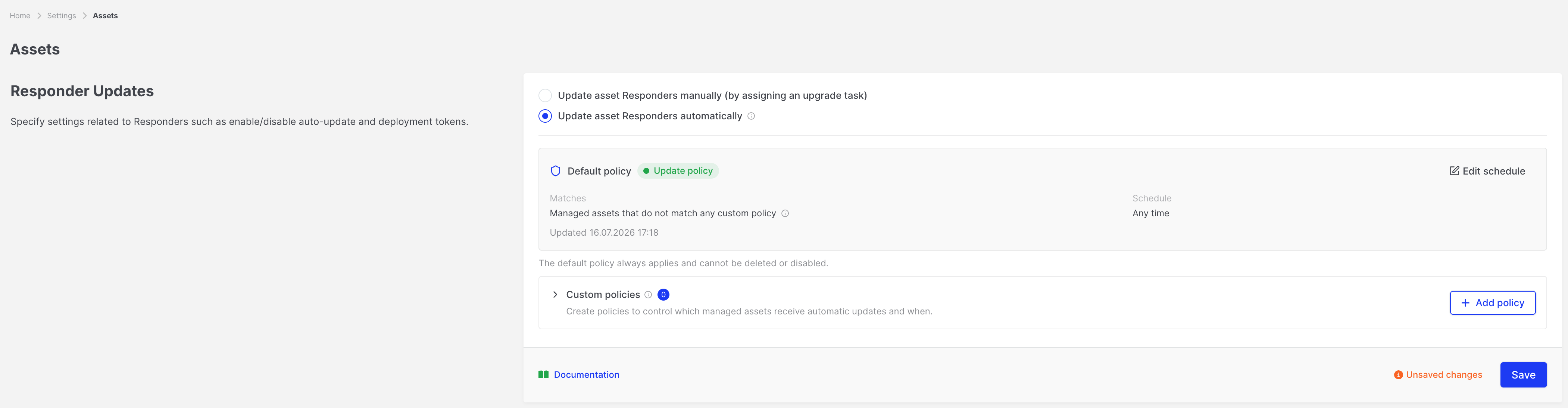
Global Responder Update settings
Section titled “Global Responder Update settings”Open the settings
Section titled “Open the settings”- Open Settings.
- Go to Assets.
- Find the Responder Updates section.
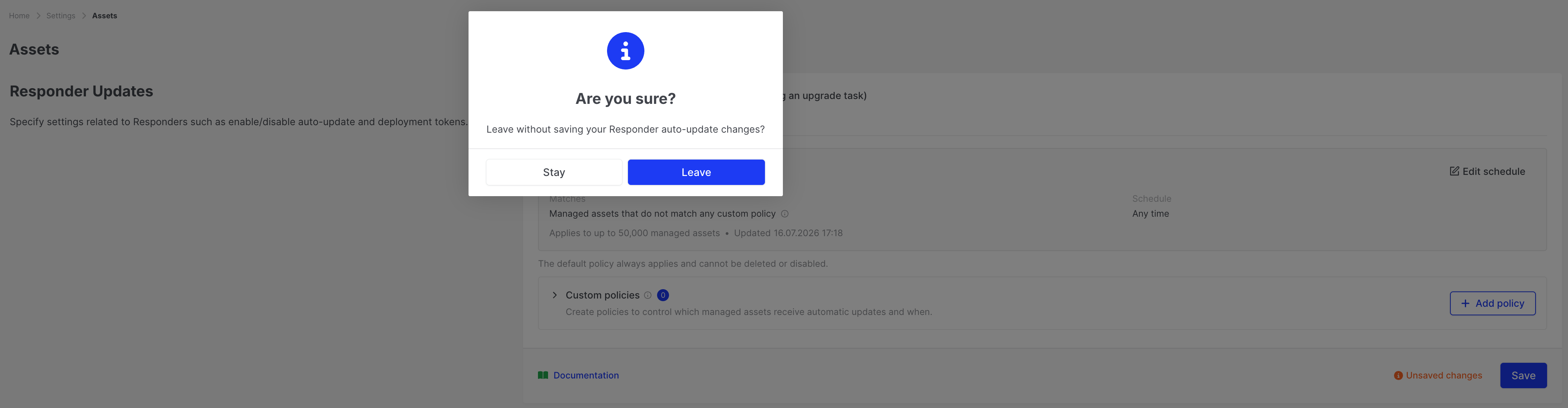
Changes on this page are kept in a draft until you click Save. Leaving the page with unsaved changes shows a confirmation prompt.
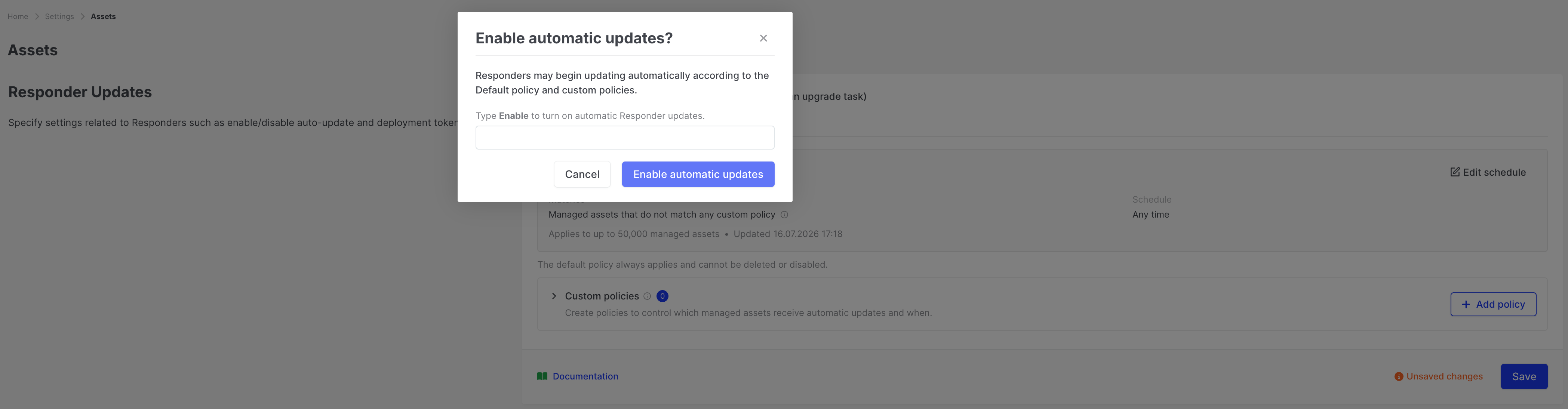
Switch to Automatic Updates
Section titled “Switch to Automatic Updates”- Select Update asset Responders automatically.
- Confirm when prompted (type Enable when asked).
- Review the summary of enabled and disabled custom policies, and the Default policy schedule.
- Click Save.
Switch to Manual Updates
Section titled “Switch to Manual Updates”- Select Update asset Responders manually (by assigning an upgrade task).
- Confirm when prompted (type Manual when asked).
- Click Save.
Automatic configuration (Default policy and custom policies) remains stored but inactive.

Choose what happens when an update conflicts with running tasks
Section titled “Choose what happens when an update conflicts with running tasks”An update restarts the Responder, so it cannot run at the same time as an acquisition, Hunt/Triage, or other task. Under When an update conflicts with running tasks, choose which takes priority:
| Option | Behaviour |
|---|---|
| Wait for running tasks to finish | The update starts automatically once every running task completes, provided the update window is still open. Otherwise it moves to the next window. |
| Stop running tasks and update immediately | Running tasks are cancelled so the update can start. They must be started again manually. |
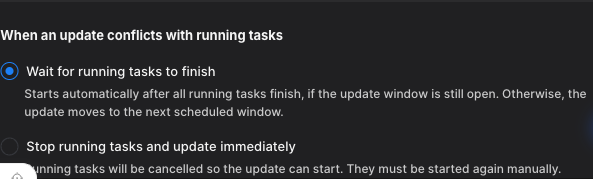
Responder Updates: Choosing what happens when an update conflicts with running tasks
This setting governs automatic updates. When you assign a manual update to an asset that has running tasks, AIR asks you to confirm first and tells you how many tasks would be stopped.
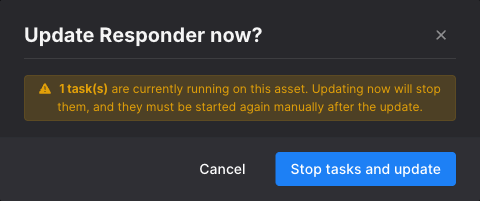
Responder Updates: Confirmation shown before a manual update stops running tasks
Default policy
Section titled “Default policy”When Automatic Updates are enabled, the Default policy applies to managed assets that do not match any enabled custom policy.
- Behaviour: Update automatically
- Target: Managed assets that do not match any custom policy
- You can edit the schedule only
- The Default policy cannot be deleted or disabled
Edit the Default policy schedule
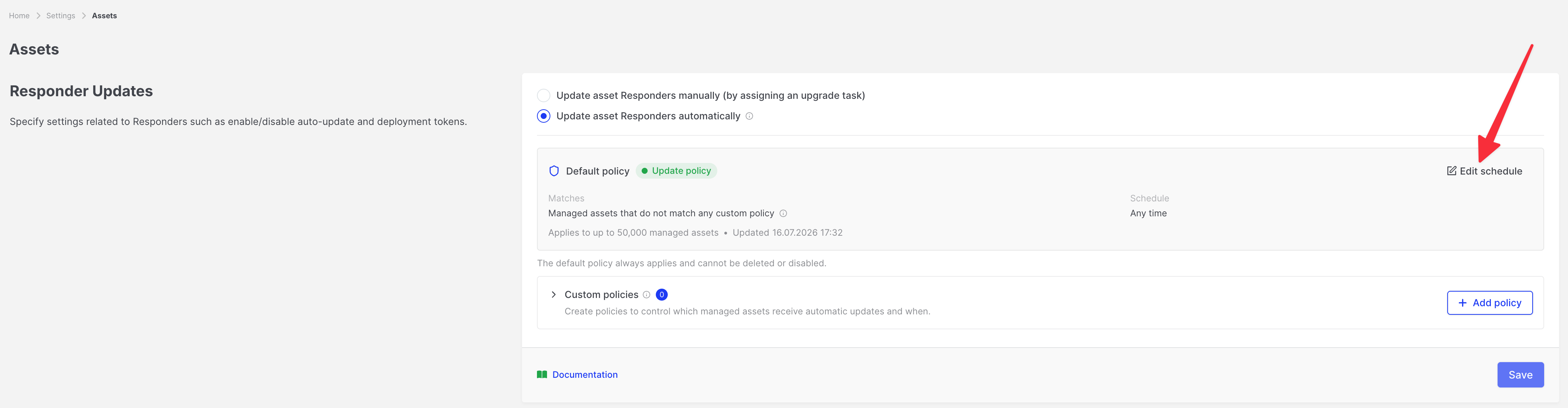
Section titled “Edit the Default policy schedule”- Under Default policy, click Edit schedule.
- Choose either:
- Update at any time, or
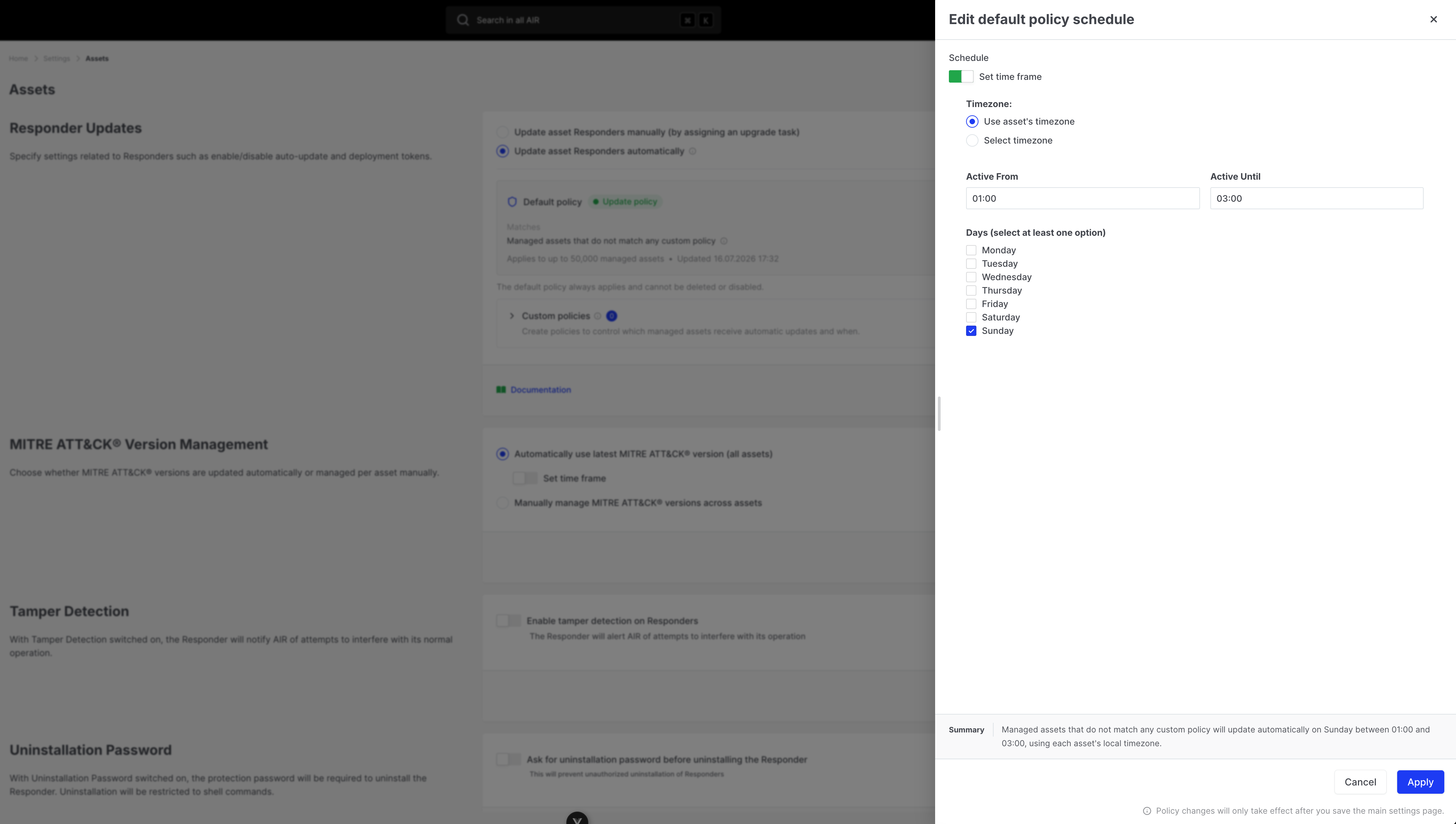
- A recurring time window (days of the week, start and end time, and timezone)
- Apply the drawer changes, then click Save on the settings page.
Timezone options:
- Use each asset’s local timezone, or
- A specific timezone you select
Custom update policies
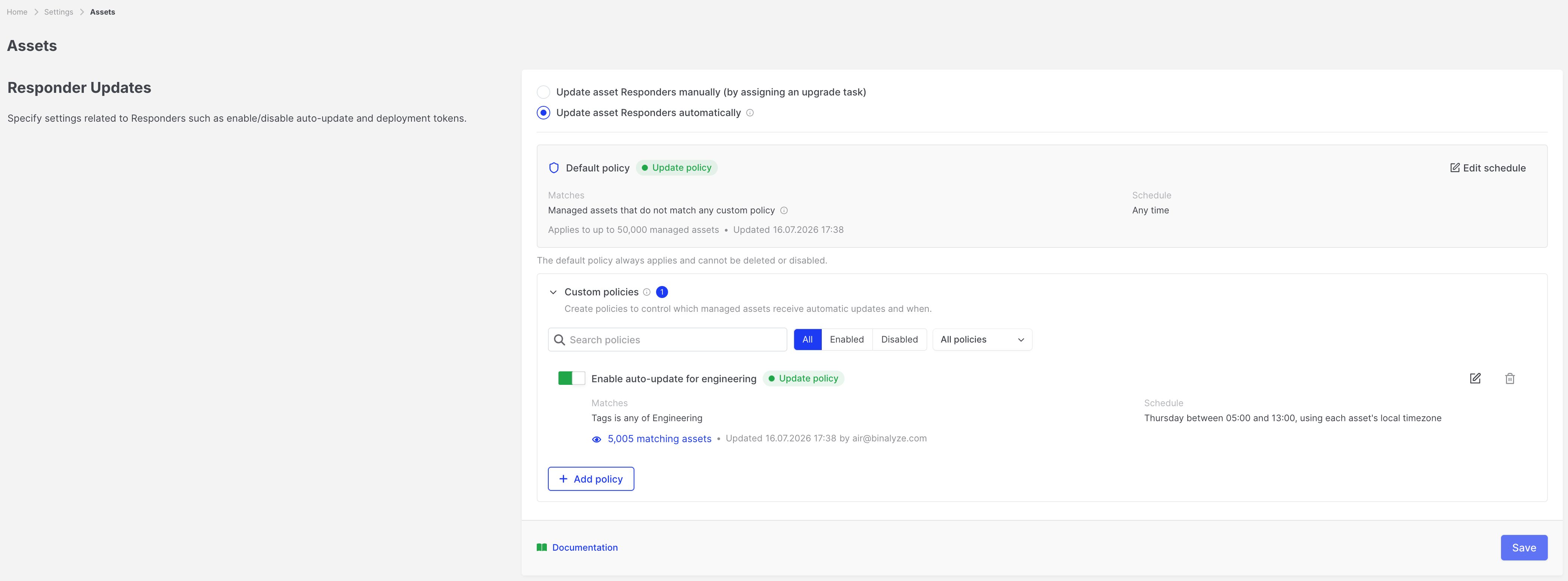
Section titled “Custom update policies”Custom update policies refine Automatic Updates for filtered groups of managed assets. Each update policy can use its own schedule and timezone.
Typical uses:
- Update Windows workstations only during a maintenance window
- Use a different schedule for a production organization or tag
- Roll updates for one platform earlier than another
What an update policy controls
Section titled “What an update policy controls”| Field | Description |
|---|---|
| Policy name | Unique name shown in Settings and on asset status |
| Behaviour | Update automatically |
| Filter | Asset conditions that must match |
| Enabled | Disabled policies are ignored |
| Schedule | Any time, or a day/time window with timezone |
Update policies do not set a specific Responder version. Matching eligible assets receive the Console’s current Responder version.
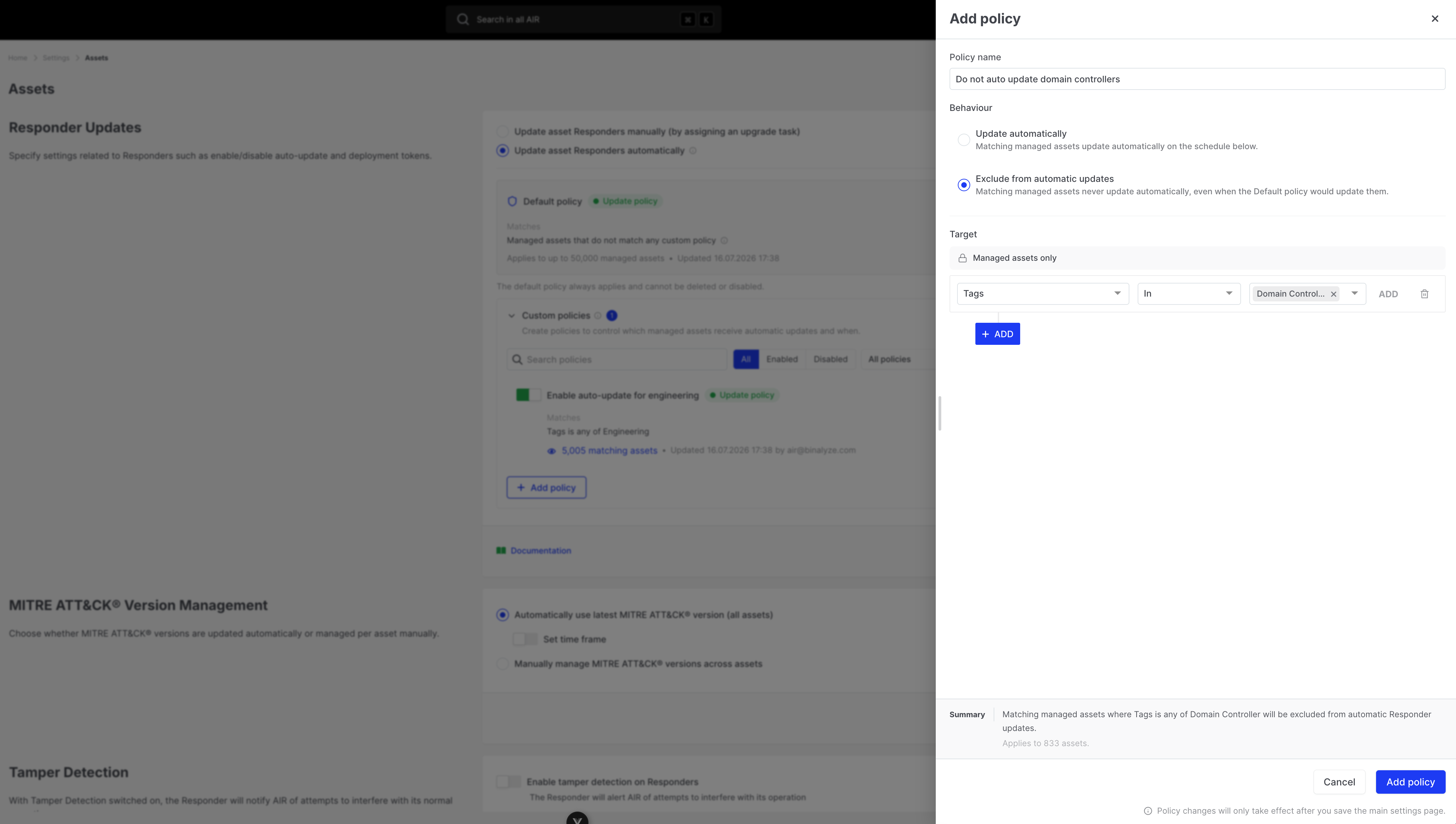
Exclusion policies
Section titled “Exclusion policies”An exclusion policy uses the same filter model as an update policy, but its behaviour is Exclude from automatic updates.
Matching managed assets never update automatically, even when the Default policy would update them.
Exclusion policies:
- Do not use a schedule
- Do not block manually assigned Update Responder Version tasks
- Can be enabled or disabled like update policies
Manually excluded assets
Section titled “Manually excluded assets”You can exclude a specific asset from Responder updates without creating a policy.
Exclude an asset
Section titled “Exclude an asset”From the asset list (bulk actions) or asset actions, choose the exclude-from-updates action and confirm.
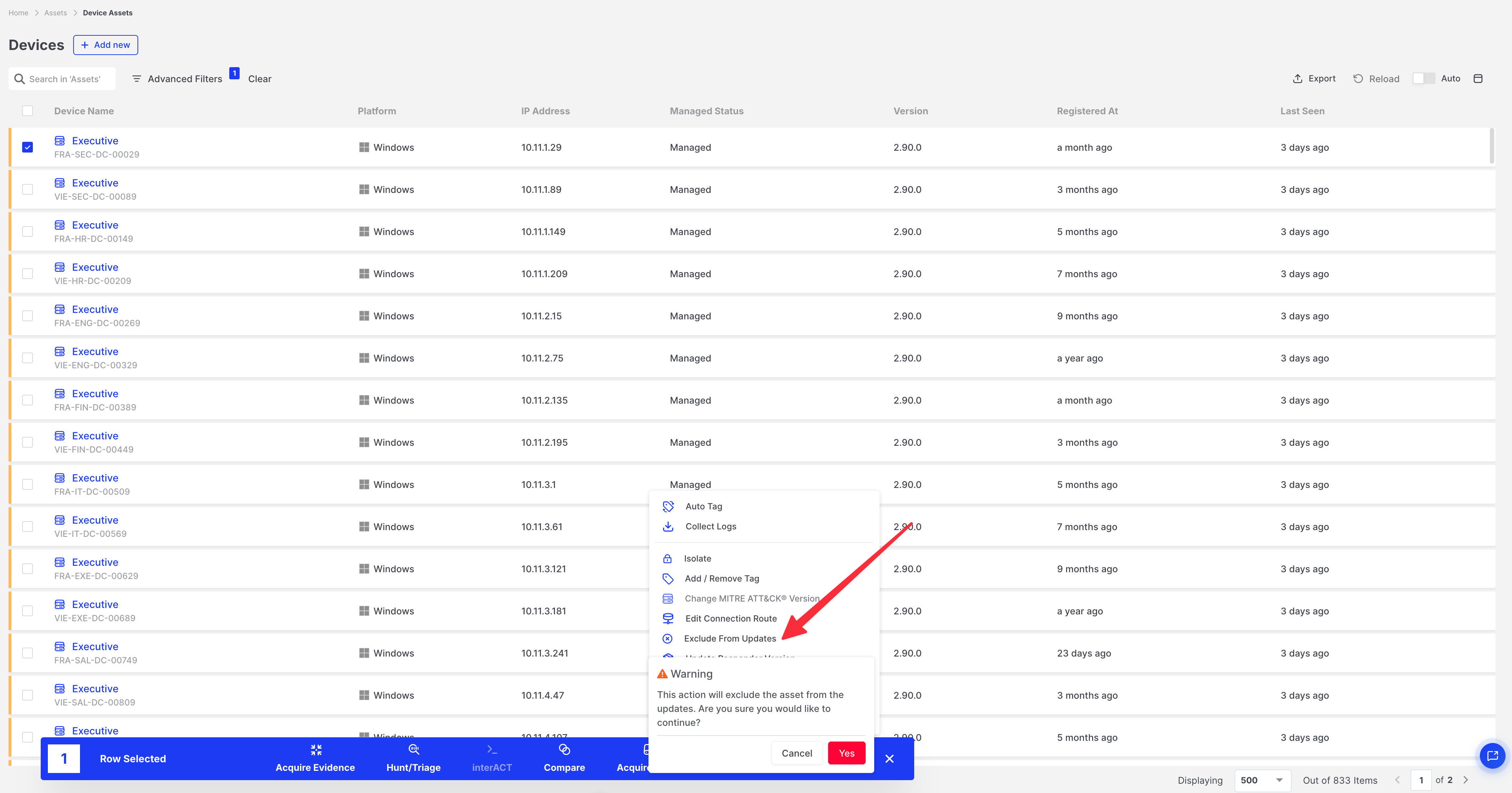
While an asset is manually excluded:
- It does not receive automatic Responder updates
- Queued update tasks are not delivered until the asset is included again
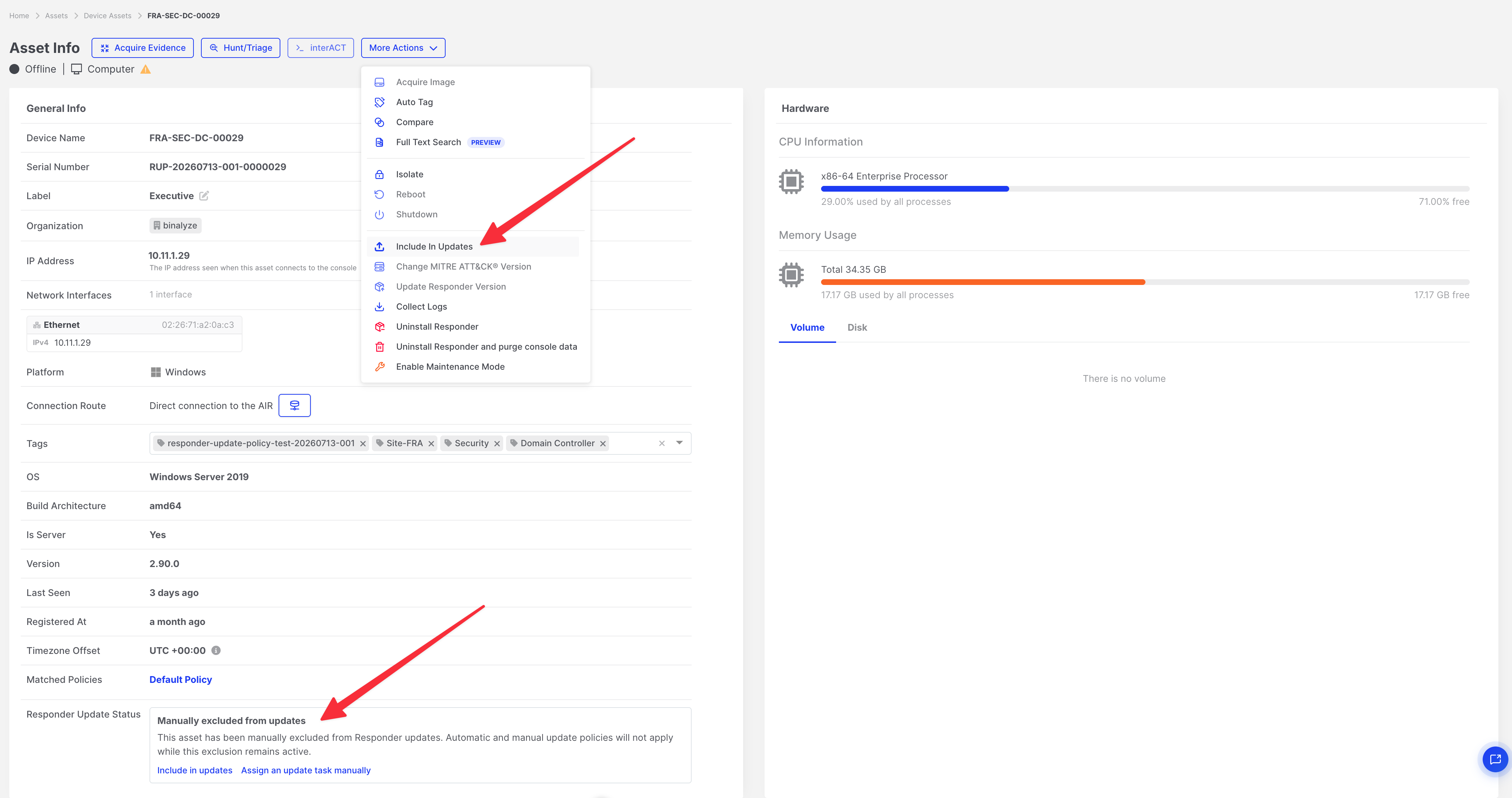
- The asset detail Responder Update Status shows Manually excluded from updates
Include an asset again
Section titled “Include an asset again”Use Include in updates from the asset detail status card, asset actions, or bulk actions, then confirm.
Policy matching and precedence
Section titled “Policy matching and precedence”Custom policies have no priority order. AIR evaluates matching as follows when Automatic Updates are enabled:
1. Is the asset manually excluded? → Yes: do not update automatically (and do not deliver update tasks until included)2. Is global mode Manual Updates? → Yes: policies are inactive; update only via assigned tasks3. Does any enabled exclusion policy match? → Yes: do not update automatically4. Does any enabled update policy match? → Yes: update only if at least one matching update policy's schedule window is open (if all matching update windows are closed, the Default policy is NOT used)5. No custom policy matches? → Use the Default policy scheduleDisabled policies are ignored.
Decision examples
Section titled “Decision examples”| Situation | Result |
|---|---|
| Global Manual Updates | No automatic updates; assign tasks manually |
| Manually excluded, matches an update policy | Remains excluded until included again |
| Matches an exclusion policy and an update policy | Excluded (exclusion wins) |
| Matches two update policies; either window is open | Eligible during an open matching window |
| Matches an update policy; all matching windows are closed | Not eligible; Default schedule does not apply |
| Matches no custom policy | Follows the Default policy |
| Policy disabled | Treated as if the policy does not exist |
Create, edit, enable, disable, and delete policies
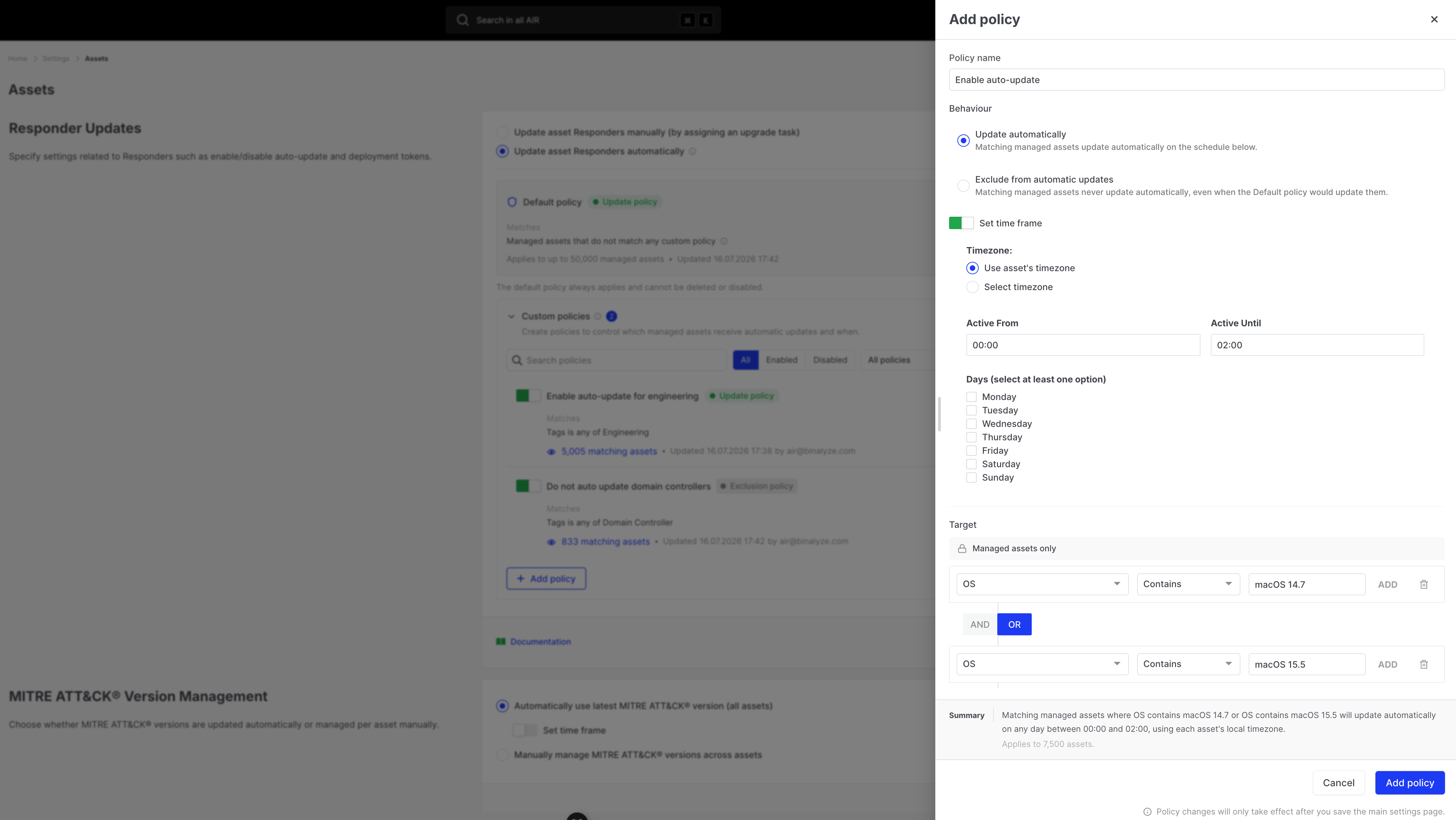
Section titled “Create, edit, enable, disable, and delete policies”Create a custom policy
Section titled “Create a custom policy”- Under Custom policies, click Add policy.
- Enter a unique Policy name.
- Choose Behaviour:
- Update automatically, or
- Exclude from automatic updates
- Add at least one filter condition.
- For update policies, configure the schedule if needed.
- Click Apply changes in the drawer.
- Click Save on the settings page.
Edit a policy
Section titled “Edit a policy”Open the policy from the custom policy list, change fields, apply drawer changes, then Save.
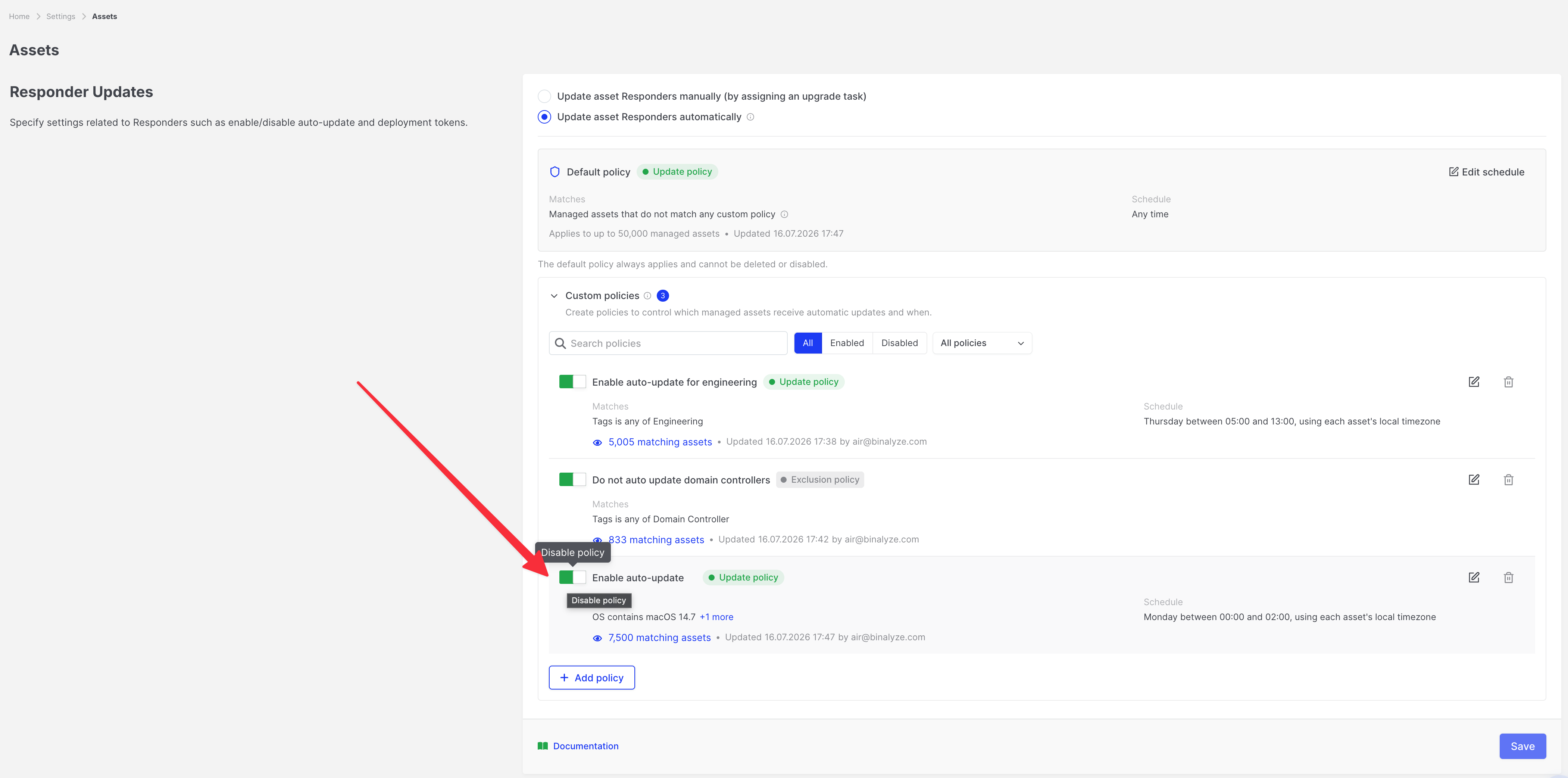
Enable or disable a policy
Section titled “Enable or disable a policy”Use the enable/disable control on the policy card, then Save.
- Active: Automatic Updates are on and the policy is enabled
- Inactive: Manual Updates are on (policy stored but not enforced), or the policy itself is disabled
Delete a policy
Section titled “Delete a policy”- Delete the policy and confirm.
- Save the settings page.
Deleting an update policy may cause matching assets to follow another matching policy or the Default policy. Deleting an exclusion policy may make matching assets eligible for automatic updates again.
Configure asset filters
Section titled “Configure asset filters”Filters select which managed assets a custom policy applies to. The UI always scopes policies to managed assets.
Supported filter fields include:
| Field | Typical use |
|---|---|
| Organization | Limit to one or more organizations |
| IP address | Match management or interface addresses |
| Device name | Hostname patterns |
| Label | Asset label text |
| Group path | Asset group location |
| Operating system | OS string (for example, Windows, Ubuntu) |
| Responder version | Current Responder version on the asset |
| Tags | One or more tags |
| Platform | Windows, Linux, macOS, and other supported platforms |
| Server | Whether the asset is classified as a server |
Combine conditions with the filter builder (AND/OR groups) using operators such as equals, contains, matches, in, and all/not-all for tags.
Preview matching assets
Section titled “Preview matching assets”On a policy card:
- Review the matching asset count
- Click View matches to open Matching Responders
- Search by device name and page through results
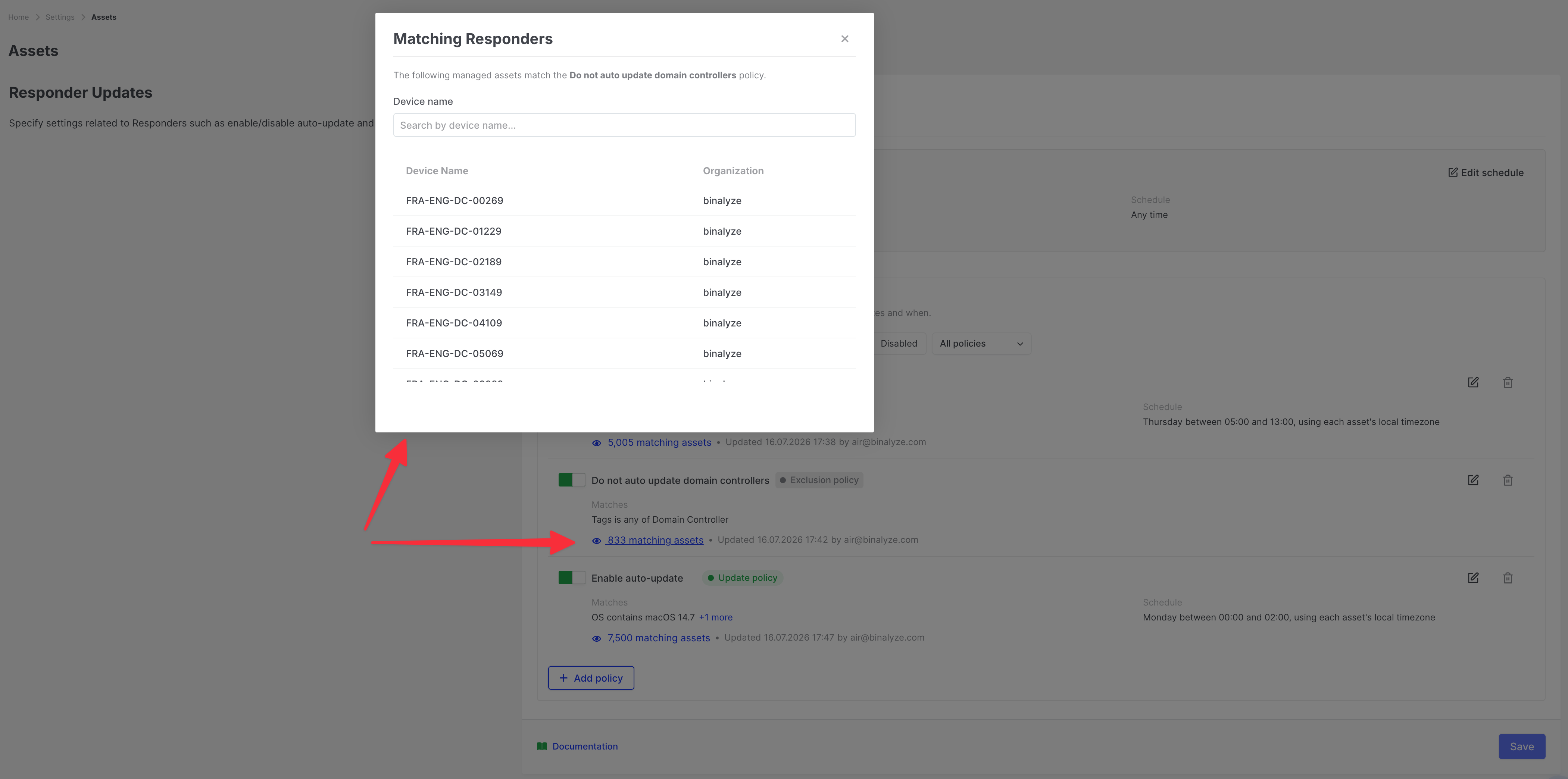
Counts reflect filter matches for managed assets. They do not by themselves prove that an asset is currently inside an update window or free of manual exclusion.
Identify why an asset is or is not updating
Section titled “Identify why an asset is or is not updating”The asset detail page answers this in two places.
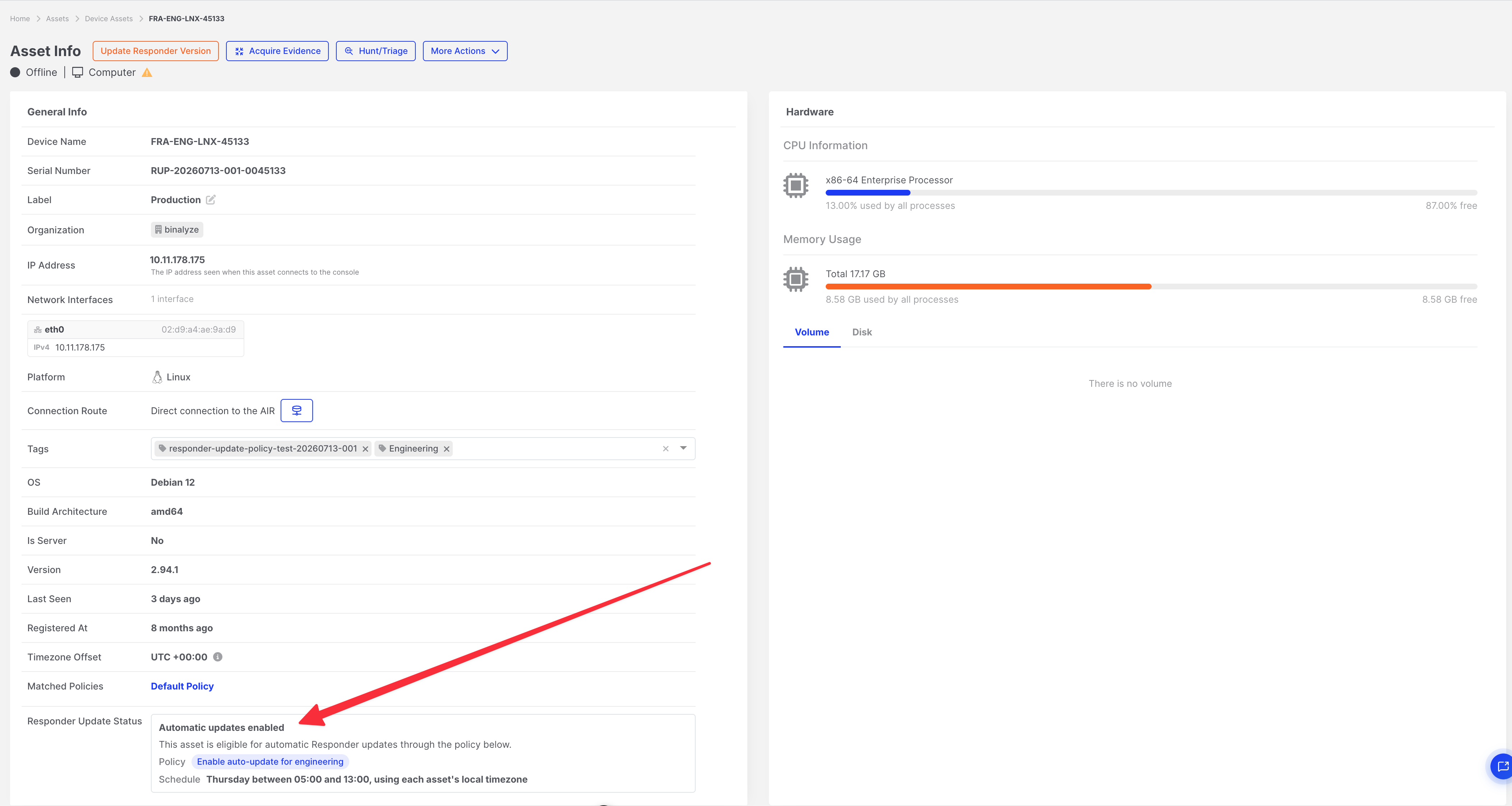
Responder Update Status
Section titled “Responder Update Status”Open the asset → General (or asset overview) and find Responder Update Status. It summarises the asset’s eligibility under your policies.
| Status | Meaning |
|---|---|
| Manually excluded from updates | Asset-level exclusion is active |
| Automatic updates are disabled | Global Manual Updates mode |
| Excluded from automatic updates | An exclusion policy matches |
| Automatic updates enabled | Eligible via a matching update policy or the Default policy |
It may also show:
- The matching policy name (when applicable)
- The effective schedule summary
- Shortcuts to Include in updates, Assign an update task manually, or Manage Responder update settings
Version update card
Section titled “Version update card”Higher up the same page, the Version update card reports what is happening right now rather than what your configuration allows. It shows the current and target versions, the lifecycle status, and the specific reason an update is waiting, scheduled, or failed — plus Update now and View update history.
Use Responder Update Status to check whether your policies make an asset eligible, and the Version update card to find out why an eligible asset has not updated yet.
For the full status reference — the nine statuses, the distinct waiting reasons, retry timing, and the at-a-glance view in the Assets list — see Responder Update Status.
Manually update one asset
Section titled “Manually update one asset”Use this when you need an immediate or scheduled update outside (or in addition to) automatic policy behaviour.
High-level steps:
- Open the asset.
- For an immediate install, expand Version update and choose Update now.
- To schedule, or to use the full drawer, start Update Responder Version (from asset actions or Responder Update Status → Assign an update task manually).
- Configure the task in the drawer (now or later), then assign it.
For detailed drawer steps and screenshots, see How do I update Responders on assets?.
Manually update multiple assets
Section titled “Manually update multiple assets”- In the asset list, select the assets (or use a filter and bulk selection).
- From the bulk actions bar, choose Update Responder Version.
- Complete the Update Responder Version drawer.
If some selected assets are already current, the drawer limits selection to assets that require an update.
See the FAQ for the full drawer workflow.
Immediate and scheduled update tasks
Section titled “Immediate and scheduled update tasks”The Update Responder Version drawer supports:
| Option | Behaviour |
|---|---|
| Now | Assign the update task immediately |
| Schedule for later | Choose timezone (asset timezone or a selected timezone) and start time |
Scheduling a new update for an asset replaces any previously scheduled Responder update for that asset.
Full steps: How do I update Responders on assets?
Version update statuses vs Assets Summary labels
Section titled “Version update statuses vs Assets Summary labels”Two Console surfaces use similar wording for different jobs. Do not treat them as the same label set.
Version update card and Assets list Version column
Section titled “Version update card and Assets list Version column”These report the live Responder update lifecycle. Common idle or behind-target states include:
| Status | Meaning |
|---|---|
| Update required | The Responder is older than a release Binalyze has marked as mandatory and must be updated (for example, to accept tasks) |
| Update available | A newer Responder version can be installed; automatic updating is not applying it for this asset (for example, global Manual Updates) |
| Up to date | The asset runs the target version; automatic update is not issued and manual update selection is unavailable |
The full set of nine statuses, waiting reasons, and retry rules is in Responder Update Status.
Assets Summary (Home)
Section titled “Assets Summary (Home)”The Assets Summary widget still uses endpoint issue labels for fleet counts and filters:
| Label | Meaning |
|---|---|
| Update Required | Same urgency class as the Version update Update required status — the Responder must be updated for compatibility |
| Update Advised | The Responder is on an older version and an update is recommended (OldVersion issue). This Home label is not the Version update card’s Update available status |
Automatic updates run when the asset checks in, is eligible under precedence and schedule rules, and is behind the Console Responder version. AIR also limits how many Responder updates run at the same time across the environment; see Concurrent update limit.
Recommended practices
Section titled “Recommended practices”- Start in Manual Updates while you design filters and schedules, then switch to Automatic after reviewing Matching Responders.
- Keep the Default policy conservative (for example, a maintenance window) if most assets should wait for off-hours updates.
- Use update policies for clear cohorts (platform, organization, tags).
- Use exclusion policies for groups that must never auto-update.
- Use manual exclusion for individual critical servers.
- After changing policies, open a representative asset’s Responder Update Status and Version update card to verify eligibility and live state.
- Remember that enabling Automatic Updates clears outstanding scheduled/assigned manual update tasks.
Examples
Section titled “Examples”Automatically update Windows assets during a maintenance window
Section titled “Automatically update Windows assets during a maintenance window”- Enable Automatic Updates and save.
- Add an update policy named for example
Windows maintenance. - Filter: Platform is Windows (add other conditions as needed).
- Schedule: your maintenance days and hours; choose asset timezone or a fixed timezone.
- Apply and Save.
- Use View matches to confirm the cohort.
Assets that match this policy follow its window. They do not fall back to the Default policy if that window is closed.
Exclude Linux servers from automatic updates
Section titled “Exclude Linux servers from automatic updates”- Add an exclusion policy.
- Filter: Platform is Linux (optionally Server is true).
- Apply and Save.
Matching Linux servers skip automatic updates. You can still assign Update Responder Version tasks to them when needed.
Different policies by tag or organization
Section titled “Different policies by tag or organization”- Create an update policy filtered by Tag (for example
tier-1) with an earlier window. - Create another update policy filtered by Organization or Tag
tier-2with a later window. - Leave remaining assets on the Default policy.
If an asset matches both an exclusion policy and an update policy, it is excluded.
Manually exclude a critical server that matches an update policy
Section titled “Manually exclude a critical server that matches an update policy”- Open the critical asset.
- Exclude it from updates and confirm.
- Confirm Responder Update Status shows Manually excluded from updates.
The asset stays excluded even if it still matches an update policy. Include it again when you are ready to update.
Determine why an asset is not receiving automatic updates
Section titled “Determine why an asset is not receiving automatic updates”Start on the asset detail page, then fall back to policy checks:
- Open the Version update card — the status badge and explanation name the current blocker (window, maintenance, running tasks, capacity, failure, and so on). See Responder Update Status.
- Open View update history (or the Version Updates tab) if the card shows Failed or repeated retries. See Responder Update History.
- Check Responder Update Status for eligibility: manually excluded, global Manual Updates, or an exclusion policy.
- If an update policy matches with a closed window, the Default schedule does not apply for that asset.
- Confirm the asset is not already Up to date, and that it is managed and checking in.
Troubleshooting
Section titled “Troubleshooting”| Problem | What to check |
|---|---|
| No assets update automatically | Confirm Automatic Updates is selected and saved; confirm assets are managed and online/checking in |
| Asset matches my update policy but never updates | Open the Version update card first; then check manual exclusion, exclusion policies, and whether the policy schedule window is open — closed grant windows do not use Default |
| Asset still follows Default after I created a policy | Confirm the policy is enabled, saved, and that the asset appears under Matching Responders |
| I assigned an update but nothing happens | If the asset is manually excluded, include it first; confirm the asset needs an update; confirm the task was not cleared by enabling Automatic Updates; check history for a failed or cancelled attempt |
| Enabling Automatic cleared my scheduled updates | Expected behaviour — scheduled/assigned Version Update tasks are removed when Automatic Updates is enabled |
| Unexpected policy name on the status card | Multiple policies may match; verify all matching update and exclusion policies, not only the displayed name |
| Changes in the policy drawer did not apply | Click Save on the main settings page after applying drawer changes |
Permissions
Section titled “Permissions”| Action | Typical privilege requirement |
|---|---|
| Change Responder Updates settings and policies | Settings save permission |
| Exclude or include assets; assign Update Responder Version | Assign version update task permission |
| View asset Responder Update Status | Endpoint / asset view permission |
Exact role names depend on your configured roles.
Related articles
Section titled “Related articles”- Responder Update Status — status reference, the Version update card, retry timing, and the Assets list view
- Responder Update History — past attempts and failure diagnosis
- How do I update Responders on assets? — assign immediate or scheduled update tasks
- Assets (Console Settings) — Asset Settings overview, including Tamper Detection and related controls
- Post-Deployment Configuration Guide — self-hosted setup checklist