

Responder Update History
Every Responder update attempt is recorded, whether AIR started it automatically or an operator triggered it. The history tells you what was tried, who or what started it, how it ended, and why — which is what you need when an asset has fallen behind the rest of your estate.
Open it from the Version Updates tab on the asset detail page, or from View update history on the Version update card.
Reading the history
Section titled “Reading the history”Each row is one update attempt:
| Column | Contents |
|---|---|
| Name | The version change the attempt aimed for, shown as from → target |
| Status | The outcome, with a one-line description of what happened |
| Trigger | Whether the attempt was Automatic, Manual, or a Retry |
| Duration | How long the attempt took, counting up while it is still running |
| Created At | When the attempt was created |
| Created by | The operator who started a manual attempt, or System for automatic ones |
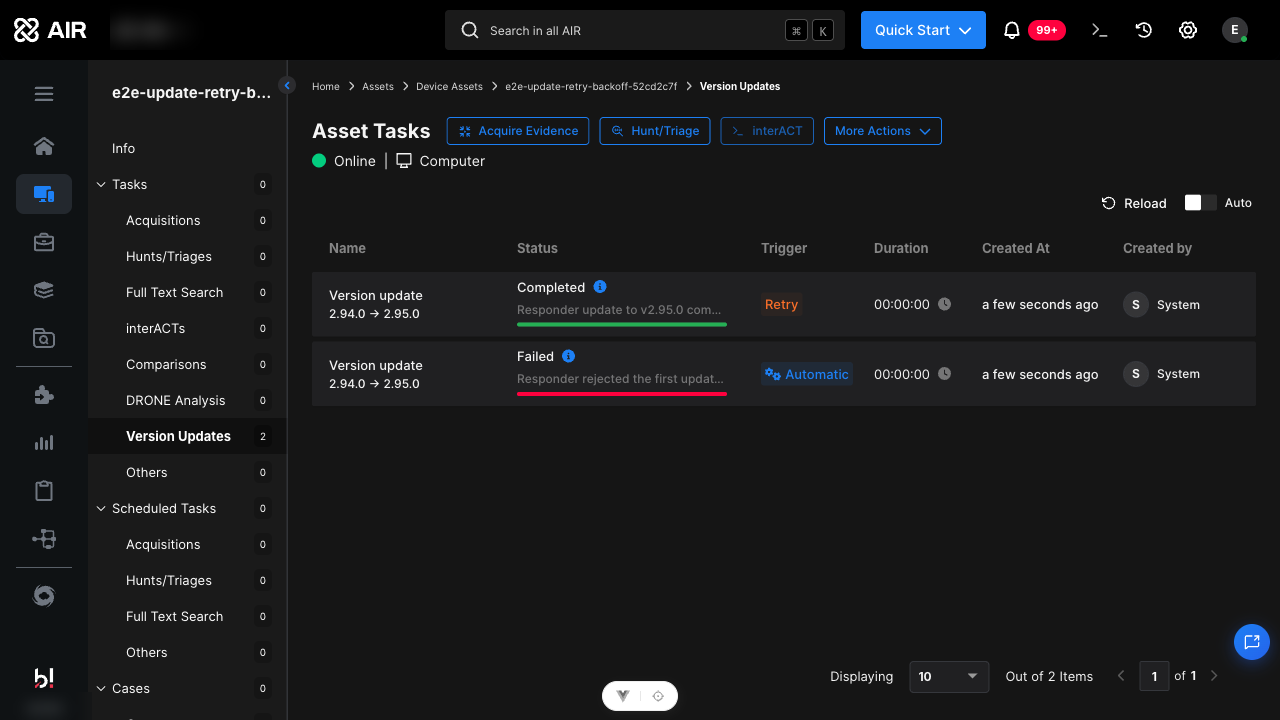
Responder Update History: A failed automatic attempt followed by a successful retry
Selecting the details icon next to a status opens a summary of the attempt: its status and description, the trigger, who initiated it, the previous and target versions, and where the update package was downloaded from.
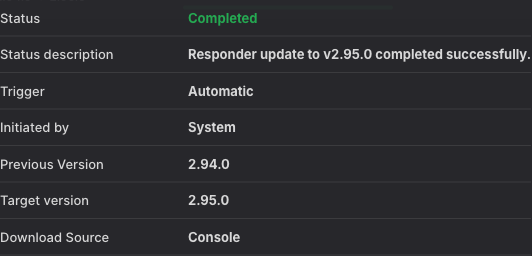
Responder Update History: Details of a completed update attempt
A stop icon on a row means the attempt cancelled running tasks in order to proceed. Hover it to see how many tasks were stopped; those tasks must be started again manually.
Attempt outcomes
Section titled “Attempt outcomes”| Status | Meaning |
|---|---|
| Assigned | The update task has been created and is waiting for the Responder to pick it up |
| Updating | The Responder is installing the update |
| Completed | The Responder reached the target version |
| Failed | The attempt did not succeed |
| Cancelled | The attempt was stopped before it could finish |
Failed and cancelled attempts always carry a reason:
| Description in the history | What happened |
|---|---|
| The Responder reported that the update failed | The update ran on the asset but did not complete. Any error the Responder returned is shown in place of this text. |
| The Responder did not acknowledge the update within the allowed time | The task was assigned but the Responder never started it within an hour. Usually a connectivity problem. |
| Replaced by an update to a newer Responder version | A newer target version was released, so this attempt was abandoned in favour of the newer one. |
| Replaced by a manually initiated update | An operator used Update now while this automatic attempt was in progress. See the example below. |
| The automatic update attempt limit was reached | Five automatic attempts failed for the same target version, so automatic retrying stopped. |
| Automatic updates were disabled before this attempt could continue | The Console was switched to manual updates while the attempt was active. |
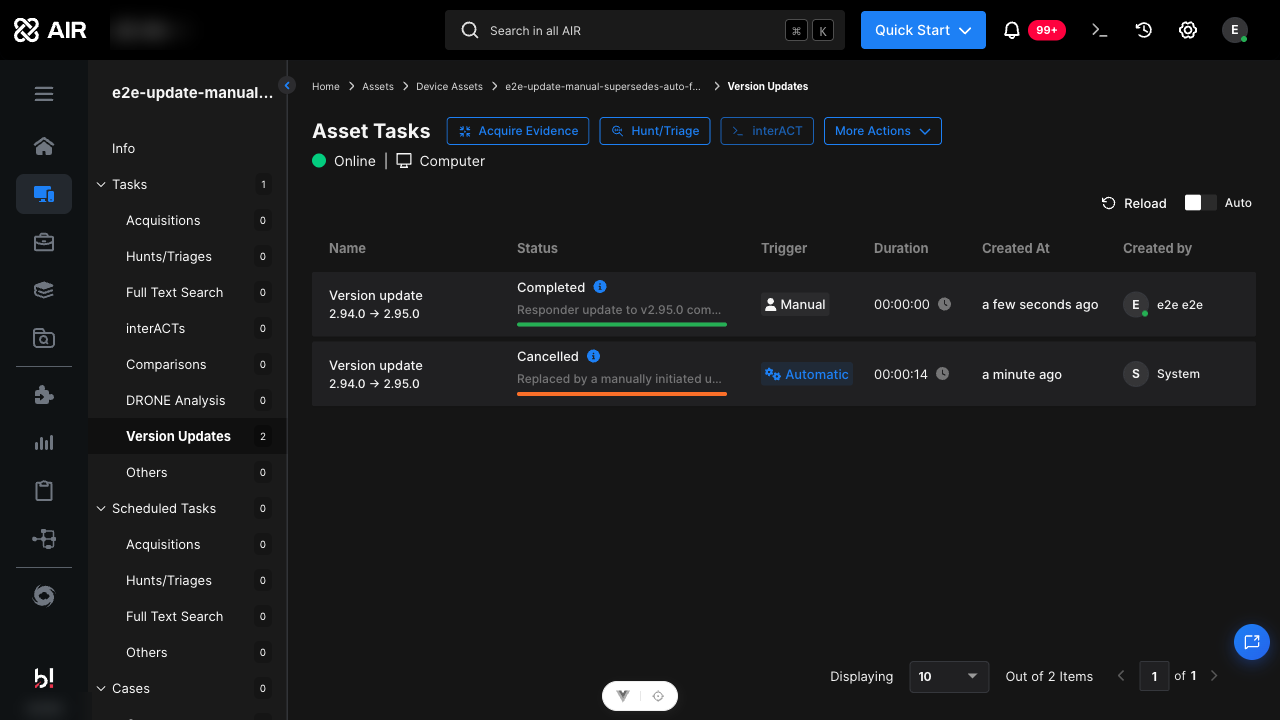
Responder Update History: A manual update cancelling the automatic attempt it replaced
Retry chains
Section titled “Retry chains”A failed automatic attempt is followed by a Retry attempt rather than a new independent one, so a chain of related attempts stays readable. Attempt numbering runs through the chain, and the Version update card shows the current position as Attempt n of 5.
Retry delays increase after each failure — 15 minutes, then 1 hour, 4 hours, and 12 hours — and each retry still has to fall inside an open update window. After the fifth failed attempt, AIR stops retrying for that target version. See Responder Update Status for the full set of timing rules.
Retention
Section titled “Retention”A weekly housekeeping job keeps the attempts for the five most recent successfully completed target versions per asset and prunes anything older. Attempts that are still assigned or in progress are never removed, so an active update always keeps its full trail.
Diagnosing a Responder that is not updating
Section titled “Diagnosing a Responder that is not updating”Work through these in order:
- Open the Version update card. The status badge and the explanation beneath it name the current blocker. Most cases end here — the asset is waiting for a window, for maintenance mode, or for a running task.
- Check the Update policy field. If the asset matches an exclusion policy, or is manually excluded, it will never update automatically. See Responder Updates.
- Check Automatic updates. If the Console is set to manual updates, nothing updates on its own regardless of policies.
- Open the update history. Repeated failures with the same description point to the asset or its environment. A dispatch timeout points to connectivity; a Responder-reported failure points to something on the asset such as disk space or an endpoint protection product blocking the installer.
- Try Update now. A manual update bypasses policies, windows, and the attempt limit. If the manual attempt succeeds, the automatic path was being blocked by configuration. If it fails the same way, the problem is on the asset.
If you need to raise the issue with Binalyze support, include:
- A screenshot of the Version update card showing the status and its explanation
- The relevant history row, including the trigger and the status description
- The name of the governing update policy or exclusion
- The attempt number, for example Attempt 3 of 5
For Responder problems that are not related to updating, see Responder troubleshooting.
Related articles
Section titled “Related articles”- Responder Updates — update modes, policies, exclusions, precedence
- Responder Update Status — status reference and the Version update card
- Responder troubleshooting — general Responder issues
- Collecting Responder log files