

Stale Asset Policies
Stale Asset Policies let you decide when a device has been silent long enough to be treated as stale, and what AIR should do next. You can use a policy only to identify stale devices, or you can automatically remove them from the Console — optionally uninstalling the Responder the next time it checks in.
This article is for AIR administrators and operators who manage device inventory, licenses, and Responder lifecycle.
Overview
Section titled “Overview”What a stale asset policy is
Section titled “What a stale asset policy is”A stale asset policy is a named rule that answers two questions:
- When is a device stale? After how many days without activity should AIR treat it as stale.
- What should happen next? Leave the device in the inventory, purge it from the Console, or purge it and uninstall the Responder.
AIR ships one Default policy. You can add custom policies that target a subset of devices with filters. When several enabled custom policies match the same device, the first matching policy in the list wins. Devices that no custom policy claims fall through to the Default policy.
What problem it solves
Section titled “What problem it solves”Over time, a Console accumulates devices that no longer check in: retired laptops, rebuilt lab machines, decommissioned servers, or Responders that were uninstalled outside AIR. Those records still appear in the inventory, can still consume a licensed seat, and can still be marked Unreachable.
Stale Asset Policies give you a controlled way to:
- Detect devices that have been silent longer than your chosen threshold.
- Keep production devices in the inventory for review.
- Automatically remove stale test or lab devices.
- Optionally uninstall the Responder when a purged device contacts AIR again.
Typical use cases
Section titled “Typical use cases”- Identify stale employee endpoints and leave them in the inventory for an administrator to review.
- Automatically purge and uninstall Responders on stale test or lab devices.
- Use a longer Default threshold for the rest of the fleet, and a shorter custom policy for a specific organization, tag, or group.
Unreachable versus stale
Section titled “Unreachable versus stale”These terms are related, but they are not the same thing.
| Term | What it means | How it is decided |
|---|---|---|
| Unreachable | A problem shown on a device when its Responder has not been seen recently enough. | Derived from Last Seen only. A device with no Last Seen value is not shown as Unreachable. |
| Stale | The result of evaluating a stale asset policy against a device. | Uses Last Seen when it exists. If Last Seen is empty, AIR uses Registered At, or creation time if registration time is also empty. |
Stale is not a persistent asset status. AIR does not store a “stale” value on the asset. A device is stale when its activity is older than the threshold of the policy that currently owns it. If the device checks in again, or if you change the policy, it can stop being stale.
Unreachable is also not a Managed Status value. A device with an installed Responder stays Managed even when it is Unreachable. See Asset and Asset Status.
When policies are evaluated and when actions run
Section titled “When policies are evaluated and when actions run”- Unreachable display uses each device’s effective threshold. After you save a policy, AIR refreshes those thresholds in the background (typically within a few minutes). They are also refreshed at the start of every cleanup run.
- Matching counts on the Policies page are calculated when you open or edit a policy. They show the current inventory, not a cached nightly snapshot.
- Cleanup (Purge, or Purge and uninstall Responder) runs once a day, during a night window in your fleet’s local timezone, or immediately if you click Run cleanup now.
- Reaching the threshold does not remove a device instantly. Removal waits for the next cleanup run.
Required privileges
Section titled “Required privileges”Stale Asset Policies reuse existing privileges. There is no separate “Stale Asset Policy” privilege.
These are the privilege names shown on Settings > User Management > User Roles:
| Privilege | What it allows |
|---|---|
| View Policy | Open Settings > Stale Assets > Policies and see the policy list. |
| Create Policy | Use Add policy. |
| Update Policy | Edit a policy, enable or disable a custom policy, and change custom policy order. |
| Delete Policy | Delete a custom policy. The Default policy cannot be deleted. |
| View Asset | See matching-asset counts and previews, open Removal History, and export the history. |
| Delete Asset | Save a policy with Purge from console or Purge and uninstall Responder, expand an existing cleanup policy, and use Run cleanup now. |
What happens with only some privileges
Section titled “What happens with only some privileges”- View Policy without Create Policy, Update Policy, or Delete Policy: you can open the page, but you cannot add, edit, reorder, enable, disable, or delete policies.
- View Policy without View Asset: you can open the Policies page, but matching-asset counts may fail to load. Removal History is disabled in the navigation.
- View Asset without View Policy: you can open Removal History, but Policies is disabled in the navigation.
- View Policy without Delete Asset: you can create or edit a policy only if the action is Do nothing. Saving a cleanup action, or expanding an existing cleanup policy, is rejected. Run cleanup now is hidden.
- A Global Admin can save cleanup actions without a separate Delete Asset check.
Policy location and navigation
Section titled “Policy location and navigation”- Open Settings from the gear icon in the Console header.
- In the Settings navigation, select Stale Assets.
- Select Policies to manage policies, or Removal History to review assets that automatic cleanup already removed.
The Policies page title is Stale Asset Policies. The Removal History page title is Removed Stale Assets.
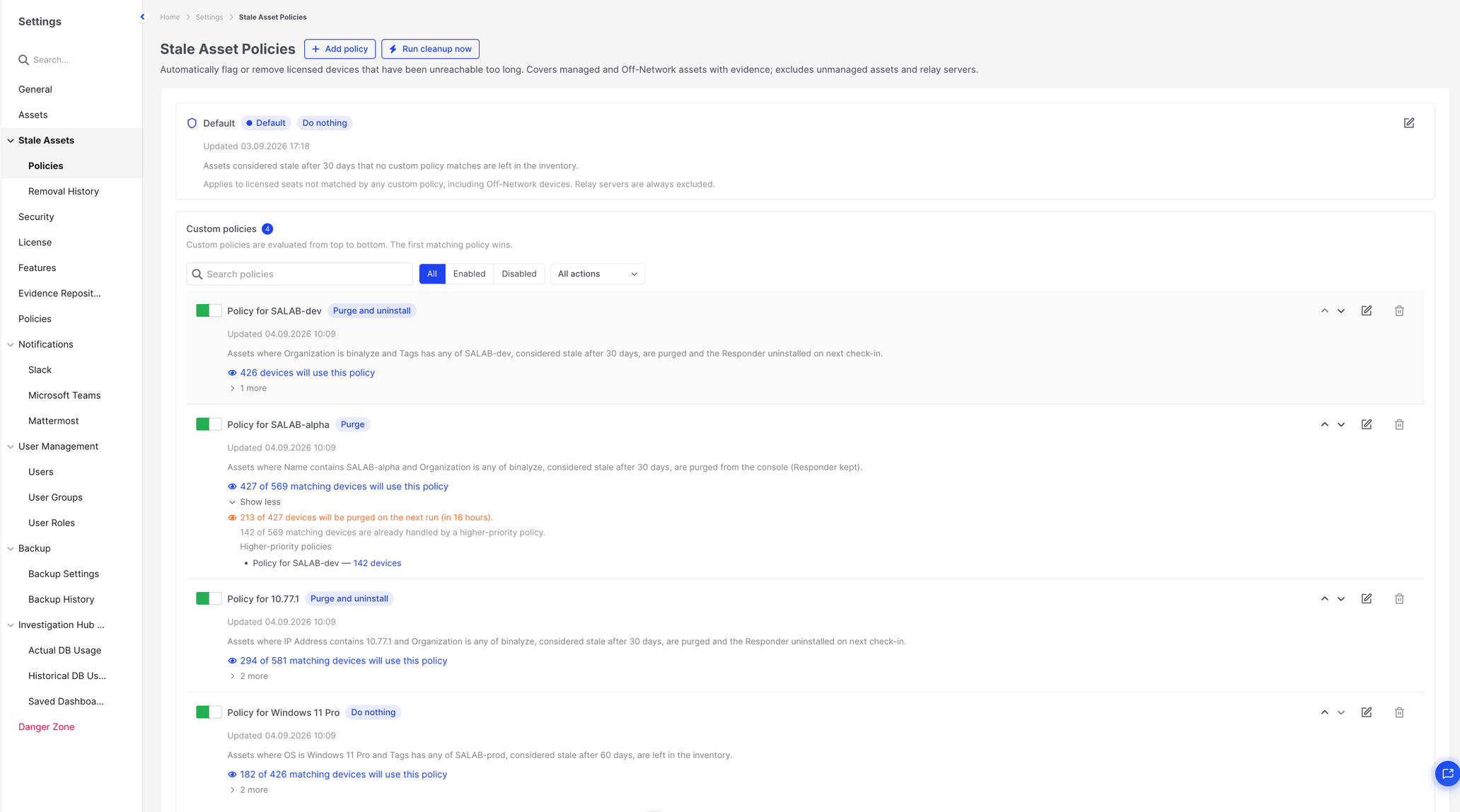
Stale Asset Policies: Policies page
Policy types and precedence
Section titled “Policy types and precedence”Default policy
Section titled “Default policy”AIR creates one Default policy for Devices. Its seeded name is Default.
The Default policy:
- Has no asset filter.
- Is always enabled.
- Cannot be renamed, disabled, given a filter, or deleted.
- Can be edited: you can change Consider stale after (days) and When an asset is stale.
- Applies to licensed seats that no enabled custom policy claims, including Off-Network devices.
AIR always creates this Default policy. Until you change it, it uses 30 days and Do nothing, so an untouched Console keeps devices in the inventory and only uses the threshold to mark them Unreachable.
Custom policies
Section titled “Custom policies”A custom policy targets devices with a filter. You can enable or disable it, rename it, change its threshold and action, reorder it, and delete it.
Custom policies are evaluated from top to bottom. The first matching enabled custom policy wins.
How assets are assigned
Section titled “How assets are assigned”- AIR looks at enabled custom policies in list order.
- For each device, the first enabled custom policy whose filter matches that device owns it.
- Devices that no enabled custom policy owns use the Default policy.
Disabled custom policies do not own devices. They can still show that a higher-priority enabled policy already claimed some of their filter matches.
Overlapping custom policies
Section titled “Overlapping custom policies”If two enabled custom policies would both match the same device, only the higher policy in the list (the one closer to the top) owns that device. The lower policy’s match count shows how many of its filter matches are already handled by a higher-priority policy.
There is no setting merge. Unlike acquisition policies, a later stale asset policy does not fill in missing values. The winning policy supplies both the threshold and the action.
After you edit or delete a policy
Section titled “After you edit or delete a policy”- Thresholds used for Unreachable display are refreshed in the background, typically within about five minutes, and again at the next cleanup run.
- Cleanup always reads the current policies. Changing an action to Do nothing, or disabling a custom policy, stops automatic removal at the next run.
- Assets already removed are not restored. Removal History keeps the policy name and action as they were at removal time.
Creating and editing a policy
Section titled “Creating and editing a policy”Create a custom policy
Section titled “Create a custom policy”- Go to Settings > Stale Assets > Policies.
- Click Add policy.
- Enter a Policy name.
- Set Consider stale after (days).
- Choose When an asset is stale.
- Under Target assets, add at least one complete filter condition.
- Review the matching-asset count.
- Click Add policy.
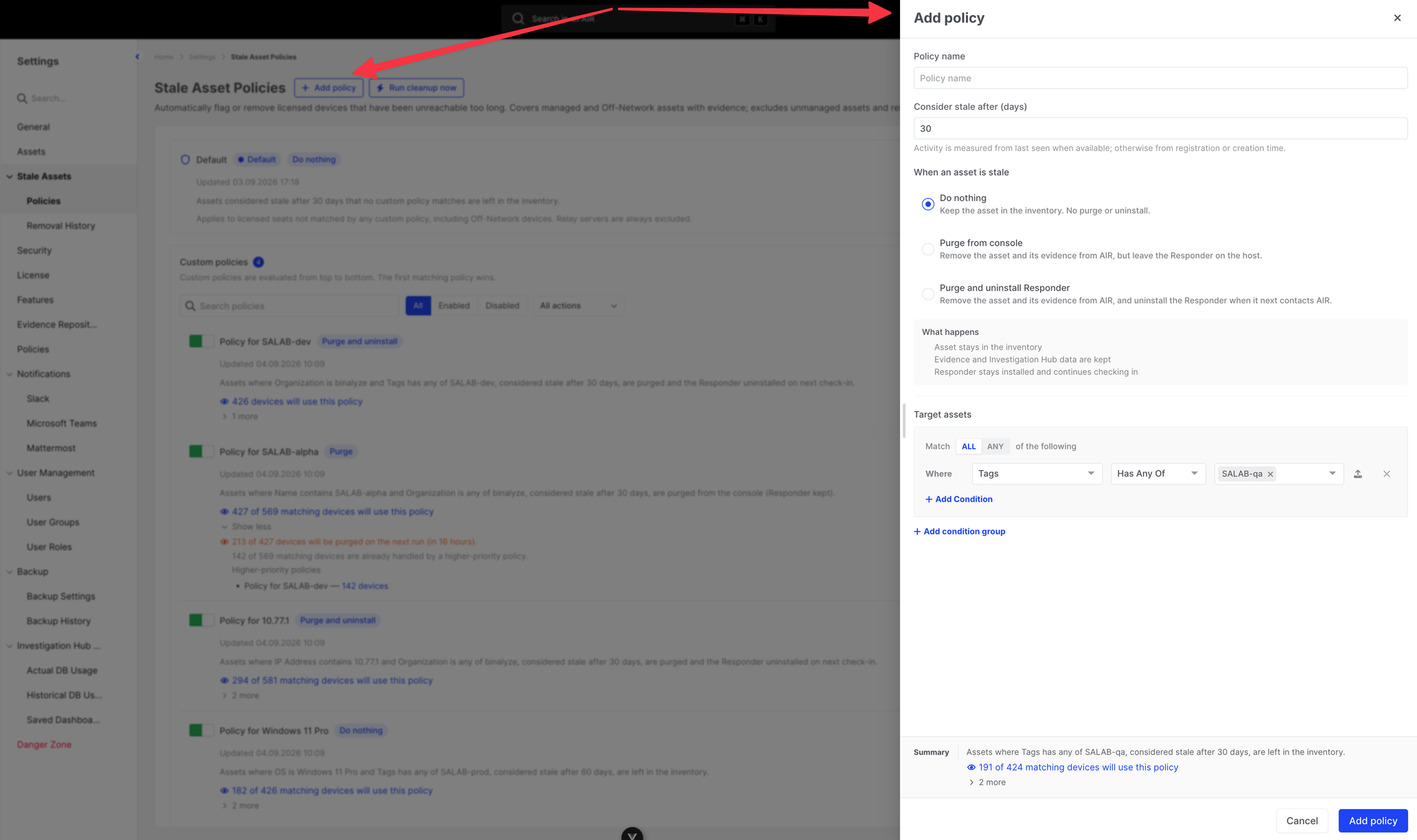
Stale Asset Policies: Creating a policy
Edit a policy
Section titled “Edit a policy”- Open the policy from the list.
- Change the allowed fields.
- Click Apply changes.
If you have unsaved changes and try to close the drawer, AIR asks: You have unsaved changes. Are you sure you want to leave?
Delete a custom policy
Section titled “Delete a custom policy”- Open the custom policy’s delete action.
- Confirm Delete the “{name}” stale asset policy?
- AIR warns: This stops the policy from acting on matching assets. Assets already removed are not restored.
You cannot delete the Default policy.
Reorder custom policies
Section titled “Reorder custom policies”Use Move up and Move down on a custom policy card. Order is saved immediately. Moving a policy up can increase the number of devices it owns.
Policy name
Section titled “Policy name”- Purpose: Identifies the policy in the list, match counts, Removal History, and audit logs.
- Accepted values: 1–255 characters after trimming.
- Default: Empty for a new custom policy. The Default policy is named Default.
- Required: Yes, for custom policies.
- Validation: Required; must be unique (case-insensitive). Duplicate names show A policy with this name already exists.
- Consequences: The Default policy name cannot be changed.
Consider stale after (days)
Section titled “Consider stale after (days)”- Purpose: How many days of inactivity make a device stale under this policy.
- Accepted values: Whole numbers from 1 to 365.
- Default: 30 for a new custom policy.
- Required: Yes.
- Validation: Enter a whole number of days between 1 and 365.
- Help text: Activity is measured from last seen when available; otherwise from registration or creation time.
- Consequences: This value is also the Unreachable threshold for devices this policy owns. Lowering it on an enabled cleanup policy requires Delete Asset.
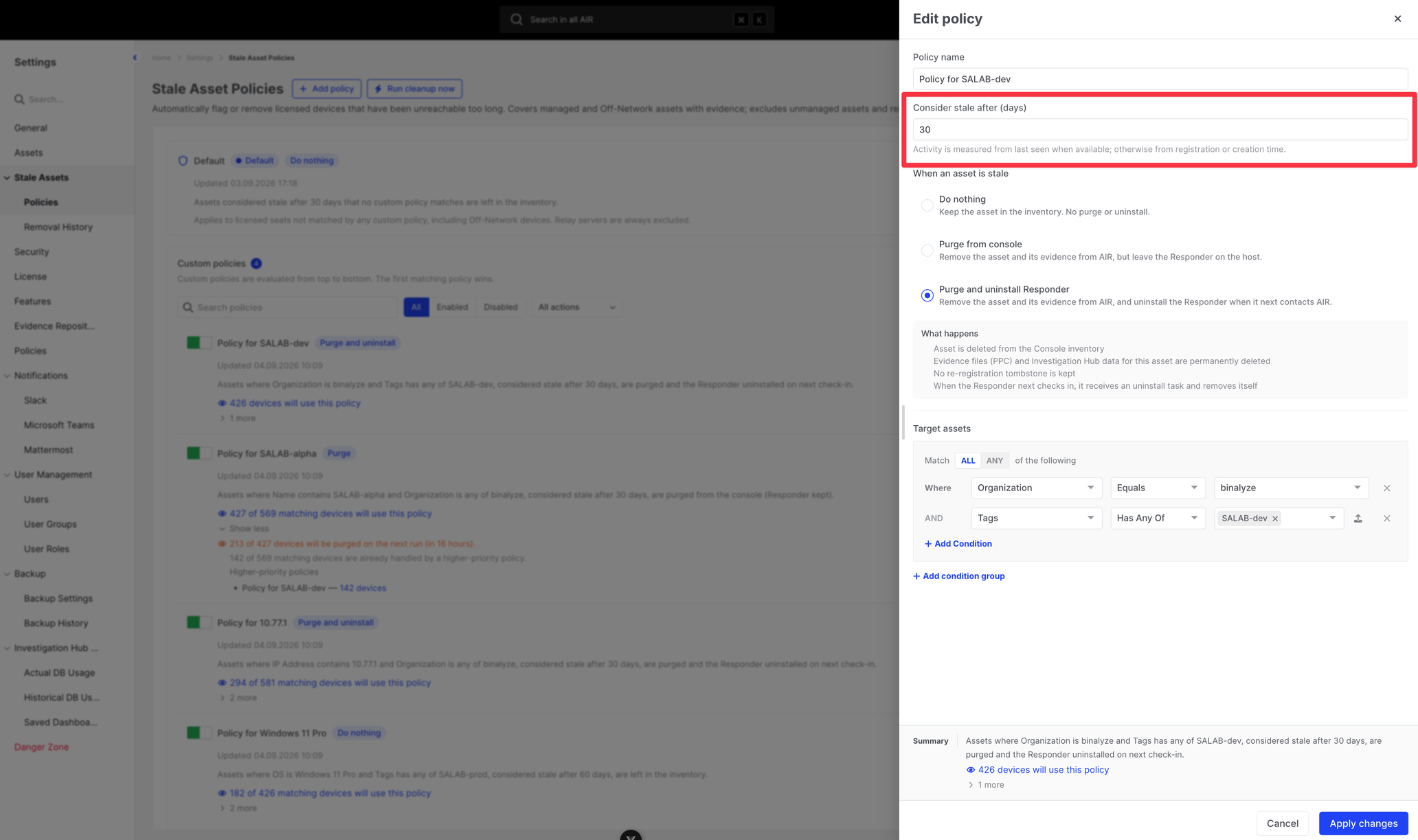
Stale Asset Policies: Setting the unreachable threshold
When an asset is stale
Section titled “When an asset is stale”- Purpose: What AIR does when a device this policy owns is stale.
- Accepted values:
- Do nothing — keep the asset in the inventory. No purge or uninstall.
- Purge from console — remove the asset and its Console evidence, but leave the Responder on the host.
- Purge and uninstall Responder — remove the asset and its Console evidence, and uninstall the Responder when it next contacts AIR.
- Default: Do nothing.
- Required: Yes.
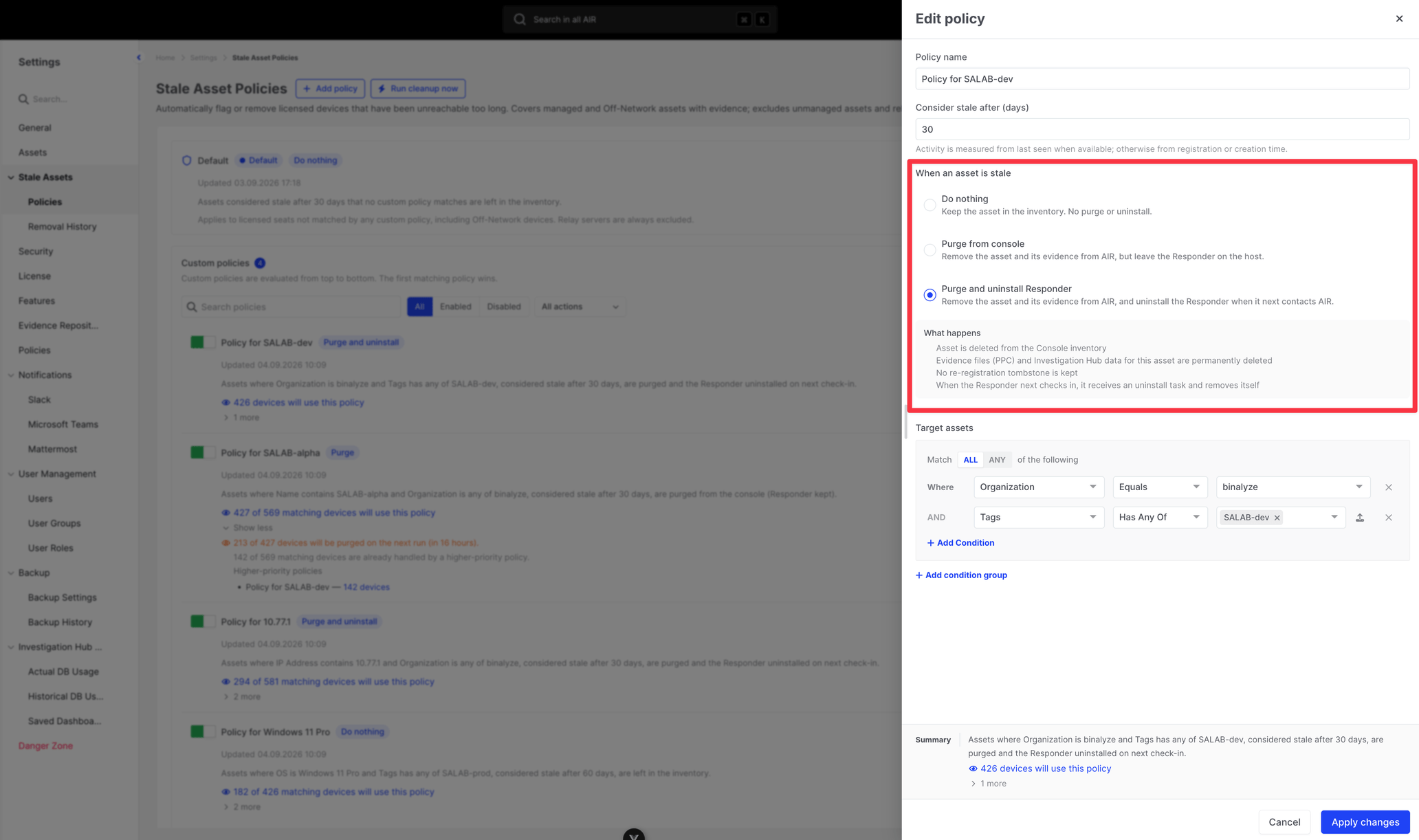
Stale Asset Policies: Selecting cleanup actions
See Cleanup actions and consequences before choosing a destructive action.
Target assets
Section titled “Target assets”- Purpose: Which devices a custom policy can own.
- Default policy: No filter. The scope text is: Applies to licensed seats not matched by any custom policy, including Off-Network devices. Relay servers are always excluded.
- Custom policy: At least one complete filter condition is required.
- Validation: Add at least one complete condition to target assets. Incomplete rows block save and keep the live count blank.
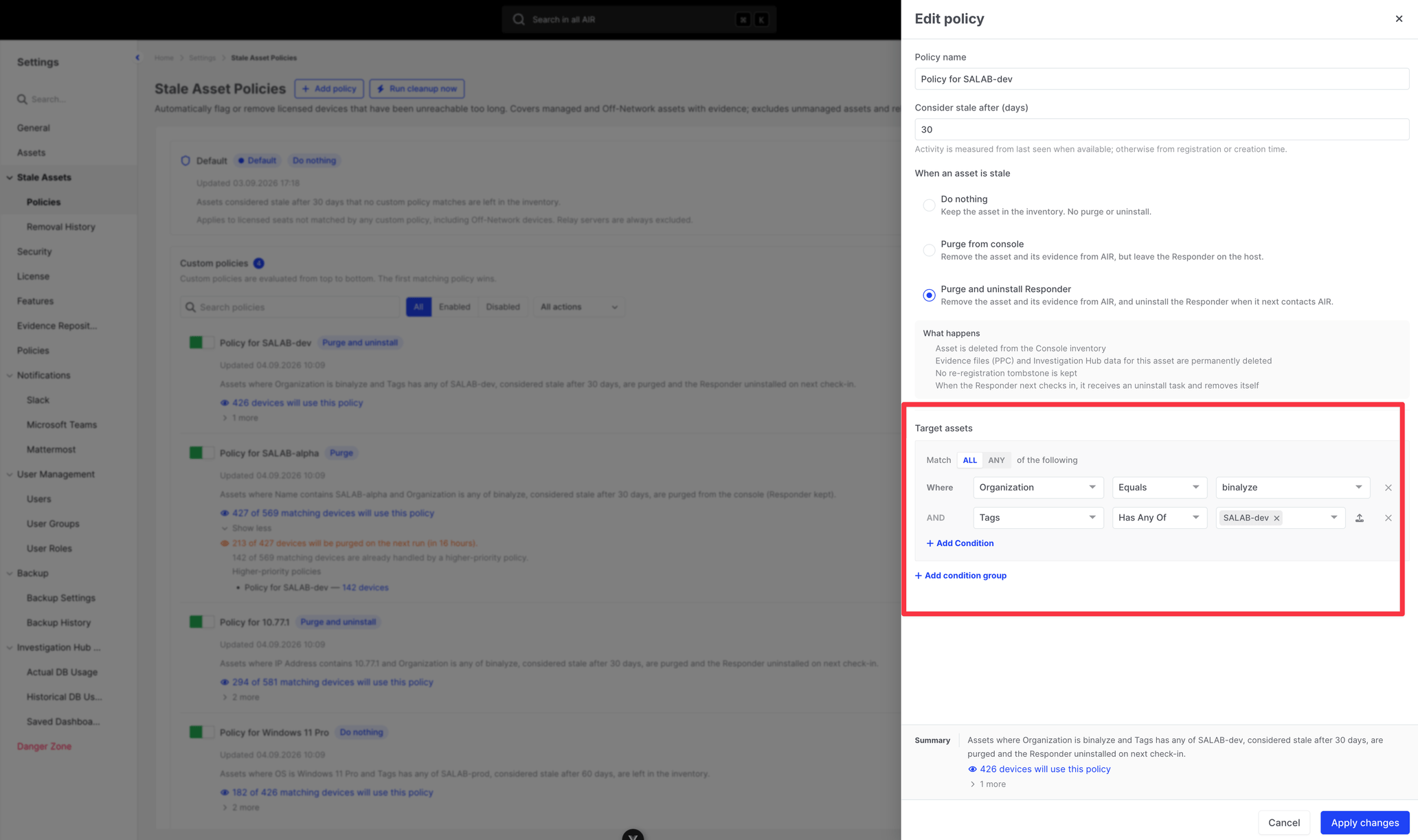
Stale Asset Policies: Configuring asset filters
Matching-asset count
Section titled “Matching-asset count”On a custom policy, AIR shows how many licensed devices will use the policy, how many of those currently exceed the threshold, and how many filter matches a higher-priority policy already claimed.
The Default policy card does not show this live count. The Run cleanup now confirmation still includes Default-policy devices that would be purged or uninstalled.
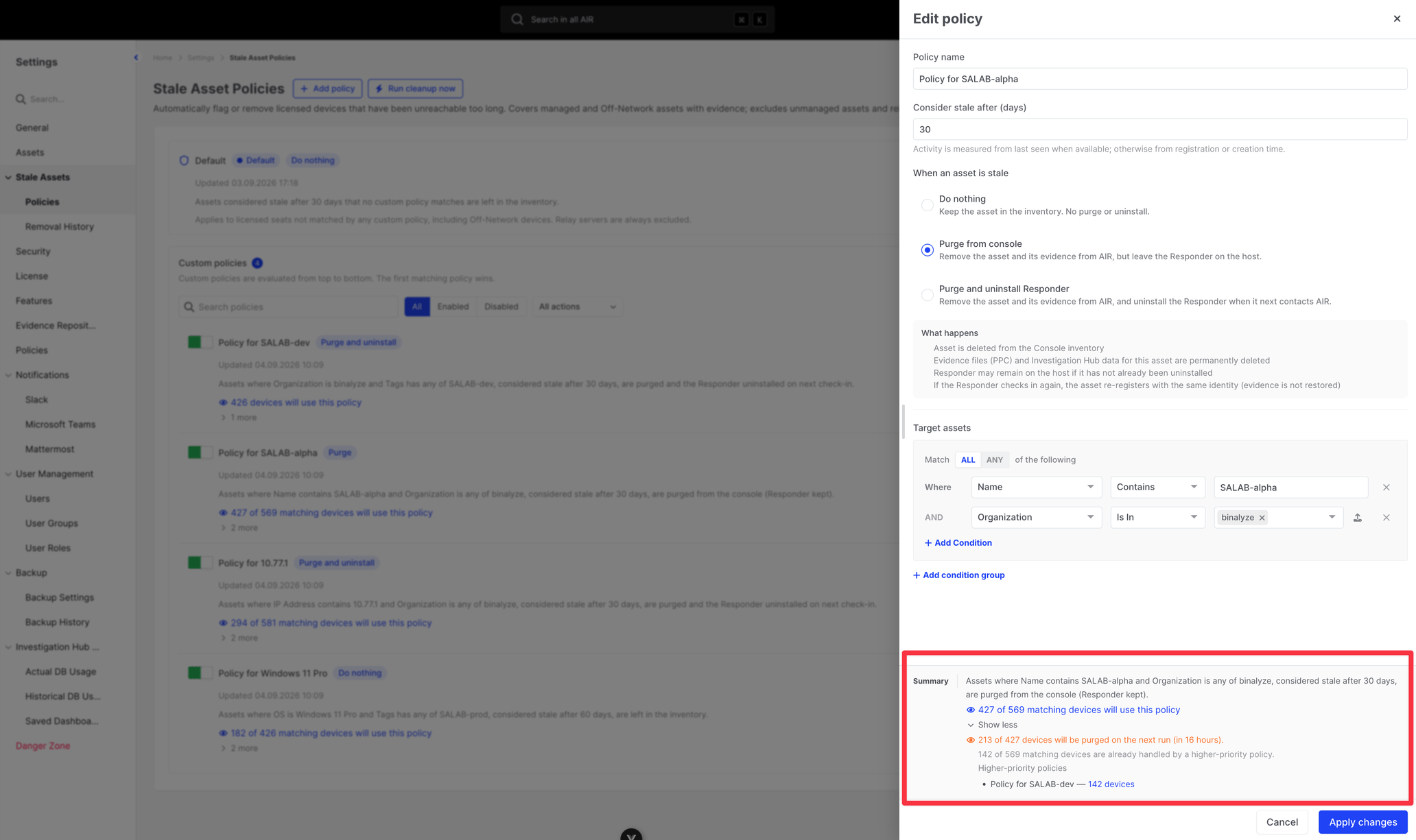
Stale Asset Policies: Matching-asset count
Save, cancel, and validation
Section titled “Save, cancel, and validation”- Add policy / Apply changes saves the drawer.
- Cancel closes it. Unsaved changes prompt for confirmation.
- Success toasts: Stale asset policy created or Stale asset policy updated.
- Missing Delete Asset when saving a cleanup action: You don’t have permission to purge assets. Ask an administrator for the delete-endpoint privilege, or change this policy’s action to “Do nothing”.
- Other permission failures: You don’t have permission to save this policy.
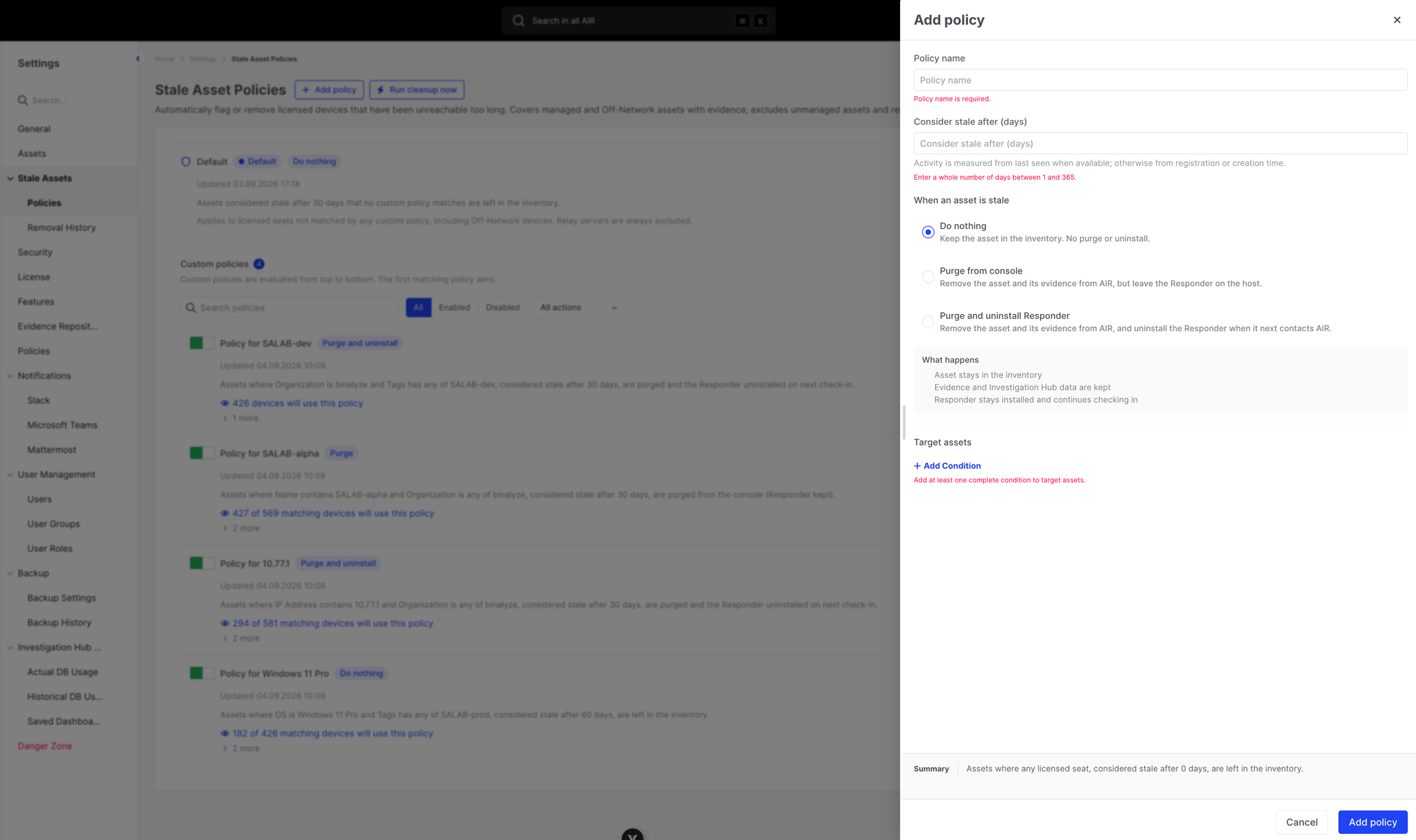
Stale Asset Policies: Validation errors
How assets become unreachable or stale
Section titled “How assets become unreachable or stale”Which activity AIR uses
Section titled “Which activity AIR uses”Responder activity that updates Last Seen includes visit, heartbeat, metrics, state, and registration. Cleanup does not read a separate visit or heartbeat table. It uses the device’s Last Seen timestamp.
If Last Seen is empty, cleanup uses Registered At, or the device creation time if registration time is also empty.
Unreachable display uses Last Seen only. A newly created record with no Last Seen is not shown as Unreachable, but it can still be stale for cleanup.
How the number of days is calculated
Section titled “How the number of days is calculated”AIR subtracts the configured number of calendar days from the current time and compares activity with a strict earlier-than check.
A device becomes eligible only after the full number of days has passed. If the threshold is 30 days and Last Seen is exactly 30 days ago at this moment, the device is not yet stale. It becomes stale as soon as Last Seen is older than that cutoff.
Example timeline
Section titled “Example timeline”Assume a policy of 30 days and Purge from console.
- 1 September, 10:00 — the device last checks in. Last Seen is set to this time.
- Until 1 October, 10:00 — the device is not stale. It may show as offline, but it is not Unreachable yet if 30 days have not passed.
- Just after 1 October, 10:00 — Last Seen is now older than 30 days. The device is Unreachable and stale under this policy.
- Next nightly cleanup after that moment — if the policy action is Purge or Purge and uninstall, AIR attempts removal. If the action is Do nothing, the device stays in the inventory.
- If the device checks in on 2 October — Last Seen moves forward. Unreachable clears immediately. The device is no longer stale and will not be removed.
Newly added devices
Section titled “Newly added devices”Registration sets Last Seen to the registration time. A new device is not stale until it stays silent for the owning policy’s threshold.
Devices that reconnect
Section titled “Devices that reconnect”A returning Responder updates Last Seen. It leaves Unreachable immediately and leaves the stale set for the next evaluation. If it was already purged, what happens next depends on the action that removed it. See Cleanup actions and consequences.
How devices move in or out of policy scope
Section titled “How devices move in or out of policy scope”A device uses a different policy when:
- You reorder, enable, disable, edit, or delete custom policies.
- The device’s attributes change so it no longer matches a filter (for example, tags or organization).
- The device checks in, which updates Last Seen and can take it below the threshold.
Threshold assignment is refreshed shortly after a policy change and at the start of cleanup. Match counts refresh when you load or edit the Policies page.
Delay between reaching the threshold and cleanup
Section titled “Delay between reaching the threshold and cleanup”There is no extra hidden grace period. The only delay is waiting for the next scheduled cleanup, or for an administrator to click Run cleanup now.
Filters and matching
Section titled “Filters and matching”Custom policies use a filter builder to choose which Devices the policy can own. Add at least one complete condition. Multiple conditions can be grouped and combined with and or or.
Managed Status in a stale-policy filter offers Managed and Off-Network only. Unmanaged is not a selectable value. To target unmanaged devices you must negate Managed and Off-Network (for example, Managed Status is none of Managed and Off-Network). Naming Managed Status in the filter also turns off the default licensed-seat restriction so those unmanaged devices can match.
Licensed seats versus unmanaged devices
Section titled “Licensed seats versus unmanaged devices”Unless the filter names Managed Status, AIR only matches licensed seats:
- Managed — a Responder is installed.
- Off-Network — no Responder is installed, but the device has evidence.
Unmanaged devices (no Responder and no evidence) are excluded from that default match.
Relay Servers are excluded from match counts and cleanup even if a filter would otherwise match them.
What the counts mean
Section titled “What the counts mean”On a custom policy:
- The primary count is devices this enabled policy will use (first-match / exclusive count). It is not “every device that matches the filter.”
- If a higher-priority policy already owns some filter matches, AIR shows {exclusive} of {filterMatch} matching devices will use this policy.
- The expandable line is the exclusive subset whose activity is older than this policy’s threshold — the devices the next cleanup will leave, purge, or purge and uninstall.
- Counts are exact queries against the current inventory, not estimates.
- Disabled custom policies show matching assets but report no devices currently exceeding the threshold for cleanup.
Example
Section titled “Example”You create Lab endpoints with:
- Tags has any of
lab - Consider stale after 14 days
- Purge and uninstall Responder
A second enabled policy above it already matches some lab devices in Organization A.
The card might show that 40 devices match the filter, 25 will use this policy, and 8 of those 25 currently exceed 14 days. The next cleanup removes those 8. The other 15 filter matches stay with the higher-priority policy.
Cleanup actions and consequences
Section titled “Cleanup actions and consequences”Do nothing
Section titled “Do nothing”- The device stays in the inventory.
- Evidence and Investigation Hub data are kept.
- The Responder stays installed and continues checking in if it is still installed.
- The device can still become Unreachable when Last Seen is older than the threshold.
- No Removal History row is written.
Use this when you want visibility without automatic removal.
Purge from console
Section titled “Purge from console”On the next cleanup run, AIR:
- Deletes the device from the Console inventory.
- Permanently deletes Console-held evidence files (PPC) and Investigation Hub data for that asset.
- Leaves the Responder on the host if it is still installed.
- Keeps a re-registration record (tombstone). If the Responder checks in again, the device re-registers with the same identity. Evidence is not restored.
Purge and uninstall Responder
Section titled “Purge and uninstall Responder”On the next cleanup run, AIR:
- Deletes the device from the Console inventory.
- Permanently deletes Console-held evidence files (PPC) and Investigation Hub data for that asset.
- Does not keep a re-registration tombstone.
- When the Responder next checks in, it receives an uninstall task and removes itself.
Combined behavior and order
Section titled “Combined behavior and order”There is no separate “uninstall only” action. Purge and uninstall Responder always deletes the Console record first. Uninstall happens later, when and if the Responder next contacts AIR.
Success, failure, and retry
Section titled “Success, failure, and retry”- Successful removals appear in Removal History with status Removed.
- If a purge fails, AIR records Failed with Removal failed. The device remains in the inventory.
- The next cleanup run retries devices that are still present and still stale.
- Failed removals are not automatically reversed; they are retried while the device still matches.
Evidence and customer repositories
Section titled “Evidence and customer repositories”The product removes:
- The device record in the Console.
- Console-held PPC evidence files and Investigation Hub data for that asset.
- Related Console task assignment data for that asset.
Data already stored in a customer-created Evidence Repository (for example SMB, S3, or SFTP) is not deleted by the repository configuration itself. Treat remote repository contents as remaining unless your own repository process removes them.
Local data on the host is not deleted by Purge from console. Purge and uninstall Responder uninstalls the Responder on next check-in; it does not provide a Console control for deleting files that were saved on the host or in a remote repository.
Can actions be undone?
Section titled “Can actions be undone?”No. Deleting a policy does not restore removed assets. Removal History is a 30-day review record, not a recycle bin.
Included and excluded assets
Section titled “Included and excluded assets”Stale Asset Policies evaluate Devices only. In AIR, Devices are the assets under Assets → Devices: workstations, servers, and virtual machines that can run a AIR Responder.
That includes cloud virtual machines where you deployed a Responder — for example an Amazon EC2 instance, a Microsoft Azure VM, or a Google Cloud VM. Those hosts appear as Devices, not as Cloud assets, and they are in scope.
Cloud in the Assets menu is a different category. It is for cloud accounts used to collect cloud-native evidence, such as Microsoft 365 or Google Workspace. Those Cloud assets do not run a Responder and are not evaluated by stale asset policies.
| Asset category | Included? | What you will see |
|---|---|---|
| Managed devices | Yes | Counted as licensed seats. Can become Unreachable and can be cleaned up. |
| Cloud virtual machines with a Responder (AWS, Azure, or GCP) | Yes | Treated as Devices. Included like any other managed device. |
| Off-Network devices | Yes | Counted as licensed seats, including devices that only have imported or off-network evidence. |
| Unmanaged devices | No, by default | Excluded unless a custom filter names Managed Status and targets them by negation. |
| Relay Servers | No | Never counted as matching assets and never purged, even if a filter would match. |
| Cloud accounts (Microsoft 365, Google Workspace, and similar) | No | These are Cloud assets, not Devices. They never appear in policy match counts and are never cleaned up. |
| Disk Images | No | Never cleanup candidates. |
| Imported evidence on a Device | Yes, as Off-Network | A device with evidence and no Responder is Off-Network and is in the default licensed-seat set. |
| Containers | Not a stale-policy asset type | AIR does not expose a container asset type on this page. Docker evidence collected from a Device is still Device data. |
Devices that are out of scope simply never appear in policy match counts and are never removed by stale-asset cleanup.
Background processing
Section titled “Background processing”Scheduled cleanup
Section titled “Scheduled cleanup”Cleanup runs once per day. AIR places the run in a night window between 01:00 and 04:59 in the fleet’s local timezone. The timezone is taken from the most common device timezone offset. If the fleet has no timezone data, AIR uses UTC.
The Policies page can show the next run time on the purge/uninstall match-count line.
Manual cleanup
Section titled “Manual cleanup”Operators with Delete Asset can click Run cleanup now. This runs the same job as the nightly pass.
- If no enabled Purge or Purge and uninstall policy currently has stale devices, AIR shows No stale assets and does not start the job.
- Otherwise you must type RUN CLEANUP to confirm.
- AIR queues one manual run. A run that is already queued or running is reused instead of stacking another job.
- Progress banners: queued, running, completed, or failed. Completed banners can link to Removal History for that job.
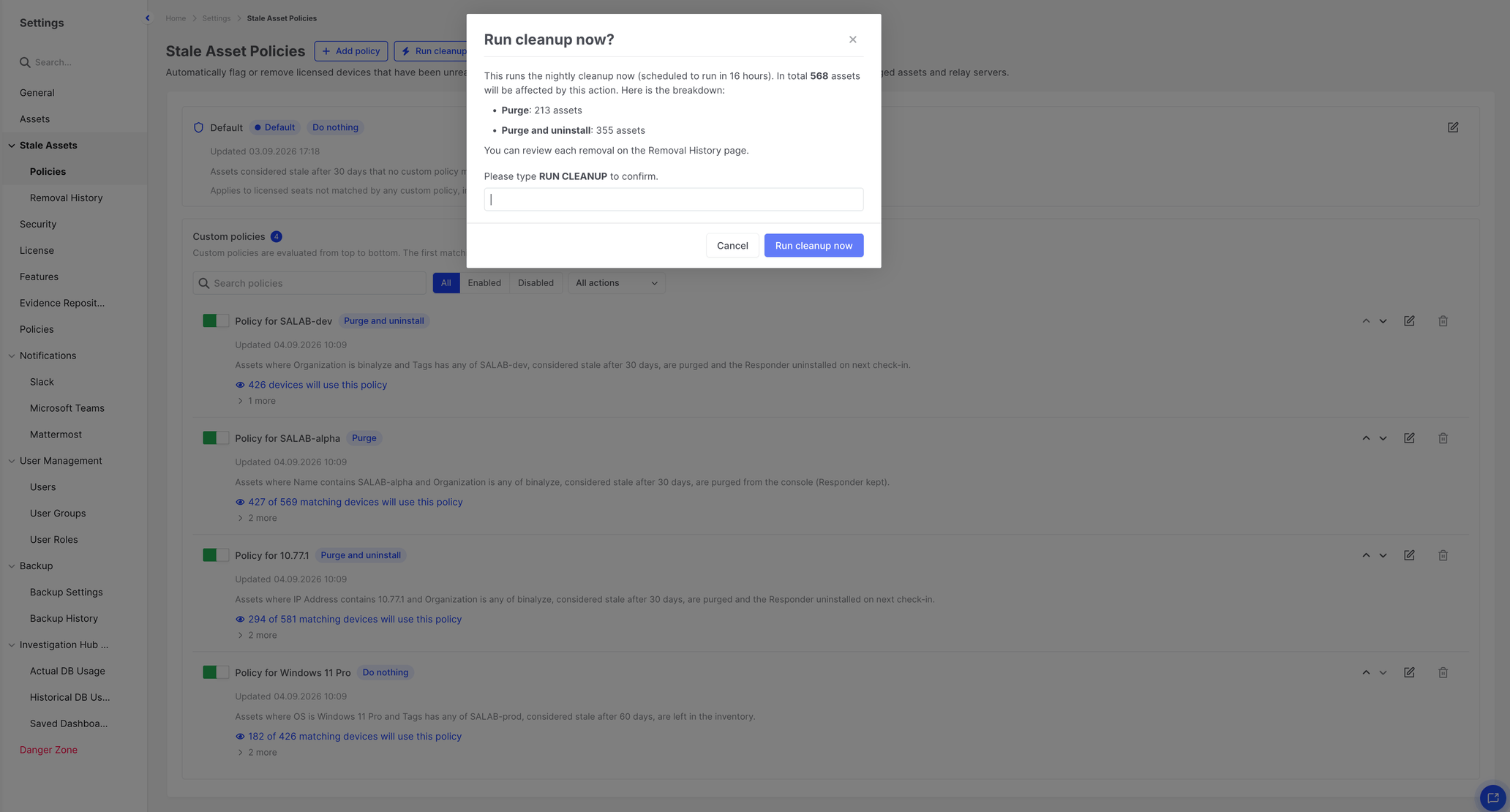
Stale Asset Policies: Run cleanup now confirmation
Expected delays
Section titled “Expected delays”- Policy save → Unreachable threshold refresh: about five minutes.
- Threshold crossed → removal: next daily run, unless you run cleanup now.
- Large inventories are processed in batches. Operators do not configure batch size. A large purge can take longer than a small one, but it is still one scheduled run.
If AIR is offline during the scheduled run
Section titled “If AIR is offline during the scheduled run”The scheduled job runs only while the Console can execute background work. If the Console is down at the scheduled time, cleanup runs when the scheduler is healthy again. AIR does not perform cleanup while the Console is offline.
Notifications and audit history
Section titled “Notifications and audit history”Notifications
Section titled “Notifications”Stale Asset Policies do not send a dedicated “cleanup is about to run” notification, and they do not have per-policy recipients.
Related existing notifications still apply:
| Notification | When it is sent | Who receives it |
|---|---|---|
| Asset became unreachable | After a device’s Last Seen crosses that device’s effective threshold. The scanner runs twice a day. Recovery is silent. | Organization users, plus users with access to all organizations, through the existing notification channels (in-app, email, Slack, Teams, Mattermost, depending on configuration). |
| Asset became unmanaged | When Managed Status becomes unmanaged — for example after uninstall, or after the last evidence is gone. Aging past the threshold does not create this notification. | Same recipient rules. |
These notifications are sent when the state change is detected, not as a pre-cleanup warning. Cleanup itself does not send a user notification.
Audit history
Section titled “Audit history”Review audit events under Activity > Audit Logs.
Policy changes are recorded as:
- Stale asset policy “{name}” created
- Stale asset policy “{name}” updated
- Stale asset policy “{name}” deleted
- Stale asset policy priorities updated
Cleanup is recorded as:
- Stale asset cleanup triggered manually
- Stale asset job started (trigger: scheduled-daily or manual, run: {job ID})
- Stale asset job completed (…): {n} threshold(s) changed, {n} endpoint(s) removed
- Stale asset cleanup removed {n} endpoint(s) ({n} failed) in organization {id}
A successful purge also records the existing Asset “{name}” deleted event.
A scheduled run that has nothing to remove does not write the job-started / job-completed pair. The threshold refresh after a policy save is silent in audit logs.
Removal History
Section titled “Removal History”Go to Settings > Stale Assets > Removal History.
The page lists assets automatically removed by stale asset policies. Records are kept for 30 days. Each row snapshots the policy name and action at removal time, so a later policy edit does not rewrite history.
You can search, filter, export CSV, and open Removed Asset Details.
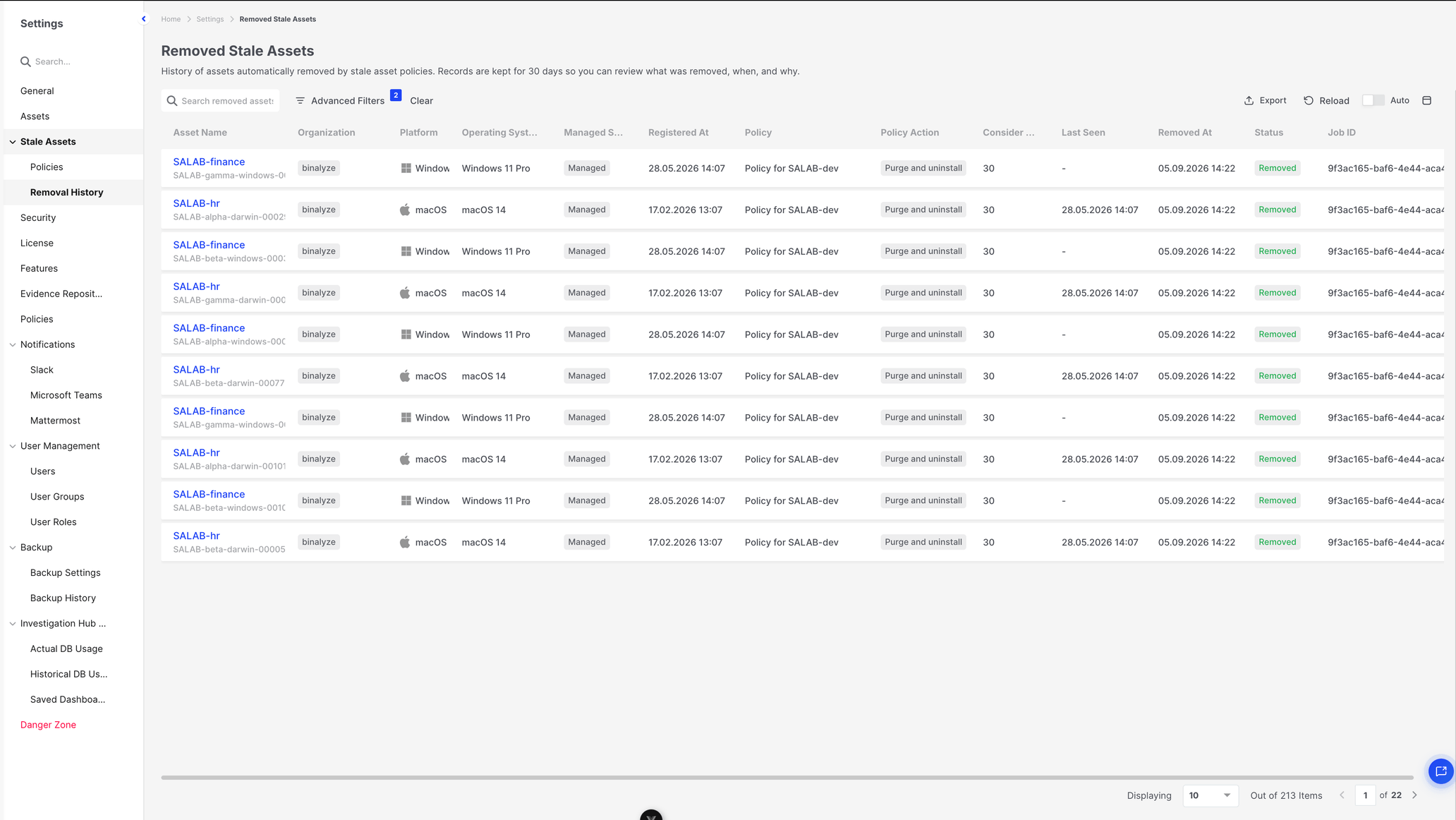
Stale Asset Policies: Removal History page
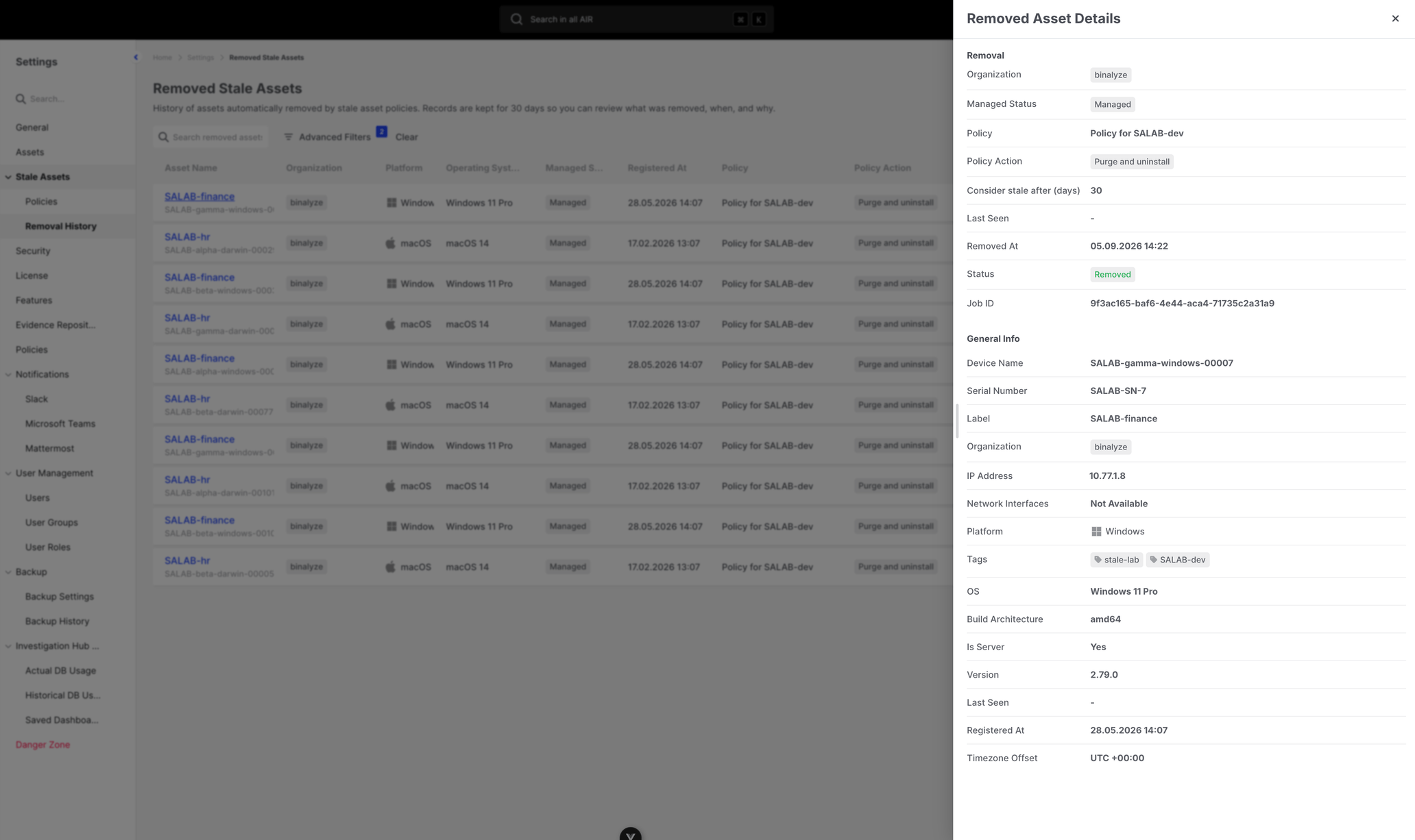
Stale Asset Policies: Removed Asset Details
Examples
Section titled “Examples”Example 1 — Identify stale employee endpoints, no automatic cleanup
Section titled “Example 1 — Identify stale employee endpoints, no automatic cleanup”Goal: See which employee devices have been silent for 45 days, without deleting anything.
- Edit the Default policy, or add a custom policy whose filter matches employee devices (for example Organization is Corporate and Tags has none of
lab). - Set Consider stale after (days) to 45.
- Set When an asset is stale to Do nothing.
- Save.
Those devices become Unreachable after 45 days without Last Seen activity. They stay in the inventory. Match counts show how many currently exceed the threshold. Nothing is written to Removal History.
Example 2 — Uninstall and remove stale lab endpoints
Section titled “Example 2 — Uninstall and remove stale lab endpoints”Goal: Remove stale test devices and uninstall leftover Responders.
- Click Add policy.
- Name it Lab cleanup.
- Set Consider stale after (days) to 14.
- Set When an asset is stale to Purge and uninstall Responder.
- Filter: Tags has any of
lab. - Confirm you have Delete Asset.
- Save, then use Move up if another custom policy would otherwise claim those devices.
After 14 days of silence, the next cleanup deletes the Console record and Investigation Hub / PPC data. When a leftover Responder next checks in, it receives an uninstall task. Review the result on Removal History.
Example 3 — Custom policies and the Default policy
Section titled “Example 3 — Custom policies and the Default policy”Goal: Clean lab devices quickly, and only flag the rest of the fleet.
- Keep Default at 30 days and Do nothing.
- Add Lab cleanup (14 days, Purge and uninstall, Tags has any of
lab) and place it above any broader custom policy. - Optionally add Contractor laptops (60 days, Do nothing, Organization is Contractors).
A lab device is owned by Lab cleanup, even if it would also match a later policy. A contractor laptop that is not tagged lab is owned by Contractor laptops. Every other licensed Device uses Default.
If you disable Lab cleanup, those lab devices fall to the next matching enabled custom policy, or to Default.
Troubleshooting and limitations
Section titled “Troubleshooting and limitations”Why does the matching count differ from the number of cleaned assets?
The primary count is devices the policy owns. The cleanup count is the owned subset that currently exceeds the threshold. Devices can match the filter but still be online, owned by a higher-priority policy, or excluded as Relay Servers.
Why has an asset not been cleaned immediately after reaching its threshold?
Cleanup is daily, unless you run it now. The device must still be owned by an enabled Purge or Purge and uninstall policy at run time. A check-in before the run takes it out of the stale set.
Why is an asset handled by the Default policy?
No enabled custom policy matched it first. Check filter conditions, policy order, and whether the custom policy is disabled.
Why can’t I create, edit, delete, or configure a cleanup action?
Check View Policy, Create Policy, Update Policy, Delete Policy, and Delete Asset. The Default policy cannot be renamed, filtered, disabled, or deleted. Cleanup actions require Delete Asset.
Why is a Relay Server, cloud asset, or disk image not included?
Policies apply to Devices only. Relay Servers are always excluded from matching and cleanup. Disk Images are not Devices. Cloud accounts such as Microsoft 365 or Google Workspace are Cloud assets, not Devices. Virtual machines in AWS, Azure, or GCP that have a AIR Responder installed are Devices and can be included.
What happens if an endpoint reconnects?
Last Seen updates. Unreachable clears. The device is no longer stale. If it was already purged, Purge from console allows it to re-register without restoring evidence. Purge and uninstall Responder sends an uninstall task on next check-in.
What happens if the agent cannot be uninstalled?
For Purge and uninstall Responder, the Console record is already gone. Uninstall is attempted when the Responder next contacts AIR. If that later uninstall fails, the host may still have a Responder, but it will not re-register as the same inventory row because no tombstone was kept. Removal History records Console purge success or failure, not a later uninstall-task failure.
Does deleting an asset delete collected evidence?
Console-held PPC files and Investigation Hub data for that asset are permanently deleted. Remote Evidence Repository contents are not removed by the repository configuration. Host-local files are not deleted by purge alone.
Can cleanup actions be reversed?
No. Removal History is review-only and is deleted after 30 days.