

Scheduler
Overview
Section titled “Overview”The Scheduler trigger starts an automation on a recurring schedule. Each time the schedule becomes due, AIR finds every asset that matches the target scope and runs the automation once for each of them.
Use it for routine work, for example a nightly Hunt/Triage task on all servers, a weekly baseline acquisition, or regular Auto Asset Tagging.
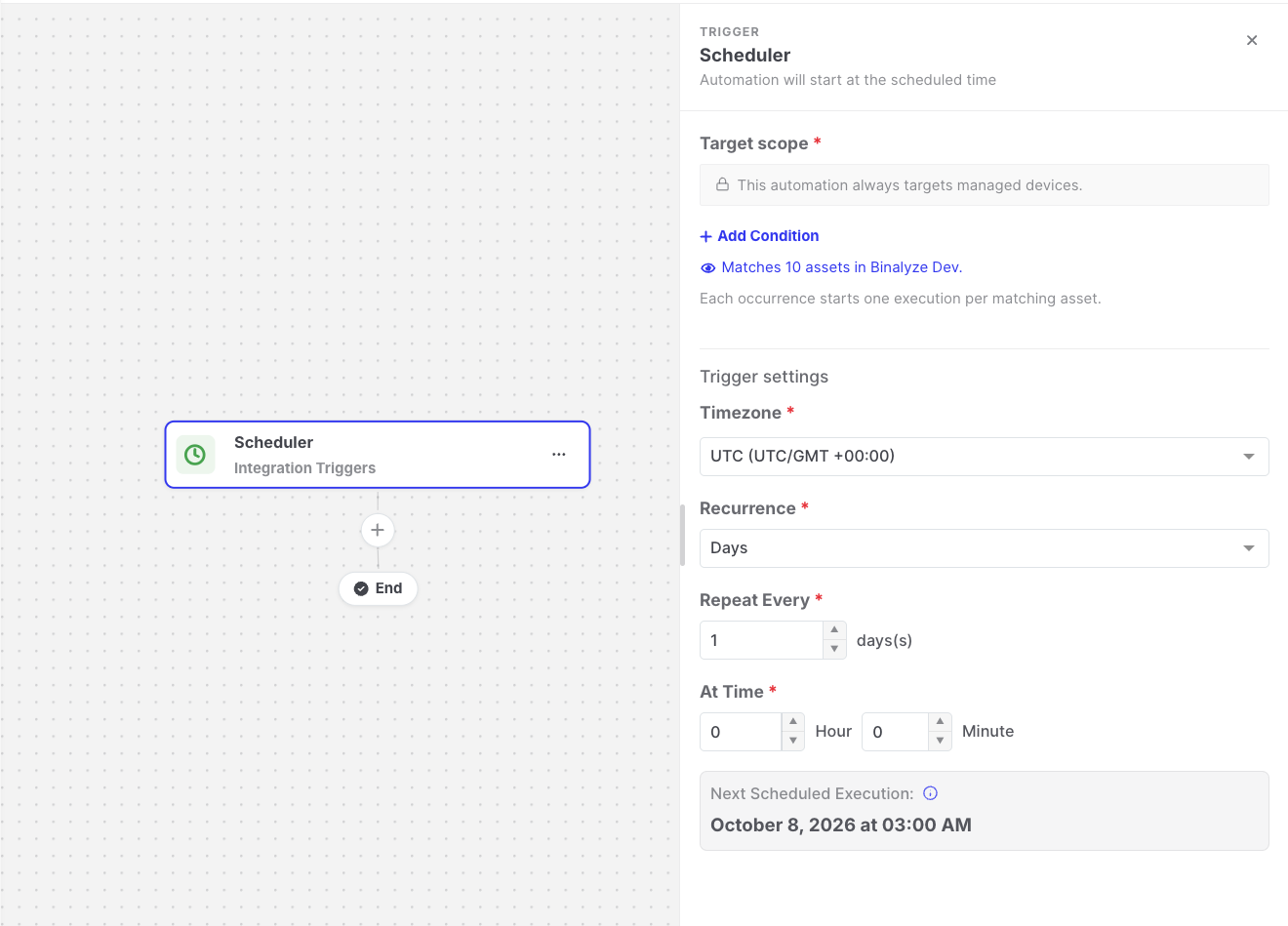
Scheduler: Trigger settings
Settings
Section titled “Settings”| Setting | Description |
|---|---|
| Recurrence | How often the automation runs: Hours, Days, Weeks, Months, or Custom (Cron). |
| Repeat every | The interval, for example every 6 hours, every 2 days, or every month. |
| Repeat on | For weekly schedules, the days of the week. |
| At time / At minute / Day of the month | When the automation runs within the interval. |
| Cron Expression | For custom schedules, a standard five-field cron expression, for example 0 2 * * * (every day at 02:00). |
| Timezone | The timezone used to calculate the schedule. The default is UTC. |
| Target scope | The assets the automation runs for on every occurrence. See Asset targeting. |
The trigger settings also show the Next Scheduled Execution time, displayed in your browser’s local timezone.
How it works
Section titled “How it works”- On every occurrence, AIR evaluates the target scope again against the assets that match at that moment, and creates one execution per matching asset.
- If no asset matches, nothing is recorded for that occurrence.
- The schedule only runs while the automation is published.
Data available to later steps
Section titled “Data available to later steps”| Field | Example expression |
|---|---|
| Time of this occurrence | {{scheduler.executionTime}} |
| Next scheduled time | {{scheduler.nextScheduledTime}} |
| Recurrence type and timezone | {{scheduler.timezone}} |
- The shortest allowed interval is once per hour. Custom cron expressions that run more frequently are rejected, and the minute field must be a specific minute (0–59).
- The Scheduled Tag Assignment template provides a ready-made example. See Templates.