

Triggers
Overview
Section titled “Overview”A trigger is the first step of every automation. It listens for an event in AIR, a schedule, or an incoming HTTP call, and starts the automation when that event occurs.
Every automation has exactly one trigger. You select it when you create the automation, and you can change it later with Replace Trigger.
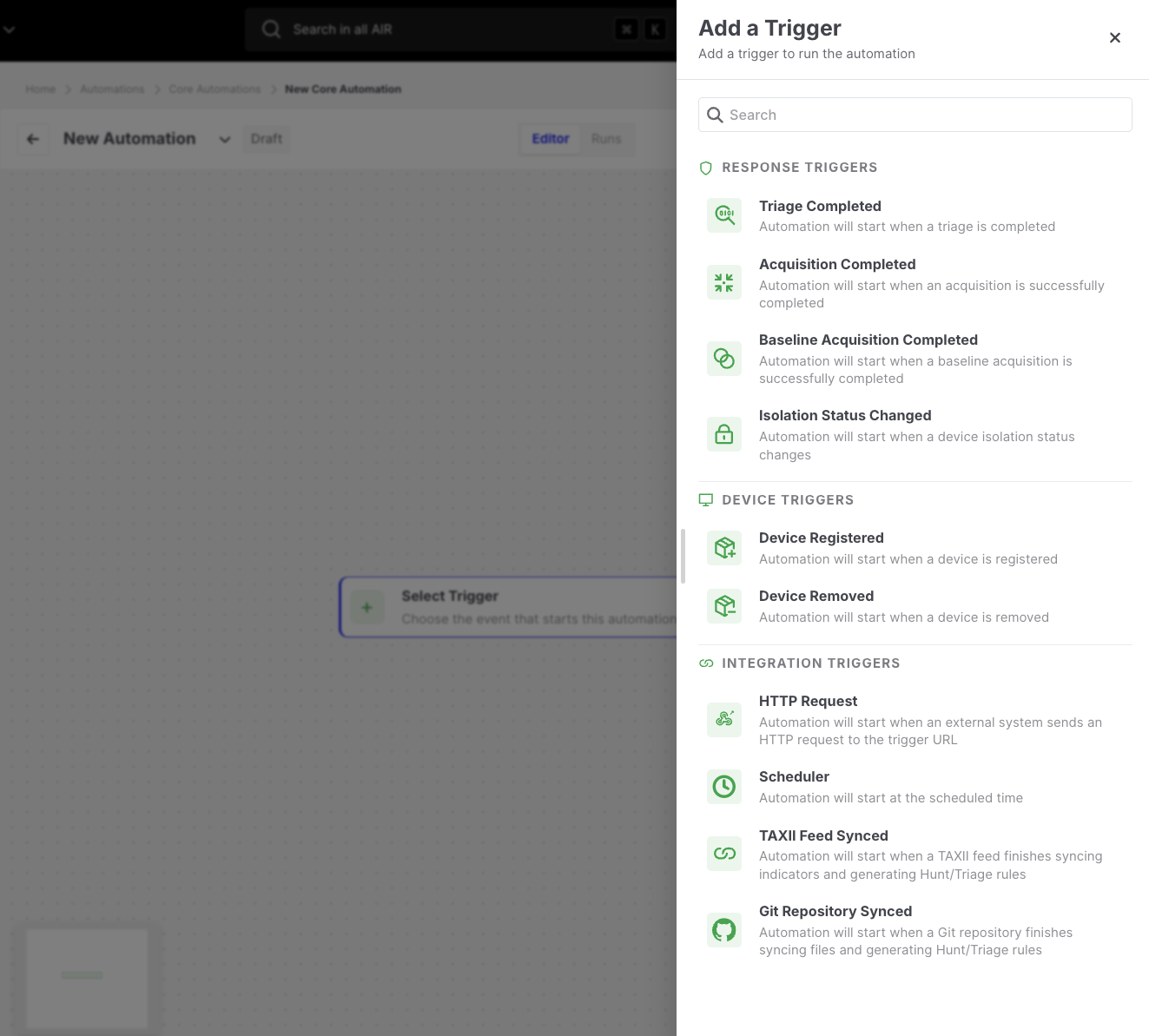
Triggers: Select Trigger menu
Trigger categories
Section titled “Trigger categories”| Category | Triggers | Starts the automation when… |
|---|---|---|
| Response Triggers | Hunt/Triage Completed, Evidence Acquisition Completed, Baseline Acquisition Completed, Isolation Status Changed | An incident response activity finishes on an asset. |
| Device Triggers | Device Registered, Device Removed | An asset joins or leaves the fleet. |
| Integration Triggers | HTTP Request, Scheduler, TAXII Feed Synced, Git Repository Synced | An external system calls AIR, a schedule becomes due, or an integration finishes syncing. |
How a trigger decides to run
Section titled “How a trigger decides to run”When an event occurs, AIR evaluates every published automation that uses the corresponding trigger type:
- Event filters: optional, trigger-specific conditions such as triage rules, cases, acquisition profiles, TAXII feeds, or Git repositories. If the event does not match these filters, nothing happens.
- Target scope: the assets the automation is allowed to work on. See Asset targeting below.
- If at least one asset qualifies, AIR creates a run with one execution per asset.
If the event does not pass these checks, no run is recorded. This is expected behavior, not an error.
Asset targeting (Target Scope)
Section titled “Asset targeting (Target Scope)”Every trigger except HTTP Request has a Target scope section. For HTTP Request, the calling system sends the target scope in the body of each request instead. See Target scope in HTTP Request.
The Target scope section uses the same filter builder as the Assets page, so you can target assets by name, platform, OS, tags, label, group, IP address, isolation status, and other asset fields, combined with AND/OR groups.
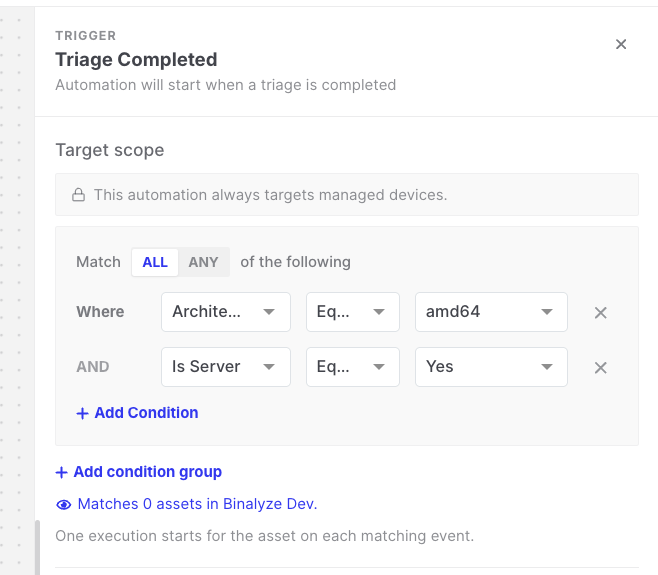
Triggers: Target scope filter builder
Always-applied conditions
Section titled “Always-applied conditions”Below the filter, AIR displays the following conditions, which are always applied and cannot be removed:
- Asset type is Endpoint
- Managed status is Managed
As a result, automations only run for managed endpoints. Off-network, unmanaged, and disk image assets never start an automation.
Match count and preview
Section titled “Match count and preview”Below the filter, AIR shows how many assets currently match, for example Matches 42 assets in Production.
Click the count to open a modal that lists the matching assets. Use it to check that the filter targets the assets you expect before you save or publish the automation. The list reflects the current state of the assets; the filter is evaluated again each time the trigger fires.
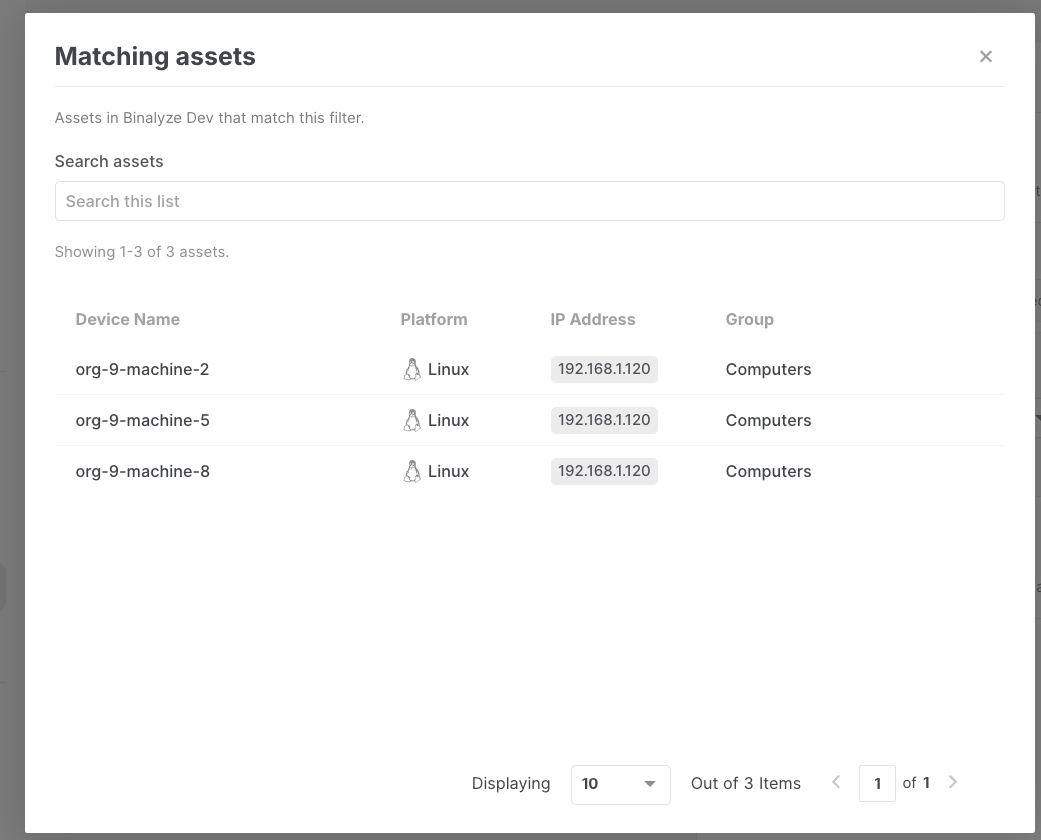
Triggers: Matching assets modal
The count and the preview cover the automation’s organization only.
An empty filter is allowed and targets every managed endpoint in the automation’s organization.
How each trigger type uses the target scope
Section titled “How each trigger type uses the target scope”The filter is the same for all triggers, but each trigger type uses it differently:
| Trigger type | How the target scope is used | Executions per run |
|---|---|---|
| Event triggers: Hunt/Triage Completed, Evidence Acquisition Completed, Baseline Acquisition Completed, Isolation Status Changed, Device Registered, Device Removed | AIR checks the asset in the event against the filter. If it matches, the automation runs for that asset. Otherwise, nothing happens. | 0 or 1 |
| Fan-out triggers: Scheduler, TAXII Feed Synced, Git Repository Synced | Each time the trigger fires, AIR evaluates the filter, and every matching asset gets its own execution. | 0 to N |
| HTTP Request | The caller sends the filter in the request body (targetScopeFilter). Every matching asset gets its own execution. See Target scope in HTTP Request. | 0 to N |
For example, a Scheduler trigger runs daily with the target scope Platform is Linux AND Tag contains “web”. If 120 assets match today, the run contains 120 executions, each running the action chain on one asset. The next day, AIR evaluates the filter again against the assets that match at that time.
Scheduler fires at 02:00 └── Target scope matches 120 assets └── 1 Run ├── Execution — web-01 ├── Execution — web-02 └── ... (120 executions)The filter is always evaluated against the current state of the assets, and is always limited to the automation’s organization. An event on an asset in another organization never starts the automation.
Trigger data in later steps
Section titled “Trigger data in later steps”Each trigger provides information about the event that later actions can use in template expressions, for example {{triage-completed.taskName}} or {{acquisition-completed.findingCounts.allFindings}}.
Type {{ in any template field to browse the data the trigger provides. Each trigger page also lists its most useful fields.